EasyManua.ls Logo

Bose PM4500 - User Manual

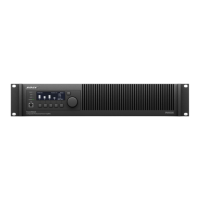
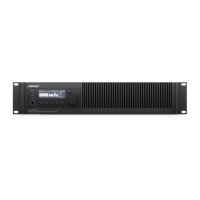
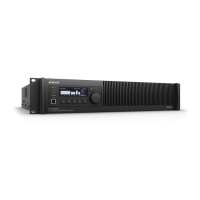
Bose PM4500
52 pages
Print Icon
To Next Page IconTo Next Page
Loading...
PowerMatch
®
Configurable Professional Power Amplifiers
Installation and Operating Guide
PM8500 / PM8500N
PM8250 / PM8250N
PM4500 / PM4500N
PM4250 / PM4250N

Table of Contents

Questions and Answers

  • M
    Michael OrtegaAug 3, 2025
    How to troubleshoot a Bose PM4500 with no power?
    • G
      Gabrielle MillerAug 3, 2025
      To resolve a no power issue with your Bose Amplifier, first, turn on the power switch. The Clip, Limit, and Signal LEDs should light up for about 15 seconds, after which the amplifier should be ready. The LCD screen will display the firmware version for approximately 10 seconds, then switch to the operating screen. Also, check the power cable and ensure the retaining clip is secure, and verify the mains circuit.
  • S
    Sarah LivingstonAug 8, 2025
    What to do if my Bose Amplifier has power but no sound?
    • P
      phillip53Aug 8, 2025
      If your Bose Amplifier has power but no sound, start by checking the LCD screen for output meter activity. If there's no signal, check the Input Meter screen for a signal. If there's still no signal, troubleshoot the source or cabling. Also, ensure that input and output signals are not muted, the Input Routing is configured properly, the Input Source is set to the correct signal type (analog or digital), the Output Attenuate is not set too low, the loudspeakers are correctly wired, the Output Configuration is correctly set, and Standby Mode is not active.
  • D
    David MorganAug 12, 2025
    Why is the sound so low on my Bose PM4500?
    • C
      cherylkingAug 12, 2025
      If your Bose Amplifier has power, but the sound is low, verify the source level by monitoring the Input Meter. Also, ensure that Input Routing and Input Sensitivity are set for optimal gain. Then, check that Output Attenuate is not set too low, the loudspeakers are wired correctly, the Output Configuration is correct, and Limiting parameters are set properly.
  • T
    Tony AndersonAug 16, 2025
    What to do if USB is connected to PC but Bose ControlSpace Designer software doesn't find the Amplifier?
    • L
      Leslie HollandAug 16, 2025
      If the ControlSpace Designer software isn't detecting your Bose Amplifier when connected via USB, try these steps: 1. Unplug and replug the USB connector. 2. Uninstall the ControlSpace Designer software, download the latest version, and reinstall it. 3. Restart your PC and try again. 4. Try a different USB port on your computer. 5. Try a different USB cable.
  • J
    jason06Aug 20, 2025
    Why isn't my Bose Amplifier found by ControlSpace Designer software over Ethernet?
    • Z
      Zachary HoweAug 20, 2025
      If your PowerMatch Bose Amplifier isn't being found by the ControlSpace Designer software over the network, check the amplifier's IP address. Ensure no other device on the network has the same address and that ControlSpace Designer is connected to the same subnet as the amplifier. Try a different CAT5/6 cable. You can also launch a Windows Command prompt and "ping" the amplifier's IP address to check for successful replies.
  • M
    Matthew ThompsonAug 25, 2025
    Why does my Bose Amplifier sound unnatural?
    • F
      fjonesAug 25, 2025
      If the sound from your Bose Amplifier is unnatural, check that all DSP functions (EQs, Limiter, Band Pass, Delay) are set appropriately.
  • R
    Roy SchroederAug 29, 2025
    How to unlock the front panel of a Bose PM4500 Amplifier if the combination is lost?
    • D
      Diane KelleyAug 30, 2025
      To unlock the front panel of your Bose Amplifier when the combination is lost, use ControlSpace® Designer™ software to connect to the amplifier.

Summary

Important Safety Information

Introduction

Product Features

PowerMatch Amplifier Line Overview

Controls, Display, and Connectors

Hardware Installation

Making Connections

Power (Mains) Connection

Details how to connect the amplifier's power cable using the provided IEC cord and retaining clip.

Standby Mode

Explains how to enter and exit Standby Mode, and its purpose for saving power and allowing changes.

Setup and Configuration

Control Panel Description

Details the front panel controls, indicators, and screen elements of the amplifier.

Front Panel Control Menu Structure

Illustrates the menu hierarchy and navigation flow for front panel operations.

Control Menu Descriptions

Explains each menu item and its available options accessible from the front panel.

Setting the Limiting Function for use with 3 rd Party Loudspeakers

Provides steps and guidelines for configuring the amplifier's limiter for non-Bose loudspeakers.

Sample Output Configurations for Different Loudspeaker Loads

Maintenance Operations

Updating Firmware and Speaker EQ Presets

Describes how to update amplifier firmware and loudspeaker EQ files using ControlSpace Designer software.

Saving and Recalling Amplifier Settings (USB-only version amplifiers)

Explains how to save and load amplifier settings via a PC connection using USB.

About the Alarm Log and Fault Indicator

Details how the amplifier monitors conditions and how to view/interpret alarm logs and fault indicators.

Troubleshooting

Appendix

Interface Comparison Table

Compares functions available on the front panel versus ControlSpace Designer software.

Technical Specifications - Common to all PowerMatch models

Technical Specifications - PM8500; PM8500 N

Technical Specifications - PM8250; PM8250 N

Technical Specifications - PM4500; PM4500 N

Technical Specifications - PM4250; PM4250 N

AC Current Draw and Thermal Dissipation Information

Bose PM4500 Specifications

General IconGeneral
BrandBose
ModelPM4500
CategoryAmplifier
LanguageEnglish

Related product manuals