EasyManua.ls Logo

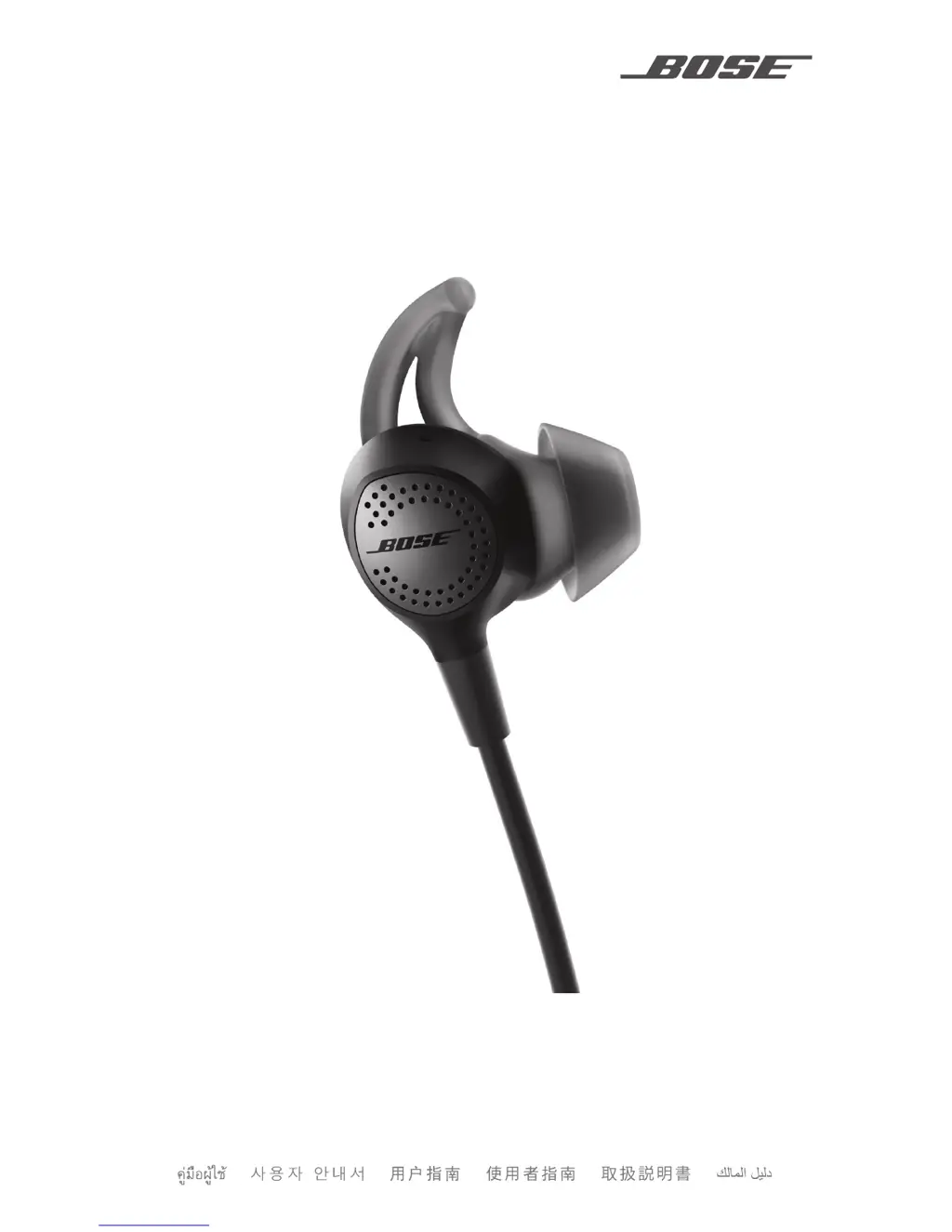
Bose QUIETCONTROL 30 - User Manual

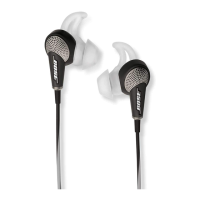
Bose QUIETCONTROL 30
36 pages
Print Icon
To Next Page IconTo Next Page
Loading...
OWNER’S GUIDE • BRUGERVEJLEDNING
BEDIENUNGSANLEITUNG • GEBRUIKERSHANDLEIDING
GUÍA DEL USUARIO • KÄYTTÖOHJE • NOTICE D’UTILISATION
MANUALE DI ISTRUZIONI • KEZELÉSI ÚTMUTATÓ
BRUKERVEILEDNING • PODRĘCZNIK UŻYTKOWNIKA
MANUAL DO PROPRIETÁRIO • BRUKSANVISNING
QUIETCONTROL™ 30

Other manuals for Bose QUIETCONTROL 30

Questions and Answers

  • C
    craigtaylorAug 13, 2025
    What to do if my Bose QUIETCONTROL 30 doesn’t charge?
    • J
      Jackson RamirezAug 13, 2025
      If your Bose Headphone isn’t charging, try these steps: * Open the hinged door on the inside right neckband and securely connect the small end of the USB cable to the USB connector, ensuring correct alignment. * Make sure both ends of the USB cable are securely connected. * If the headphones have been exposed to extreme temperatures, allow them to return to room temperature before attempting to charge again.
  • L
    Lucas DonovanAug 17, 2025
    What to do if my Bose QUIETCONTROL 30 Headphone doesn’t pair with my mobile device?
    • H
      Holly ScottAug 17, 2025
      If your Bose Headphone isn’t pairing with your mobile device, try these steps: * On your mobile device, disable and then enable the Bluetooth feature. Also, delete your headphones from the Bluetooth list on your device and pair again. * Clear the headphone pairing list by pressing and holding the Power/Bluetooth button for 10 seconds until you hear “Bluetooth device list cleared.” Then, delete your headphones from the Bluetooth list on your device and pair again. * If your device is in your pocket, remove it and move it closer to the headphones.
  • J
    Jordan SmithAug 21, 2025
    Why is there no sound coming from my Bose Headphone?
    • V
      Valerie RobertsAug 21, 2025
      If there is no sound from your Bose Headphone, here are some things to try: * Ensure the headphones are powered on. * Charge the battery. * Increase the volume on both your headphones and mobile device. * Press the Power/Bluetooth button to confirm the connected mobile device. Ensure you are using the correct device. * Move your mobile device closer to the headphones, away from any interference. * Try a different music source. * If two mobile devices are connected, pause the first and play from the other. * If two devices are connected, ensure they are within range (30 ft or 9 m).
  • K
    Kristin HendricksAug 25, 2025
    Why won’t my Bose QUIETCONTROL 30 pair with my NFC device?
    • P
      Philip WilliamsAug 25, 2025
      If your Bose Headphone isn’t pairing with an NFC-enabled mobile device, ensure that: * Your mobile device supports NFC. * Your mobile device is unlocked, and both Bluetooth and NFC features are turned on. * You tap the NFC touchpoint on the back of your mobile device to the back of the inline remote.
  • V
    Victoria GarzaAug 28, 2025
    What to do if noise cancelling won’t adjust on Bose Headphone?
    • P
      Paul DelgadoAug 28, 2025
      If the noise cancelling feature on your Bose Headphone won’t adjust, try these steps: * Turn the headphone’s power off and then on again. * Charge the headphones.
  • G
    Gloria HowardSep 1, 2025
    Why is noise cancelling not working on my Bose Headphone?
    • V
      vgutierrezSep 1, 2025
      If there is no noise cancelling on your Bose Headphone, make sure the power is switched on and the power indicator glows solid green.
  • K
    Kathleen BoydSep 4, 2025
    How to improve poor sound quality on Bose QUIETCONTROL 30?
    • K
      Kathy JonesSep 4, 2025
      If the sound quality from your Bose Headphone is poor, try the following: * Use a different music source. * Pair a different mobile device. * Disconnect the second mobile device, if connected. * Move the device closer to the headphones, away from any interference or obstructions. * Clear any debris or wax buildup from the earbuds and headphone nozzles.
  • J
    Joshua MitchellSep 9, 2025
    How to fix StayHear+ QC tips falling off Bose QUIETCONTROL 30?
    • W
      Walter MillerSep 9, 2025
      If the StayHear+ QC tips are falling off your Bose Headphone, securely attach the tips to the earbuds.

Summary

Important Safety Instructions

Regulatory Information

Management Regulation for Low-power Radio-frequency Devices

Details regulations for low-power radio-frequency devices, including frequency changes and interference.

Bose Connect App

What can I do with the Bose Connect app?

Explains the functionalities and benefits of using the Bose Connect app with the headphones.

Whats in the Carton

Contents

Lists the items included in the product packaging.

Importance of Proper Fit

Choose the correct StayHear+ QC tip

Guide to selecting the most comfortable and secure ear tip for optimal audio performance.

Fit the earbuds to your ear

Instructions on how to properly insert and secure the earbuds for a comfortable fit.

Headphone Controls

Power On;Off

Instructions on how to turn the headphones on and off using the Power/Bluetooth button.

Media Playback and Volume Control

Details on how to control music playback and adjust volume using the inline remote.

Call Management

How to answer, end, decline calls, and manage calls using the headphone controls.

Access Voice Assistant

Guide on using the headphone microphone to access Siri or Google Assistant.

Controllable Noise Cancellation

How Controllable Noise Cancellation Works

Explains the concept of noise cancellation and its effect on audio performance.

Noise Cancelling Levels

Describes the 12 levels of noise cancellation available for adjustment.

Adjust Noise Cancellation

Instructions on how to increase or decrease noise cancellation levels using buttons or the app.

Use Noise Cancellation Only

Steps to use noise cancellation feature without playing audio.

Battery

Charge the Headphones

Step-by-step instructions on how to charge the headphones using the USB cable.

Charging Time and Battery Level

Information on how long it takes to charge and how to check the battery status.

Status Indicators

Bluetooth Indicator

Explains the meaning of different Bluetooth indicator light activities.

Battery Indicator

Describes the battery indicator lights and their corresponding charge levels.

Voice Prompts

Manage Voice Prompts

Covers pre-installed languages and how to change the voice prompt language.

Bluetooth Connections

Pairing Methods Overview

Explains Bluetooth and NFC pairing options for connecting devices.

Pair via Bluetooth Menu

Step-by-step guide to pairing headphones via the mobile device's Bluetooth settings.

Pair via NFC

Instructions for pairing headphones by tapping the device to the inline remote.

Manage Mobile Device Connections

How to disconnect and reconnect mobile devices to the headphones.

Multiple Bluetooth Connections

Add and Manage Multiple Devices

Information on pairing multiple devices, up to eight, and connecting two simultaneously.

Switch Between Connected Devices

How to switch between connected devices and clear the pairing list.

Care and Maintenance

Storing Your Headphones

Guidelines for storing the headphones safely and effectively.

Cleaning Instructions

Procedures for cleaning the ear tips, nozzles, and neckband.

Warranty and Parts

Information on obtaining replacement parts and details about the limited warranty.

Troubleshooting

Pairing and Connection Issues

Solutions for problems when headphones do not pair with mobile or NFC devices.

Audio and Noise Performance Problems

Troubleshooting no sound, poor sound quality, and noise cancellation issues.

Charging and Microphone Functionality Issues

Steps to resolve issues with headphones not charging or the microphone not working.

Device Responsiveness and Physical Fit Issues

Solutions for unresponsive controls, ear tip fit problems, and lost ear tips.

Bose QUIETCONTROL 30 Specifications

General IconGeneral
Charging sourceUSB
Battery recharge time3 h
Continuous audio playback time10 h
Quantity1
Carrying caseYes
Wireless range10 m
3.5 mm connectorNo
Connectivity technologyWired & Wireless
Ear couplingIntraaural
Product colorBlack
Wearing styleIn-ear
Recommended usageCalls/Music
Microphone typeIn-line
Weight and Dimensions IconWeight and Dimensions
Depth19 mm
Width165 mm
Height152 mm

Related product manuals