4
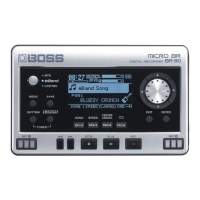
Installing the BR-80 Drivers
Installing the BR-80 Drivers in Windows 7
If you’re installing the drivers for Windows XP or Vista, please see the
instructions accompanying the installer files.
Throughout the installation process, Windows 7 may ask you to allow
the installer to change your computer. Click Yes to continue.
1 Power up your PC with all USB cables disconnected except for your
keyboard and mouse. If any applications are running, quit them.
2 You can install the drivers using the
• installer you copied from the BR-80’s SD card, or
• the latest installer on the RolandUS website—by downloading the
MICRO BR® BR-80 Driver for Windows 7/Vista/XP file here.
When you download the installer, save it to your desktop without
opening it. Then, right-click the downloaded file and select Extract
All..., choosing the Desktop as the extraction destination. You’ll find
the installer file in the resulting folder.
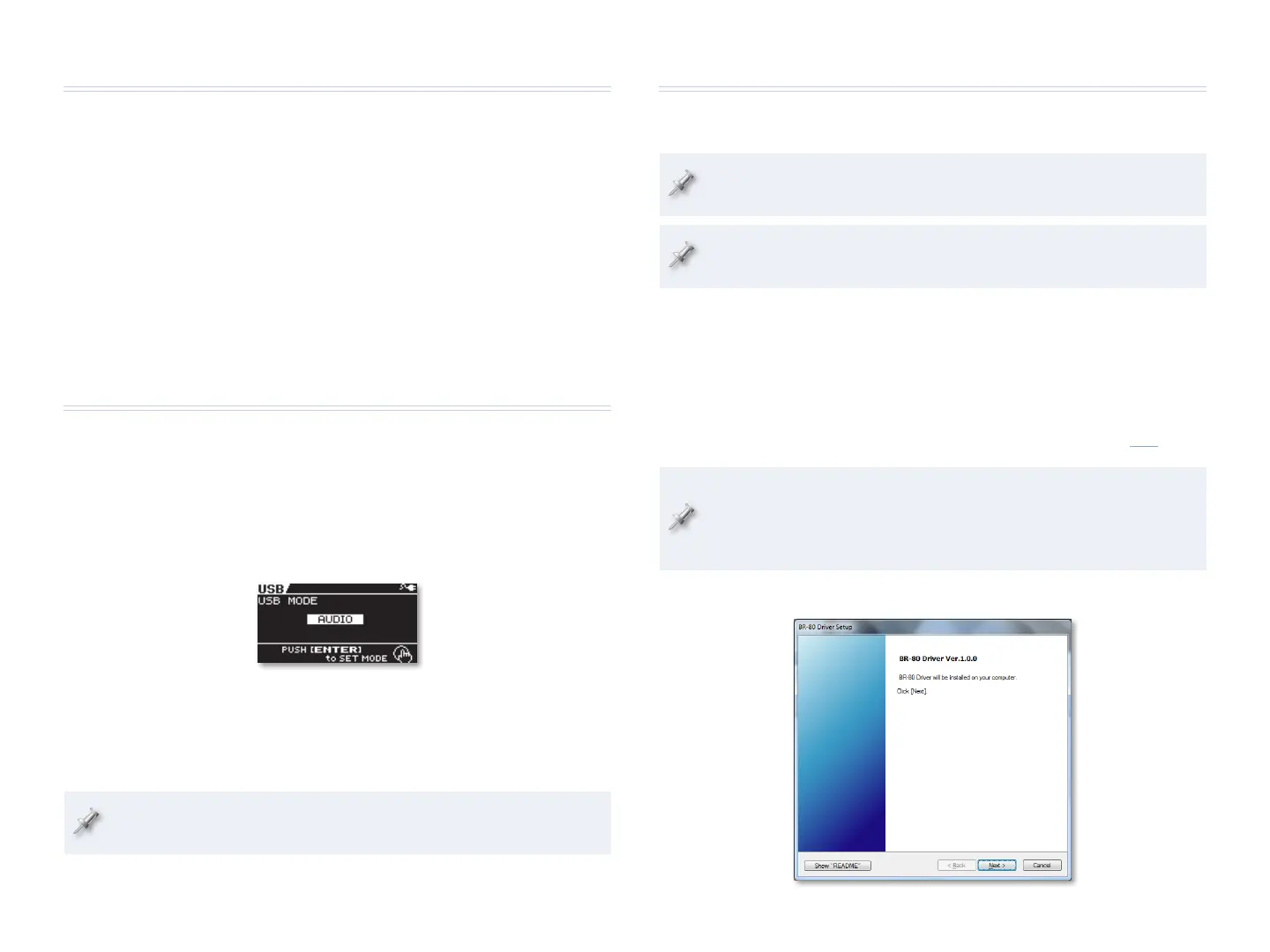
3 Double-click the installer Setup file to display the following window:
Copying the BR-80 Driver Software to Your Computer
1 Double-click the BR-80 removable drive on your computer to reveal
its Win folder (Windows) or Drivers folder (Mac).
2 If you’re using
• OS X—Double-click the Drivers folder and drag the BR80_
USBDriver.mpkg file to your desktop to copy it to your computer.
• Windows—Drag the Win file to your desktop. Then, right-click
the file and select Extract All..., choosing the Desktop as the
destination. Inside the extracted Drivers folder, there’s a folder
containing the installer for the version of Windows you’re using.
3 Unmount the BR-80 from your computer as you would any other
removable drive.
Configuring the BR-80 for Audio Interface Use
1 Without turning off the BR-80, disconnect it from your computer.
2 Press the BR-80’s MENU button to display the Menu screen.
3 Highlight FUNCTION, press ENTER.
4 Highlight USB, and then press ENTER.
5 If USB isn’t set to AUDIO, turn the Value dial so it is.
6 If you need to change the setting, a dialog appears—press ENTER
twice, and then restart your BR-80.
7 Switch to MTR mode if you’re not already there, and then turn off
the BR-80.
You don’t need to re-connect the BR-80 to your computer yet—we’ll let
you know when it’s time to do that.


 To Next Page
 Loading...