5
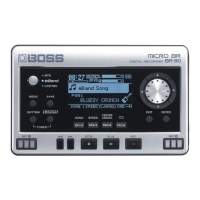
Once you do these things, Windows finishes installing the BR-80
drivers.
8 Click the Close button.
9 Skip now to “Configuring the BR-80 for Audio Interface Use” on page 6.
Installing the BR-80 Drivers in OS X
1 Begin by
• locating the BR-80 driver software—you copied from the BR-80’s
SD card, or
• downloading the approporiate MICRO BR® BR-80 driver software
for the version of Mac OS X you’re using—from here. If you’re
using OS X 10.7 (Lion), click MICRO BR® BR-80 USB Driver Mac
OS 10.7 v1.0.0. If you’re using Mac OS X 10.6, 10.5, or 10.4, click
MICRO BR® BR-80 USB Driver Mac OS 10.6/10.5/10.4. Once
you’ve downloaded the necessary file to your Downloads folder,
double click its folder to reveal the installer file.
2 When the installer launches, the computer may display a message
about verifying that your computer can use the BR-80 driver. If you
see this message, click Continue to display the installer’s Introduction
screen that lets you confirm you have the correct installer for your
version of OS X.
3 Click Install to view the Installation Type screen.
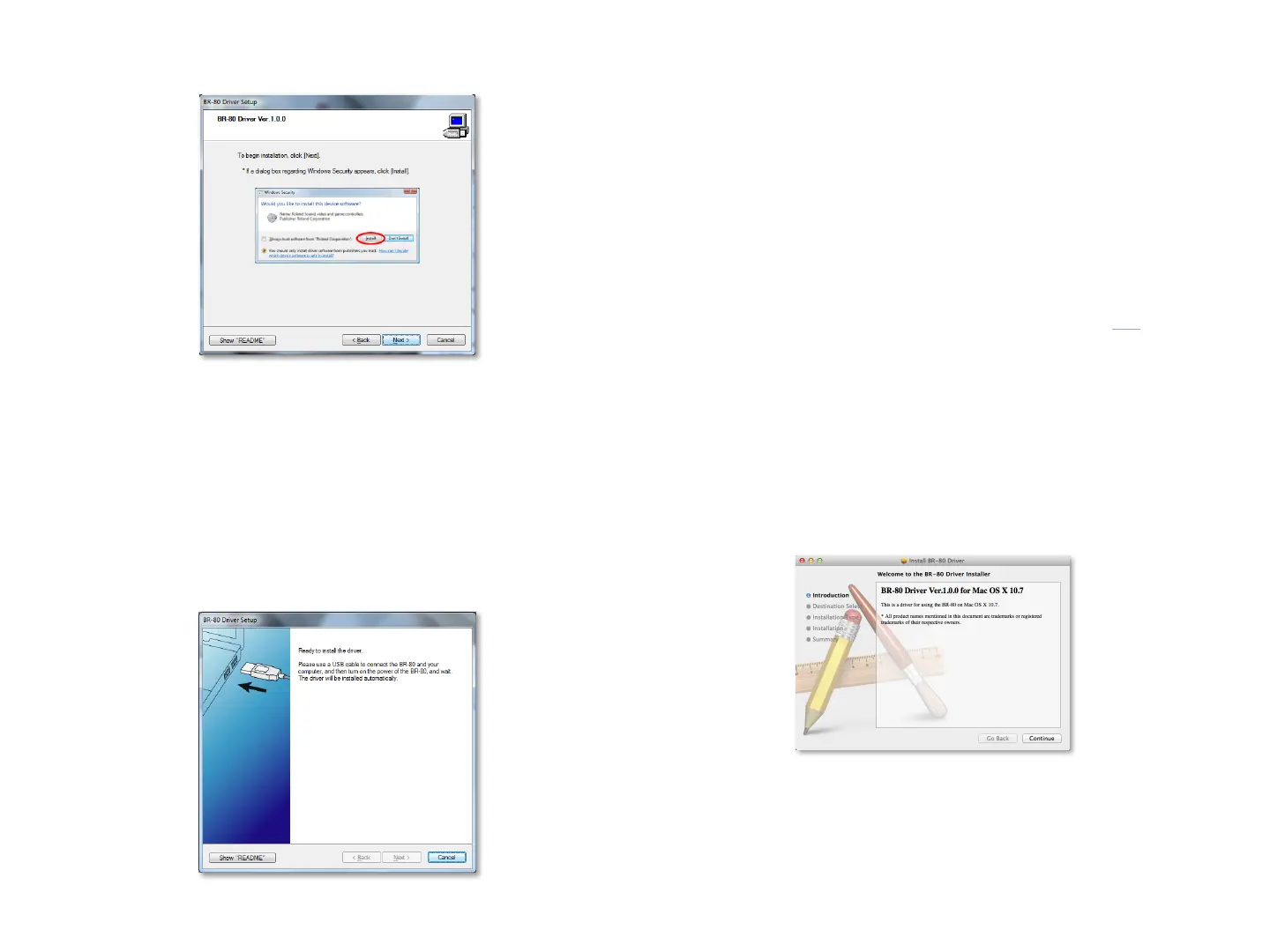
4 Click Next to display the installation start window:
5 Click Next—Windows 7 begin to install the driver, and asks if you
wish to complete the process.
6 Checkmark Always trust software from “Roland Corporation”, and
then click Install to proceed.
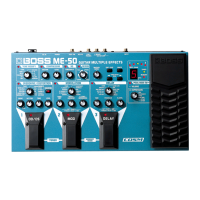
7 Windows 7 presents a window instructing you to
• make sure the BR-80 is turned off—and then
• connect the BR-80 via USB to your computer—as we described on
page 3, and then
• turn on the BR-80.



 To Next Page