7
Manually tuning to a station
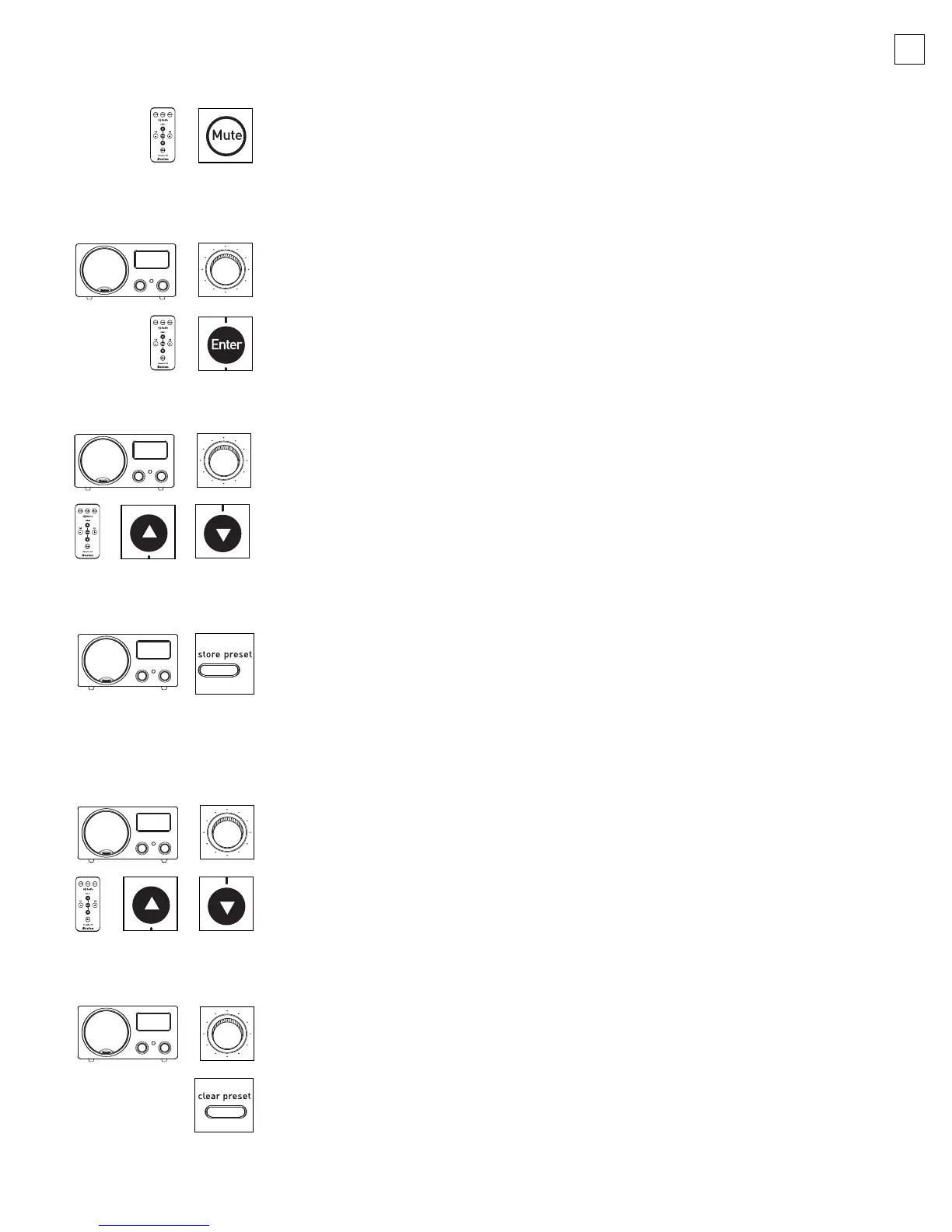
After choosing either the AM or FM band, turn the Tuning knob until
the desired station is selected or press the Select Up or Select Down
buttons on the Remote Control.
Entering stations into preset memory
1.
Tune the Radio to a desired station.
2. P
ress and hold the
Stor
e Preset
button for 2 seconds.
3.
The display will show the preset station number in the upper-left corner
of the display. Note: Stations will store in the order that they were
entered into memory, regardless of whether they are FM or AM stations.
Listening to preset stations
1. Push the Tuning knob until the “-Presets-” display appears.
2. Turn the Tuning knob or Select Up or Select Down buttons
on the Remote Control to select the preset you wish to listen to.
Clearing stations from preset memory
1. Push the Tuning knob until the “-Presets-” display appears.
2.
T
urn the
T
uning
knob to the pr
eset y
ou wish to clear
.
3. Press and hold the
Clear Preset button for 2 seconds until the
“-Presets Empty-” display appears. When a station is cleared from
memor
y
, the Radio will mute until the tuning knob is turned again.
Note: Holding the clear preset button for 10 seconds will clear ALL
the preset stations.
Muting the system
Pressing the Mute button on the Remote Control will mute all sound.
The Radio will remain silent until the
Mute button or a volume control is
used. Turning off the Radio will also cancel the mute command.
Radio – Choosing the AM/FM band
Push the Tuning knob or the Enter button on the Remote Control
to select the source: “-AM-”, “-FM-”, “-Presets-”, and “-AUX-”.
The
Tuning knob tunes the radio, sets the time, and controls the Setup Menu.
042-002310-E Recepter Radio HD Manual.qxd 11/7/05 3:15 PM Page 7


 To Next Page