ALTAIR 8800 micro Users Manual
© Briel Computers 2010 page 29
Chapter 6: Loading BASIC
The Altair 8800 micro has the ability to run 4K or 8K BASIC as of the writing of this manual. Other versions
may work with time. To load BASIC, you must do this from a power up stage. The reason is because you must
have the terminal section restart to be ready to send BASIC from the SD card.
Step 1: Prepare your card. Format and prepare your SD card with a version of BASIC loaded onto the card.
With the power turned off on your Altair 8800 micro, place the card in the SD card slot on the back.
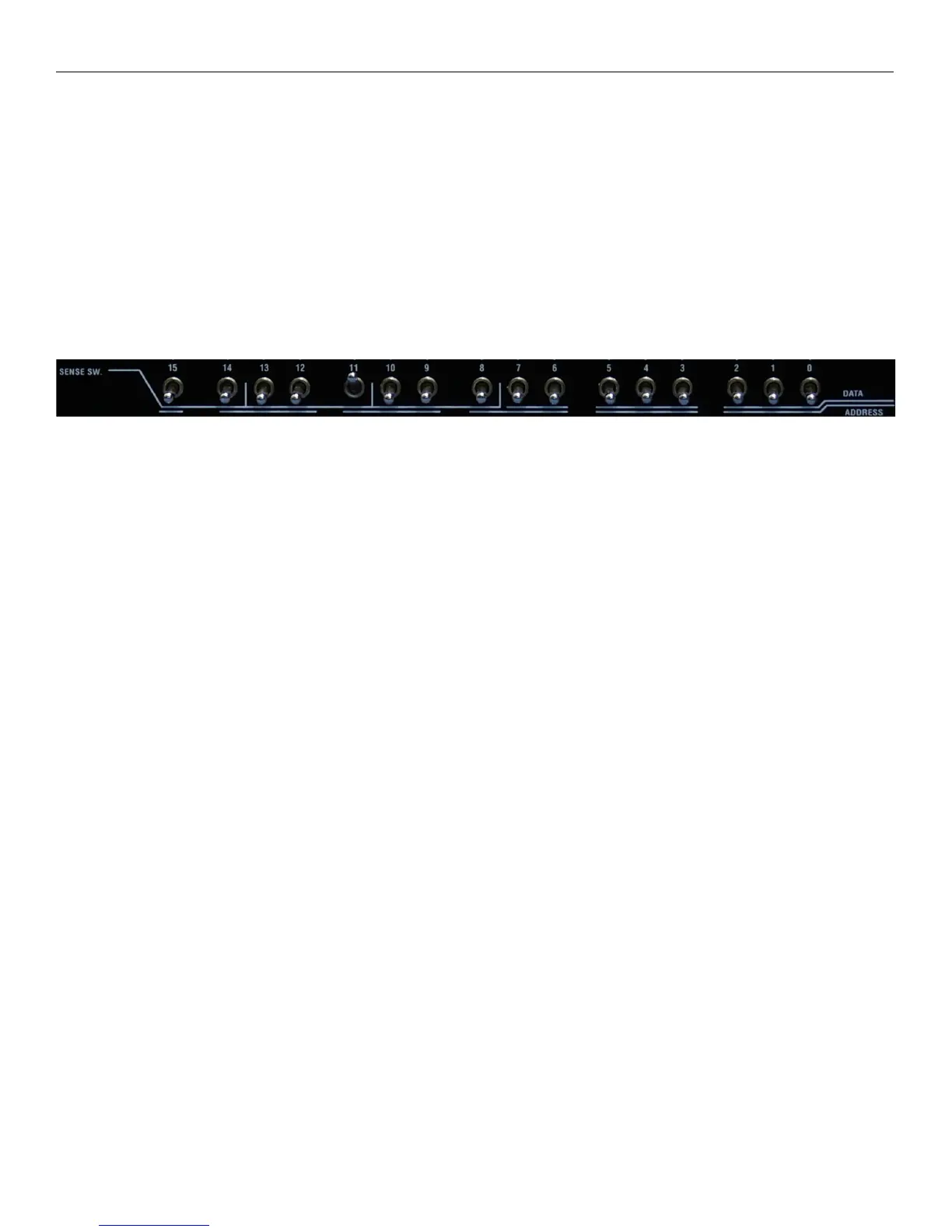
Step 2: Prepare your front panel. The terminal section of the Altair 8800 micro and Altair BASIC looks to
see what port to use BASIC from. Turn off all address switches, then lift only switch 11.
Step 3: Lift the AUX switch and make sure PROTECT is down.
Step 4: Push the RUN/STOP switch down to RUN mode
Step 5: Turn on Altair 8800 micro
At this point it will now prompt you for a file name to load. If you do not see a file name prompt on your screen
(VGA or TV), then you may see an error about the SD card. Check your card and try again.
Type in the name of your file and press ENTER. If your file name is 12 characters long, it will auto continue
without the need for ENTER.
NOTE: There is NO BACKSPACE for the feature. If you perform a typo, you must power up the system
again.
If you entered the file name correctly the terminal will start to load BASIC and send it to the CPU section of the
Altair 8800 micro. As the data is being entered into the system, you will see the address lights cycling up and
the DATA lights will flow with data. This is normal.
When the file is finished loading you should get your Altair BASIC prompt messages on screen. If you don’t,
check to make sure the RUN/STOP switch is down to the RUN position and that only switch 11 is in the up
position. If you still don’t get the BASIC prompt, you may have a failed load and will need to power off and
restart the process.
When you enter your terminal screen width and other info you will get the version of BASIC you loaded along
with the OK prompt. You are now ready to program in BASIC.
NOTE: Do not remove the SD card while the power is on, doing so could damage the card contents



 To Next Page