Need help?
Do you have a question about the BroadLink Universal Remote and is the answer not in the manual?
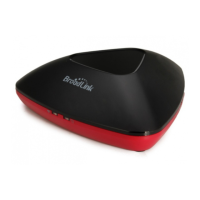
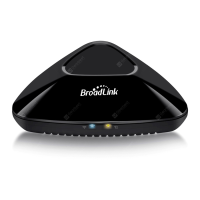
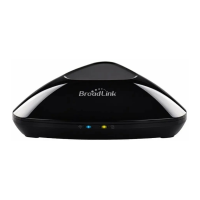
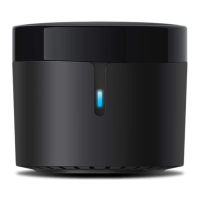
This document outlines the quick setup guide for a BroadLink Universal Remote, a device designed to centralize control of various home appliances through a single smart hub. The universal remote integrates with popular voice assistants like Google Assistant and Amazon Alexa, enabling voice control capabilities for connected devices.
The BroadLink Universal Remote acts as a central control unit for infrared (IR) and, for the RM4 Pro model, radio frequency (RF) enabled home appliances. It allows users to manage devices such as TVs, air conditioners, set-top boxes, smart TV boxes, fans, bulbs, DVDs, audio systems, amplifiers, projectors, switches, and curtains through a smartphone application or voice commands. The core functionality revolves around learning and storing IR/RF codes from existing remote controls, effectively replacing multiple physical remotes with a single smart solution.
The setup process begins by ensuring the necessary prerequisites are met: a smartphone or tablet running iOS 9.0 / Android™ 4.1 or higher, a 2.4GHz Wi-Fi network with internet access, and a Wi-Fi router. The device itself needs to be powered on, with its LED indicator flashing intermittently, signaling it's ready for setup.
The first step in using the universal remote involves downloading the "BroadLink" app from the App Store or Google Play and installing it on a smartphone. Once installed, users need to sign in to their BroadLink account. If a user doesn't have an account, they can create one within the app. The app also offers the convenience of linking accounts with Apple ID or Google for quicker sign-ins in the future.
Adding the universal remote device to the app is straightforward. Users tap the "+" icon in the top right corner, select "Add device," and then confirm with "YES." The app then automatically scans for the device's SSID, typically named "BroadLink_WiFi_Device," which may take up to a minute.
After the device is discovered, the next crucial step is connecting it to the home Wi-Fi network. Users select their Wi-Fi network, input the password, and tap "Connect to Wi-Fi." A successful connection is indicated by the device's LED indicator flashing slower and then turning off. Users then assign the device to a specific room and give it a name within the app for easy identification and management.
Once the universal remote is connected to the network, users can begin adding their IR appliances. This involves tapping "Add appliances," choosing a category (e.g., TV), and then selecting the brand of the appliance. The app provides a list of IR codes, and users can test them to find the best match for their device. If the brand is not listed or the provided codes don't work, the app offers an option to "learn the remote right away."
The IR code learning process is initiated by selecting "Learn button" if no option matched the brand. Users choose a room for the appliance and name it. Then, they navigate to the panel page in the app, tap a gray button they wish to learn, and follow the in-app wizard. During this process, the appliance's physical remote control should be aimed at the universal remote. Users wait for the device's LED indicator to light up, then briefly press the button on the physical remote they want to learn. After learning, the button can be tested within the app and saved. This process is repeated for all desired buttons. If a learned button isn't working normally, users can tap "..." on the top right corner and choose "Relearn buttons."
For the RM4 Pro model, which supports RF appliances, the process is similar. Users tap "Add appliances," choose a category (e.g., Curtain), and select a brand. It's essential to ensure the RF device is in pairing mode. Users then tap "Use device now" and follow the wizard to pair the code. If the brand isn't found, users can choose to learn the remote.
Learning RF codes involves choosing a room and naming the appliance. On the panel page, users tap a gray button to learn. If a physical RF remote is available, it should be kept close to the universal remote, and users follow the wizard to learn the button by performing a long press on the physical remote. If there's no physical remote, users can input the frequency (e.g., 433 Mhz), ensure the RF device is in pairing mode, and then press the "on" button in the app to complete the learning. This learning process is repeated until all necessary buttons are learned.
A key feature of the BroadLink Universal Remote is its integration with voice assistants. After setting up the universal remote and adding appliances, users can download the latest versions of the Alexa or Google Home apps. In the Alexa app, users navigate to "Skills & Games," search for "BroadLink," and enable the skill. Similarly, in the Google Home app, users tap "+," choose "Set up device," then "works with Google," search for "BroadLink," and enable it.
The final step for voice control is linking the BroadLink account within the Alexa or Google Home app. Users tap "BroadLink account," sign in, and complete the skill account linking. Optionally, they can link their email with Apple ID or Google account for quicker sign-ins later. Once the accounts are linked, Alexa or Google Home will discover the devices. This discovery process can take up to 45 seconds. After discovery, users can control their devices via the app or through voice commands. If setting up a second device, Alexa will provide a notification after the initial setup, or the device will appear in the Google Home app after a few minutes.
While the manual doesn't explicitly detail maintenance features, the design of the BroadLink Universal Remote suggests a low-maintenance device. The primary "maintenance" involves ensuring the device remains connected to a stable 2.4GHz Wi-Fi network and that its power supply is consistent. The intermittent flashing of the LED indicator serves as a diagnostic cue during setup, indicating readiness or a need for attention. If a learned button stops working, the "Relearn buttons" function within the app acts as a self-correction mechanism, allowing users to re-teach specific commands without needing to reconfigure the entire device or appliance. Software updates for the BroadLink app and the device's firmware, though not explicitly mentioned as a maintenance task, would be handled automatically or through user prompts within the app, ensuring ongoing compatibility and feature enhancements. The reliance on cloud accounts for device management also implies that settings and learned codes are backed up, reducing the risk of data loss and simplifying recovery if the device needs to be reset or replaced.
 General
| App Support | BroadLink App (iOS & Android) |
|---|---|
| Connectivity | Wi-Fi (2.4GHz) |
| Voice Control | Amazon Alexa, Google Assistant |
| Operating Temperature | 50°C |
| Power Supply | 5V DC 1A (Micro USB) |
| Operating Range | Wi-Fi range (depends on router) |
| Supported Protocols | IR |
| Additional Features | Timer |

 To Next Page