MANUAL
7
3. GUI OVERVIEW
The GUI is very simple: You will see several knobs, sliders and dropdown menus, that each, in their own ways, help to create the vehicle
audio. All the plug-in’s parameters, except for the dropdown menus where Surfaces and Vehicle types are chosen, can be automated
in your DAW of choice.
Every white element in the interface is either a button, a knob or a numeric input and can be altered or pressed.
3.1 Header, Logo
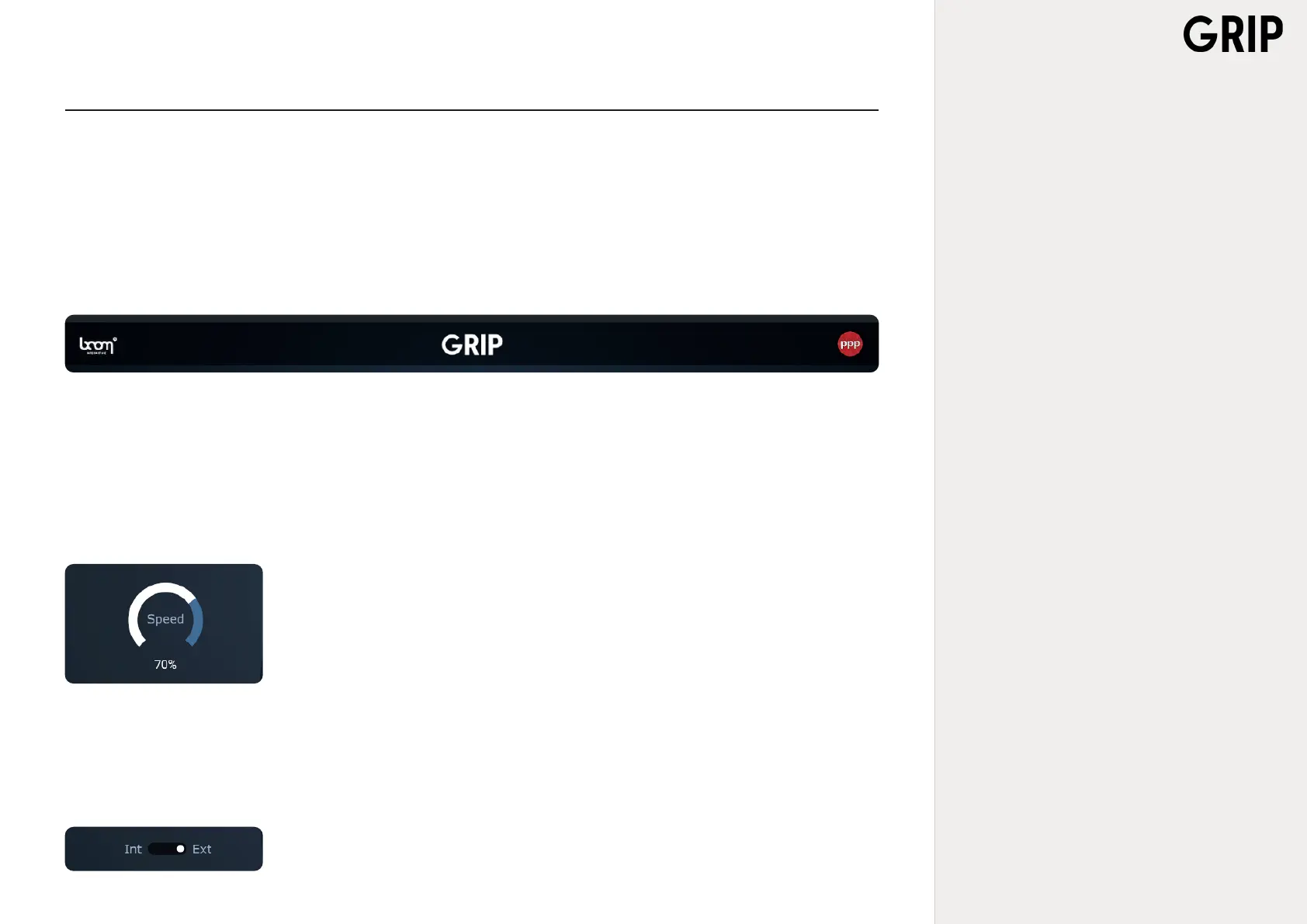
Clicking on the Boom Library / Pole logo on the left will open a little About window, showing the people involved in the development of
GRIP and the version of the application currently running.
3.2 Controls
3.2.1 Speed
In the upper left corner there is a dial knob called Speed which basically is a representation of the
velocity that the on-screen vehicle travels at.
Low percentage Speed corresponds to a slowly travelling vehicle; high percentage Speed means a
fast moving vehicle. Turning Speed clockwise will result in a rolling sound.
Speed is the fundamental of everything that is done within GRIP and where every action begins. It
also works as an on/off switch, i.e. when Speed is set to zero the whole plug-in goes silent.
3.2.2 Perspective
Just below Speed there is a toggle - INT/EXT - which enables dynamically switching between Inter-



 To Next Page