10
KNOWING YOUR SEWING MACHINE —————————————————————————————————————————————————————————————————————————————————
Operation panel
The operation panel, located on the front of the
sewing machine, allows you to select a stitch and
specify how the stitch will be sewn.
The operation panel differs depending on the sewing
machine model.
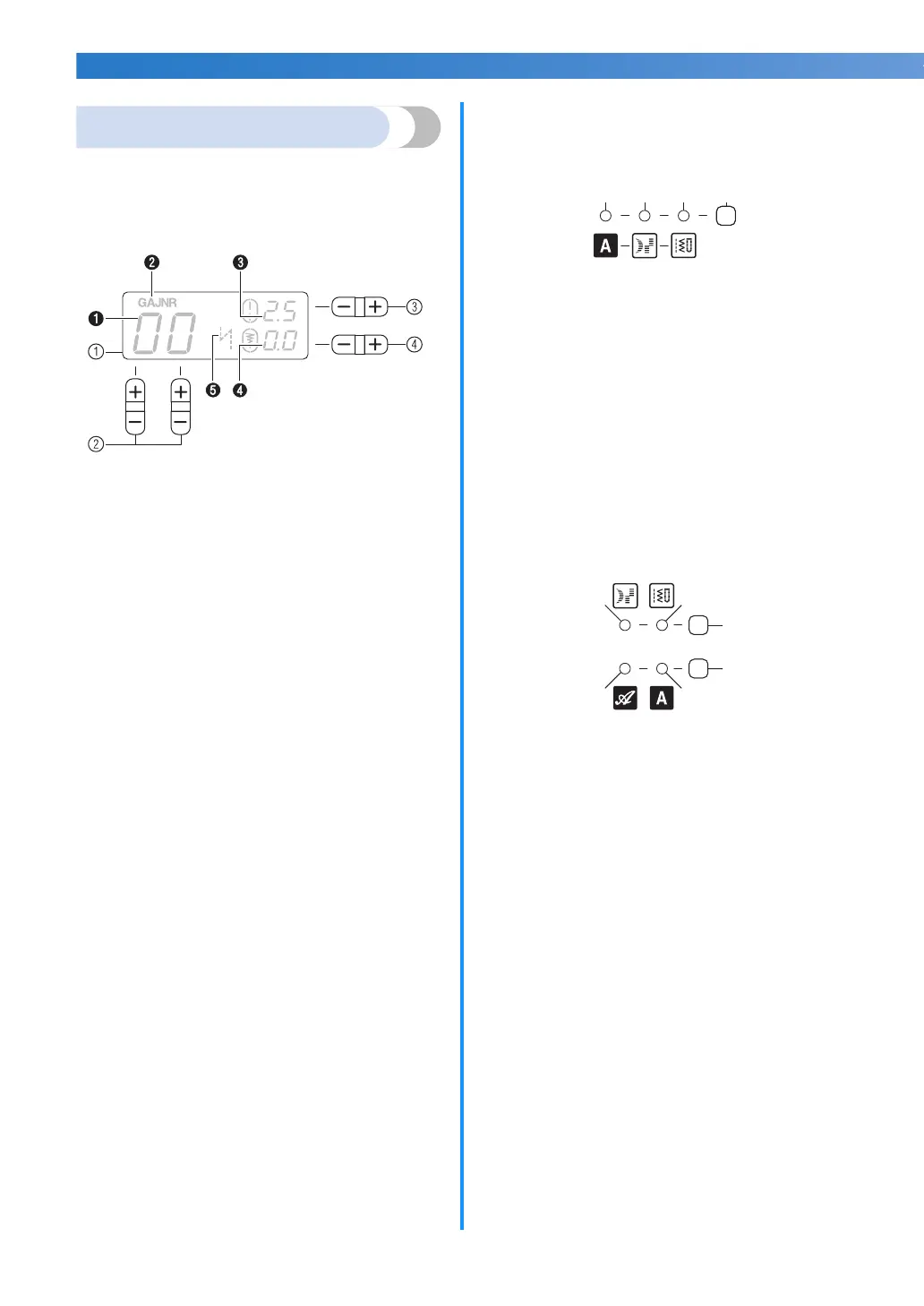
a LCD (liquid crystal display)
The number of the selected stitch (
1), the presser foot
type to be used (
2), the stitch length (mm) (3), the
stitch width (mm) (
4), and the auto reverse/
reinforcement (
5) are displayed here.
b Stitch selection keys
Press the stitch selection keys, and then select the
number for the stitch that you wish to use. For details,
refer to “Selecting a stitch” (page 39).
c Stitch length adjustment key
Press this key to adjust the stitch length. (Press the “–”
side to reduce the stitch length; press the “+” side to
increase the stitch length.)
d Stitch width adjustment key
Press this key to adjust the stitch width. (Press the “–”
side to reduce the stitch width; press the “+” side to
increase the stitch width.)
■
Keys and indicators provided on some models
<For models equipped with satin stitches and 1 font
type of character stitches>
e Stitch category selection key
Press this key to select desired stitch category. For
details, refer to “Selecting a stitch” (page 39) .
f Utility stitch indicator
This indicator lights up when the utility stitch is selected
with the stitch category selection key.
g Satin stitch indicator
This indicator lights up when the satin stitch is selected
with the stitch category selection key.
h Character stitch indicator (for models equipped with
character stitches)
This indicator lights up when the character stitch is
selected with the stitch category selection key.
<For models equipped with satin stitches and 2 font
types of character stitches>
e Utility stitch key
Press this key to select the desired type of utility stitches.
For details, refer to “Selecting a stitch” (page 39).
f Utility stitch indicator
This indicator lights up when the utility stitch is selected
with the utility stitch key.
g Satin stitch indicator
This indicator lights up when the satin stitch is selected
with the utility stitch key.
h Character stitch key
Press this key to select the desired font type of character
stitches. For details, refer to “Selecting characters”
(page 76).
i Character stitch indicator (Gothic font)
This indicator lights up when the character stitch
(Gothic font) is selected with the character stitch key.
j Character stitch indicator (Script font)
This indicator lights up when the character stitch (Script
font) is selected with the character stitch key.
h
e
ij
fg



 To Next Page