EasyManua.ls Logo

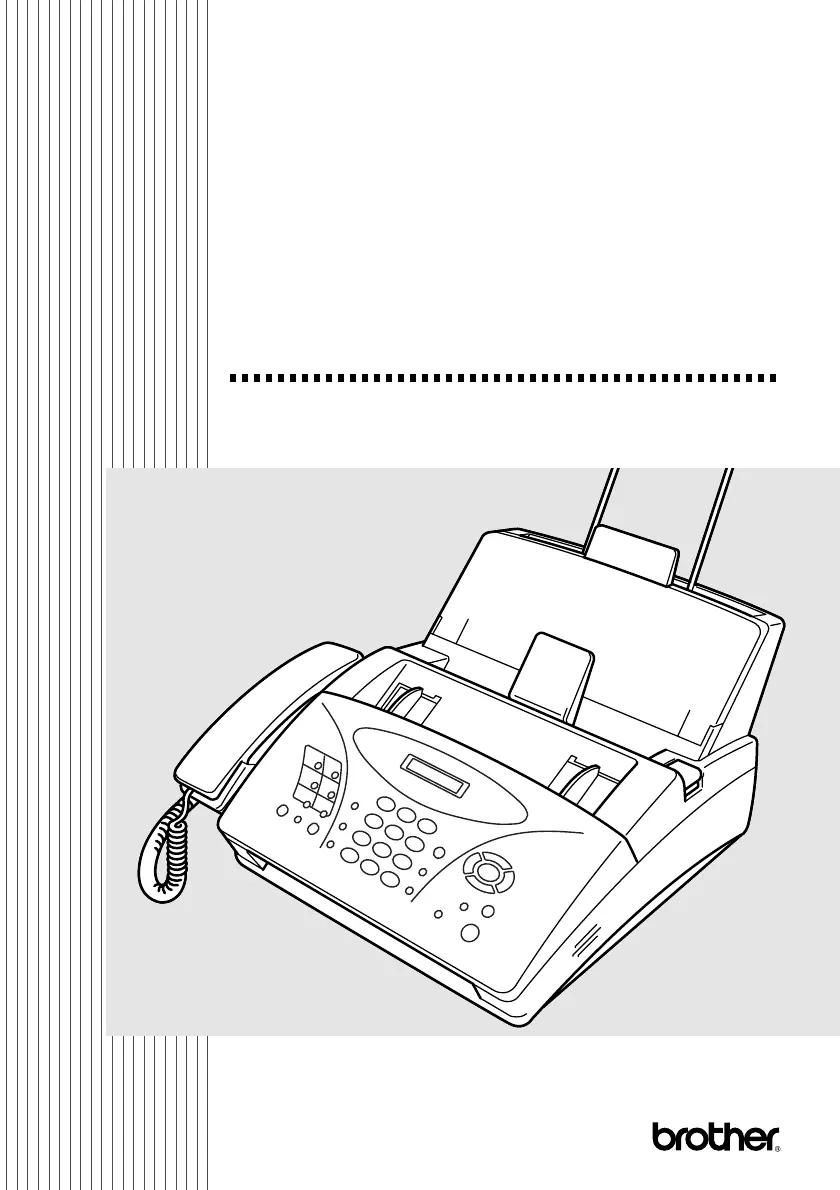
Brother IntelliFAX 1270e - User Manual

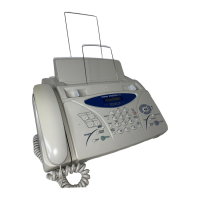
Brother IntelliFAX 1270e
108 pages
Print Icon
To Next Page IconTo Next Page
Loading...
FAX-1270e
OWNER'S MANUAL
OWNER'S MANUAL

Table of Contents

Other manuals for Brother IntelliFAX 1270e

Questions and Answers

  • C
    christinemorrisonAug 19, 2025
    Why is my Brother IntelliFAX 1270e not answering when called?
    • J
      Jennifer TurnerAug 19, 2025
      If your Brother Fax Machine is not answering when called, ensure it is in the correct receiving mode (FAX ONLY or FAX/TEL). Check for a dial tone. If possible, call your fax machine to hear it answer. Also, check the telephone line cord connection. Connect a standard telephone handset to the fax machine’s telephone jack. If there is no ringing when you call your fax machine, call your telephone company to check the line.
  • A
    Alejandra StaffordAug 21, 2025
    What to do if my Brother Fax Machine says 'CHECK PAPER RELOAD PAPER'?
    • U
      umurrayAug 21, 2025
      If your Brother Fax Machine displays 'CHECK PAPER RELOAD PAPER', it means the machine is either out of paper or the paper isn't loaded correctly. Refill the paper or remove it and load it again. If this happens while receiving a fax, load paper to restart printing. If you were copying or printing reports, load paper and try again.
  • J
    jamie04Aug 25, 2025
    What to do if my Brother IntelliFAX 1270e Fax Machine says 'COVER OPEN PLS CLOSE COVER'?
    • S
      Stephen BrownAug 25, 2025
      If your Brother Fax Machine shows 'COVER OPEN PLS CLOSE COVER', it means the cover is not completely closed. Make sure to close the cover properly.
  • H
    hayesjenniferAug 26, 2025
    What does 'CHECK ORIGINAL REMOVE ORIGINAL CHECK ORIGINAL PRESS STOP KEY' mean on my Brother Fax Machine?
    • A
      Ariel MartinAug 27, 2025
      If the Brother Fax Machine displays 'CHECK ORIGINAL REMOVE ORIGINAL CHECK ORIGINAL PRESS STOP KEY', it means the documents weren't inserted or fed correctly, or they were too long.
  • D
    David GomezAug 27, 2025
    What does 'COMM.ERROR' mean on my Brother IntelliFAX 1270e and how to fix it?
    • J
      Jay BentleyAug 28, 2025
      If your Brother Fax Machine displays 'COMM.ERROR', it means a poor quality phone line resulted in a communications error. Try the call again.
  • P
    Pamela GonzalezAug 30, 2025
    How to fix 'CHECK CARTRIDGE RESET OR REPLACE' error on Brother IntelliFAX 1270e?
    • H
      Heather CaseAug 30, 2025
      If your Brother Fax Machine displays 'CHECK CARTRIDGE RESET OR REPLACE', it means the machine is out of ribbon or the print cartridge is not properly installed. Install the print cartridge again.
  • K
    Kevin WillisSep 1, 2025
    How to improve poor transmitting quality on my Brother IntelliFAX 1270e?
    • E
      Emma SmithSep 1, 2025
      If you experience poor transmitting quality with your Brother Fax Machine, try changing your resolution to FINE or S. FINE. Make a copy to verify the fax machine’s scanner operation.
  • D
    Duane CoxSep 3, 2025
    What does 'COOLING DOWN WAIT FOR A WHILE' mean on my Brother IntelliFAX 1270e?
    • T
      Tammy KentSep 3, 2025
      If your Brother Fax Machine displays 'COOLING DOWN WAIT FOR A WHILE', it indicates that the print head has overheated. Wait 30 minutes for it to cool down.
  • W
    Wyatt JohnsonSep 5, 2025
    Why is dialing not working on my Brother Fax Machine?
    • J
      Justin HillSep 5, 2025
      If your Brother Fax Machine is not dialing, check all line cord connections, and make sure the curled handset cord is not in the EXT jack. Check the power cord connection. Send a manual fax by pressing Hook or by lifting the handset and dialing the number. Wait to hear fax receiving tones before pressing Fax Start.
  • R
    Robert McdonaldSep 8, 2025
    What does 'CONNECTION FAIL' mean on my Brother IntelliFAX 1270e Fax Machine?
    • G
      Gary SingletonSep 8, 2025
      If you requested a polling call from another party and your Brother Fax Machine displays 'CONNECTION FAIL', verify the other parties polling setup, because the other fax machine is not in Poll Waiting mode.

Summary

Introduction to Your Fax Machine

Understanding This Manual

Guidance on using the manual's structure, symbols, and finding information.

Control Panel Overview

Explanation of the fax machine's control panel buttons, LCD, and keys.

Fax Machine Basics

Overview of fax operation, custom features, tones, handshake, ECM, and test sheet.

Location and Connections

Location and Setup

Guidelines for choosing a location, packing, assembly, and loading paper.

Machine Connections

Connecting the machine, telephone lines, and power.

Special Line Considerations

Handling roll over, two-line, and PBX telephone line configurations.

External Device Connections

Connecting TAD and external telephones to the fax machine.

Phone Line Features

Managing custom features on single or multiple phone lines.

On-Screen Programming

Programming Interface

User-friendly programming, menu tables, and alternating displays.

Navigation Keys

Explanation of how to use navigation keys for menu operations.

Initial Setup

Basic Setup Procedures

Setting date, time, station ID, and basic configuration.

Text Entry and Correction

Methods for entering text, including corrections and special characters.

Audio Settings

Adjusting speaker, handset, ring, and beeper volume levels.

Dialing Mode and Area Code

Setting dialing mode and configuring the area code for Caller ID.

Setup Receive

Receiving Operations and Modes

Selecting receive modes and setting ring delay/F/T ring time.

Receive Features

Easy receive, reduced fax printing, paper size, and advanced operations.

Polling Operations

Setting up polling receive and sequential polling for fax retrieval.

Setup Send

Preparation and Transmission Methods

ADF use, manual/auto transmission, redial, and quick-scan.

Cover Pages and Settings

Cover page creation, comments, contrast, resolution, and overseas mode.

Scheduled and Advanced Sending

Call reservation, delayed fax, polled transmit, and job management.

Auto Dial Numbers and Dialing Options

Storing and Managing Numbers

Saving and organizing One Touch, Speed Dial, and Group numbers.

Dialing Methods and Features

Manual, One Touch, Speed Dial, access codes, search, redial, broadcasting, pause, hold, tone/pulse.

Telephone Services

Custom Features and Distinctive Ring

Overview of custom features and Distinctive Ring setup.

Caller ID and Call Waiting

Managing Caller ID logs, printing, viewing, returning calls, and Call Waiting Caller ID.

Remote Fax Options

Forwarding, Paging, and Storage

Setting up fax forwarding, pager notifications, and memory storage.

Remote Retrieval and Commands

Using remote access codes and commands to manage faxes remotely.

Making Copies

Copying Functions

Using the fax machine for single, multiple, reduced, and enlarged copies.

Printing Reports

Report Management

Setting up and customizing transmission verification and activity reports.

Troubleshooting and Routine Maintenance

Troubleshooting and Error Messages

Identifying and resolving common machine errors and operational problems.

Problem Resolution and Maintenance

Clearing jams, replacing parts, cleaning components, and packing for shipping.

Connectivity and Maintenance Issues

Resolving phone line issues, handling incoming calls, and routine cleaning.

Packing and Shipping

Proper methods for packing and shipping the fax machine.

Brother IntelliFAX 1270e Specifications

General IconGeneral
Printing TechnologyThermal Transfer
Modem Speed14.4 kbps
Automatic Document Feeder Capacity10 sheets
Weight6.6 lbs
RedialAutomatic redial
DisplayLCD
TypePlain Paper Fax
Transmission Speed6 seconds
Memory512 KB
CompressionMH, MR, MMR

Related product manuals