EasyManua.ls Logo

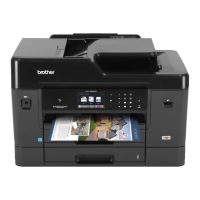
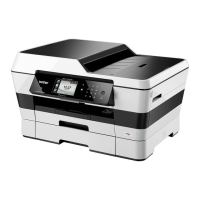
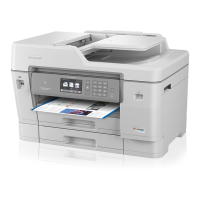
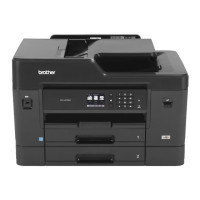
Brother MFC-J6930DW - User Manual

Brother MFC-J6930DW
2 pages
Print Icon
To Next Page IconTo Next Page
Loading...
NOTE
• MostoftheillustrationsinthisQuickSetupGuideshowthe
MFC-J6930DW.
• Saveallpackingmaterialsandtheboxincaseforanyreasonyou
mustshipyourmachine.
• You must purchase the correct interface cable for the
interface you want to use.
USB cable
WerecommendusingaUSB2.0cable(TypeA/B)thatisnomore
than2metreslong.
Ethernet (Network) cable
Useastraight-throughCategory5(orgreater)twisted-paircable
for10BASE-Tor100BASE-TXFastEthernetNetwork.
2
Load plain A4 paper
Forloadingothersizesofpaper,seePaper HandlingintheReference Guide.
1
Unpack the machine and check the components
Thecomponentsincludedintheboxmaydifferdependingonyourcountry.
Pullthepapertraycompletelyoutof
themachineasshownbythearrow. Fanthepaperwell.
Connectthetelephonelinecord.
UsethesocketmarkedLINEandguide
thecordoutthebackofthemachine.
Liftthescannercover. Closethescannercover.
FollowtheTouchscreeninstructionstounpackandinstalltheinkcartridges.
Themachinewillpreparetheinktubesystemforprinting.
Whenthemachinehasfinishedtheinitialcleaning
process,followtheTouchscreeninstructionsto
configurethemachinessettings.
• Checkprintquality
• Congurethetraysettings
• Viewoperationtips
• SetBrotherLCDMessagedefaults
• Printtheinstallationsheet
Opentheinkcartridgecover,andthen
removetheorangeprotectivepart
fromthemachine.
Afterturningthemachineon,youmayneedtosetyour
countryorlanguage(dependingonyourmachine).
Ifrequired,followtheTouchscreeninstructions.
Loadthepaperinthetray.
Connectthepowercord.Themachinewill
poweronautomatically.
Adjustthepaperguides.
Donotexceedthis
mark(bbb).
NOTE
Ifyouaresharingonetelephonelinewithanexternal
telephone,connectitasshownbelow.
NOTE
Youcanadjustthecontrolpanelangletoread
theTouchscreenmoreeasily.
NOTE
FollowtheTouchscreeninstructionstostore
theorangeprotectivepartinsidethemachine.
Ifyoumusttransportthemachine,remove
theinkcartridgesandreplacethispart.
Pulloutthepapersupport
untilitlocksintoplace.
Slowlypushthepapertray
completelyintothemachine.
a. Extensiontelephone
b. Externaltelephone
QuickSetupGuide
MFC-J3930DW / MFC-J6930DW / MFC-J6935DW
ReadtheProduct Safety Guidefirst,thenreadthisQuick Setup Guide
forthecorrectinstallationprocedure.
3
Connect the power cord
6
Install the inbox ink cartridges
4
Select your country
or language
(Initial setup only)
7
Machine settings
D00DJN001-00
UK
Version0
(for UK) (for others)
Inbox Ink Cartridges
• Black
• Yellow
• Cyan
• Magenta
Quick Setup Guide
Reference Guide
Product Safety Guide
Brother
Installation Disc
Telephone Line Cord
Maintenance Sheet Power Cord
1. Press [Settings]>[All Settings]>
[Initial Setup]>[Local Language].
2. Pressyourlanguage.
3. Press .
8
Select your language
(if needed and only for
certain models)
9
Connect the telephone line cord
Ifyouarenotusingyourmachineasafax,goto
10
.
ThelatestmanualsareavailableattheBrotherSolutionsCenter:
solutions.brother.com/manuals
WatchourFAQvideosforhelp
withsettingupyourBrother
machine.
solutions.brother.com/videos
5
Set the date and time
FollowtheTouchscreeninstructionstosetthedate
andtime.
Quicklyshakejusttheblack
inkcartridgehorizontally
15timesasshown,before
insertingitintothemachine.
(Example for UK)
(Example for UK)
1
2

Other manuals for Brother MFC-J6930DW

Questions and Answers

  • K
    kennedykevinSep 18, 2025
    What does 'Unusable Device Please disconnect USB device' mean on Brother All in One Printer?
    • D
      Dr. Kendra BowmanSep 18, 2025
      If your Brother All in One Printer displays 'Unusable Device Please disconnect USB device', unplug the device from the USB direct interface. A USB device or USB flash drive that is not supported has been connected to the USB direct interface.
  • J
    James VanceAug 25, 2025
    Why is my Brother MFC-J6930DW All in One Printer printing in B&W only?
    • D
      David MayoAug 25, 2025
      If your Brother All in One Printer only prints in black and white, it could be due to one or more color ink cartridges being depleted. Replacing these cartridges should solve the problem.
  • C
    Crystal AndersonAug 25, 2025
    What to do if my Brother MFC-J6930DW All in One Printer shows 'Ink Low'?
    • A
      Andre BlankenshipAug 26, 2025
      If your Brother All in One Printer says 'Ink Low', it means that one or more of the ink cartridges are near the end of their lives. You should order a new ink cartridge.
  • H
    heather28Aug 26, 2025
    How to fix paper jam on Brother MFC-J6930DW All in One Printer?
    • N
      Nathaniel ObrienAug 26, 2025
      If your Brother All in One Printer displays 'Jam Front/Rear' or similar paper jam errors, remove the jammed paper. If the paper jam repeats, try the paper jam clear operation again. Ensure the paper guides are set to the correct paper size, the paper support is fully inserted, and you aren't putting more than one sheet of paper in the manual feed slot at a time. You may also need to clean the paper pick-up rollers.
  • E
    Eric PerrySep 23, 2025
    Why is my Brother All in One Printer displaying 'Wrong Ink Color'?
    • J
      John MorganSep 23, 2025
      If your Brother All in One Printer is showing 'Wrong Ink Color', check which ink cartridges are not matched by color to their ink cartridge positions and move them to their correct positions.
  • T
    Tanya ChenSep 23, 2025
    How do I correct 'Wrong Tray Settings' on my Brother MFC-J6930DW All in One Printer?
    • J
      Judy SandersSep 23, 2025
      If your Brother All in One Printer displays 'Wrong Tray Settings', follow the instructions on the Touchscreen and try to print again. You can also configure the paper size setting for the tray according to the LCD instructions.
  • T
    Tony RamirezSep 10, 2025
    What to do if my Brother MFC-J6930DW shows 'High Temperature'?
    • R
      ronald27Sep 12, 2025
      If your Brother All in One Printer displays 'High Temperature', allow the machine to cool down to room temperature after cooling the room. Try again when the machine has cooled down.
  • C
    christine76Sep 12, 2025
    Why does my Brother MFC-J6930DW All in One Printer say 'Hub is Unusable'?
    • L
      Laura ChaseSep 12, 2025
      If your Brother All in One Printer displays 'Hub is Unusable', unplug the device from the USB direct interface. Hubs, including a USB flash drive with a built-in hub, are not supported.
  • S
    Sabrina MoralesSep 3, 2025
    How to fix 'Touchscreen Init. Failed' on Brother All in One Printer?
    • G
      Gary AlvarezSep 4, 2025
      If your Brother All in One Printer displays 'Touchscreen Init. Failed', ensure nothing is touching the Touchscreen, especially during power on. Debris may be stuck between the lower part of the Touchscreen and its frame.
  • D
    Deborah Harding MDSep 1, 2025
    Why is my Brother MFC-J6930DW not detecting the paper tray?
    • M
      Michelle PerezSep 1, 2025
      If your Brother All in One Printer displays 'Paper Tray not detected', slowly push the paper tray completely into the machine. Paper or a foreign object may be preventing the paper tray from being inserted properly.

Brother MFC-J6930DW Specifications

General IconGeneral
N-up printing2, 4, 9, 16, 25
Duplex printingYes
Print technologyInkjet
Maximum resolution1200 x 4800 DPI
Print speed (ISO/IEC 24734) mono22 ipm
Print speed (ISO/IEC 24734) color20 ipm
Time to first page (black, normal)6 s
Duplex print speed (ISO/IEC 24734) mono12 ipm
Duplex print speed (ISO/IEC 24734) color11 ipm
Print speed (black, normal quality, A4/US Letter)35 ppm
Print speed (color, normal quality, A4/US Letter)27 ppm
Copier resize25 - 400 %
Maximum copy resolution600 x 600 DPI
Copy speed (black, normal quality, A4)12 cpm
Copy speed (color, normal quality, A4)9 cpm
Scan toE-mail, E-mail Server, FTP, File, Image, OCR, USB
Scan driversSANE, TWAIN, WIA
Scanner typeFlatbed & ADF scanner
Grayscale levels256
Input color depth48 bit
Output color depth24 bit
Image formats supportedJPG
Maximum scan resolution19200 x 19200 DPI
Optical scanning resolution1200 x 2400 DPI
FaxingMono faxing
Fax memory200 pages
Modem speed33.6 Kbit/s
DisplayLCD
Control typeTouch
Product colorBlack
Display diagonal3.7 \
Market positioningBusiness
Internal memory256 MB
Card reader integratedNo
Paper tray media typesGlossy paper, Plain paper, Recycled paper, Thin paper
Non-ISO print media sizesFolio
ISO A-series sizes (A0...A9)A3, A4, A5, A6
Maximum ISO A-series paper sizeA3
Standard interfacesEthernet, NFC, USB 2.0, Wireless LAN
USB 2.0 ports quantity1
Wi-Fi standards802.11b, 802.11g, Wi-Fi 4 (802.11n)
Security featuresAPOP, SMTP-AUTH, SSL / TLS (IPPS, HTTPS, FTPS, SMTP, POP3, IMAP4), SNMP v3 802.1x (EAP-MD5, EAP-FAST, PEAP, EAP-TLS, EAP-TTLS), Kerberos
Cabling technology10/100Base-T(X)
Security algorithms64-bit WEP, 128-bit WEP, 802.1x RADIUS, SMTP-AUTH, WPA-PSK, WPA2-PSK
Ethernet LAN data rates10, 100 Mbit/s
Online services supportedDropbox, Evernote, Facebook, Flickr, Google Drive, OneDrive, OneNote
Mobile printing technologiesApple AirPrint, Brother iPrint & Scan, Google Cloud Print, Mopria Print Service
Package depth568 mm
Package width681 mm
Package height500 mm
Package weight28300 g
Power consumption (off)0.04 W
Power consumption (sleep)1.7 W
Power consumption (standby)6.5 W
Power consumption (average operating)29 W
Sustainability certificatesBlue Angel, ENERGY STAR
Paper input typePaper tray
Total input capacity250 sheets
Total output capacity100 sheets
Auto document feeder (ADF) input capacity50 sheets
Digital sender-
Maximum duty cycle30000 pages per month
Recommended duty cycle250 - 2000 pages per month
Mac operating systems supportedMac OS X 10.9 Mavericks
Mobile operating systems supportedAndroid
Windows operating systems supportedWindows 10 Education, Windows 10 Education x64, Windows 10 Enterprise, Windows 10 Home, Windows 10 Home x64, Windows 10 Pro, Windows 10 Pro x64, Windows 7 Enterprise, Windows 7 Enterprise x64, Windows 7 Home Basic, Windows 7 Home Basic x64, Windows 7 Home Premium, Windows 7 Home Premium x64, Windows 7 Professional, Windows 7 Professional x64, Windows 7 Starter, Windows 7 Starter x64, Windows 7 Ultimate, Windows 7 Ultimate x64, Windows 8, Windows 8 Enterprise, Windows 8 Enterprise x64, Windows 8 Pro, Windows 8 Pro x64, Windows 8 x64
Bundled software- Brother Control Center Version 4 - Nuance PaperPort Version 14 - Brother Control Center Version 2
Noise level50 dB
Harmonized System (HS) code84433100
Weight and Dimensions IconWeight and Dimensions
Depth477 mm
Width575 mm
Height375 mm

Related product manuals