EasyManua.ls Logo

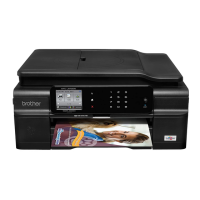
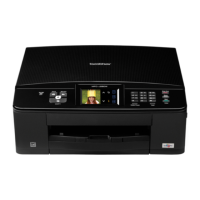
Brother MFC-J825DW - User Manual

Brother MFC-J825DW
154 pages
Print Icon
To Next Page IconTo Next Page
Loading...
BASIC USER’S GUIDE
MFC-J825DW
MFC-J835DW
Version A
USA/CAN

Table of Contents

Other manuals for Brother MFC-J825DW

Questions and Answers

  • W
    williamstravisSep 13, 2025
    What to do if my Brother All in One Printer says 'Service temporarily unavailable'?
    • G
      glenn40Sep 14, 2025
      If your Brother All in One Printer displays 'Service temporarily unavailable', this indicates a problem with the service itself. The suggested solution is to wait and try again later. You might also try accessing the service from a computer to confirm if it is available.
  • M
    Michael KennedyAug 25, 2025
    Why is my Brother Printer only printing in black and white and saying 'Replace Ink'?
    • L
      Laura VazquezAug 25, 2025
      If your Brother Printer displays 'B&W Print Only Replace Ink', it means that one or more of the color ink cartridges have reached the end of their life. You should replace the indicated ink cartridges.
  • C
    Cathy PopeAug 25, 2025
    What to do if my Brother Printer 'Cannot Detect' ink cartridge?
    • K
      Katelyn RowlandAug 26, 2025
      If your Brother Printer shows 'Cannot Detect' an ink cartridge, it might be due to a few reasons. If you installed a new ink cartridge too quickly, remove it and reinstall it slowly until it clicks. Also, ensure you are using a Genuine Brother Innobella™ Ink Cartridge, as the machine may not detect non-genuine ink. Finally, make sure the ink cartridge is installed properly by taking it out and re-installing it slowly until it clicks.
  • W
    wdavisAug 26, 2025
    What to do if my Brother Printer says 'No Paper Fed'?
    • C
      Courtney ShermanAug 27, 2025
      If your Brother Printer is displaying 'No Paper Fed', it could be due to several reasons. First, check if the Photo Bypass Tray is in the Photo printing position and switch it to the Normal printing position. Also, make sure the paper tray is not empty and that paper is loaded correctly. Finally, inspect the printer for any paper jams.
  • S
    Sydney MontoyaSep 14, 2025
    What to do if my Brother MFC-J825DW All in One Printer says 'Incorrect PIN code'?
    • B
      Brooke AndersonSep 15, 2025
      If your Brother All in One Printer displays 'Incorrect PIN code', it means the PIN code registered to the machine is incorrect. The PIN code is the four-digit number that was entered when registering the account to the machine. Enter the correct PIN code.
  • A
    ashleyemilySep 23, 2025
    What to do if Brother All in One Printer says to check for a printable disc?
    • R
      Robert MccallSep 23, 2025
      If your Brother All in One Printer is displaying a 'Check for a Printable Disc' message, it could be due to the following reasons: * The disc cannot be printed on. Remove the disc and place a printable disc on the Disc Tray. Insert the Disc Tray into the Disc Guide and line up the triangular marks. Then, press Start. * There is no disc in the Disc Tray. Make sure a disc is correctly placed in the Disc Tray.
  • H
    hpalmerSep 7, 2025
    What to do if my Brother Printer says 'Cover is Open'?
    • D
      Dean WhiteSep 7, 2025
      If your Brother Printer displays 'Cover is Open', it means either the scanner cover or the ink cartridge cover is not completely closed. Ensure the scanner cover is fully closed by lifting it and closing it again. Also, firmly close the ink cartridge cover until you hear a click.
  • J
    jeremyhartSep 8, 2025
    What to do if Touchscreen initialization failed on Brother Printer?
    • D
      Donald MckaySep 8, 2025
      If your Brother Printer displays 'Touchscreen initialization failed', make sure that nothing is touching or resting on the Touchscreen. Also, check for any debris stuck between the lower part of the touchscreen and its frame; if found, insert a piece of stiff paper and slide it back and forth to push out the debris.
  • T
    Travis BaileySep 23, 2025
    What to do if my Brother All in One Printer says 'Check for a Printable Disc'?
    • S
      Steven HuntSep 23, 2025
      If your Brother All in One Printer displays a 'Check for a Printable Disc' message, it could be due to these reasons: * The disc cannot be printed on. Remove the disc and place a printable disc on the Disc Tray. Insert the Disc Tray into the Disc Guide and line up the triangular marks. Press Start. * There is no disc in the Disc Tray. Make sure a disc is correctly placed in the Disc Tray.
  • J
    James BrownAug 31, 2025
    Why does my Brother MFC-J825DW All in One Printer say 'Network connection failed'?
    • C
      Christopher BaileyAug 31, 2025
      A 'Network connection failed' message on your Brother All in One Printer indicates that the device is not connected to a network. Verify that the network connection is good. Also, if the Web button was pressed soon after the machine was turned on, the network connection may not have been established yet. Wait and try again.

Summary

Chapter 1: Introduction and Basic Operations

Manual Navigation and Safety Guidelines

How to use the manual, understand symbols, and safety notes.

Accessing Additional Guides and Support

Instructions for finding other user guides and accessing Brother support resources.

Control Panel and Interface Overview

Detailed explanation of the machine's keys, LCD, and status indicators.

Basic Operations and Status Indicators

Explanation of Status LED behavior and fundamental machine operations.

Chapter 2: Loading Paper and Media

Loading Standard Paper and Envelopes

Step-by-step guide for loading paper, envelopes, and adjusting guides.

Loading Photo Paper and Other Media

Guide for using the photo bypass tray and handling other media types.

Paper Settings and Specifications

How to configure paper type/size and specifications for acceptable media.

Chapter 3: Loading Documents

Loading Documents via ADF or Scanner Glass

Instructions for placing documents into the ADF or onto the scanner glass.

Document Size and Unscannable Area Specs

Specifications for document sizes and areas that cannot be scanned.

Chapter 4: Sending Faxes

Initiating and Configuring Fax Transmissions

Steps to start sending a fax, load documents, and adjust settings.

Managing Fax Operations and Reports

How to stop, cancel, preview faxes, and manage transmission reports.

Chapter 5: Receiving Faxes

Receive Modes and Telephone Service Impact

Explains receive modes and how telephone services affect reception.

Configuring Receive and Fax Preview Settings

How to set ring delay, F/T ring time, easy receive, and fax preview.

Managing Received Faxes

How to print, delete faxes, and turn off fax preview.

Chapter 6: Telephone Services and External Devices

Telephone Service Integration and Voice Mail Conflicts

How telephone services affect machine operation and managing Voice Mail conflicts.

Distinctive Ring and TAD Connectivity

Using Distinctive Ring and connecting external Telephone Answering Devices (TAD).

External Telephone Usage and Remote Codes

Using external/extension phones and customizing remote access codes.

Chapter 7: Dialing and Storing Numbers

Manual Dialing, Fax Redial, and Speed Dial Usage

How to perform manual dialing, use redial, and initiate calls via Speed Dial.

Storing and Modifying Speed Dial Entries

Step-by-step guide for storing and changing Speed Dial numbers and group contacts.

Chapter 8: Making Copies

Performing Copy Operations

Steps to start a copy job and stop the operation if needed.

Adjusting Copy Settings

How to configure copy settings like quality, paper type, size, and layout.

Chapter 9: PhotoCapture Center Operations

Printing and Scanning with Media Drives

How to print photos and scan documents directly to memory cards/USB drives.

Photo and Media Settings

Adjusting print settings for photos and scan settings for media.

Chapter 10: Printing from a Computer

Installing Driver and Printing Documents

Steps to install the printer driver and print documents from a computer.

Chapter 11: Scanning to a Computer

Scanning Methods and Computer Connectivity

Overview of scanning options using the SCAN key, drivers, or ControlCenter.

Chapter 12: Disc Printing

Overview and Disc Loading Procedures

Information on printing on discs and how to load them into the tray.

Appendix A: Routine Maintenance

Replacing Ink Cartridges and Cleaning

Step-by-step guide for replacing ink and cleaning the print head.

Checking Print Quality and Alignment

How to check and adjust print quality and alignment.

Appendix B: Troubleshooting

Error Messages and Common Issues

Table of error messages, causes, and actions for troubleshooting.

Troubleshooting Printing and Faxing

Solutions for printing problems, fax sending/receiving, and telephone line issues.

Troubleshooting Scanning, Network, and Touchscreen

Resolving scanning, network connectivity, and touchscreen operational issues.

Clearing Jams, Media Issues, and Machine Resets

Procedures for clearing paper/disc jams and resetting machine settings.

Chapter C: Menu and Features

On-Screen Programming and Menu Structure

Overview of menu navigation and the structure of settings.

Configuring Setup, Fax, and Network Settings

Details on setting up general preferences, fax options, and network connectivity.

Advanced Copy, Scan, and Photo Settings

Options for customizing copy, scan, and photo print settings.

Text Input and Editing

Text Input and Correction Procedures

How to input text, insert spaces, and make corrections using the on-screen keyboard.

Chapter D: Specifications

General, Physical, and Media Specifications

Technical details on general specs, dimensions, environment, and print media.

Fax, Copy, Scanner, and Printer Specs

Technical details for Fax, Copy, Scanner, and Printer functions.

PhotoCapture Center, PictBridge, and Interface Specs

Specifications for PhotoCapture Center, PictBridge, and computer interfaces.

Computer Requirements and Consumables

System requirements for computers and information on consumable items.

Network (LAN) Specifications

Details on LAN connectivity, wireless security, and setup utilities.

Brother MFC-J825DW Specifications

General IconGeneral
PictBridgeYes
All-in-one functionsCopy, Fax, Print, Scan
Color all-in-one functionscopy, fax, print, scan
Print technologyInkjet
Maximum resolution1200 x 6000 DPI
Duplex printing modeAuto
Print speed (black, normal quality, A4/US Letter)35 ppm
Print speed (color, normal quality, A4/US Letter)27 ppm
Digital senderNo
Maximum duty cycle- pages per month
Number of print cartridges4
Page description languagesGDI
Copier resize25 - 400 %
Maximum copy resolution1200 x 1200 DPI
Maximum number of copies99 copies
N-in-1 copy function (N=)2, 4
Time to first copy (color, normal)24 s
Copy speed (black, normal quality, A4)23 cpm
Copy speed (color, normal quality, A4)20 cpm
Scan toE-mail, File, Image, OCR, USB
Scanner typeFlatbed & ADF scanner
Grayscale levels256
Input color depth36 bit
Maximum scan area216 x 355 mm
Output color depth24 bit
Image formats supportedBMP, JPG, PNG, TIF
Maximum scan resolution19200 x 19200 DPI
Document formats supportedPDF
Optical scanning resolution2400 x 2400 DPI
FaxingColor faxing
Fax memory400 pages
Modem speed33.6 Kbit/s
Fax coding methodsMH, MMR (Fax coding method), MR
Fax resolution (black)203 x 392 DPI
Paper input typeCassette
Total input capacity100 sheets
Total output capacity50 sheets
Auto document feeder (ADF) input capacity15 sheets
Maximum print size216 x 297 mm
Paper tray media typesGlossy paper, Photo paper, Plain paper, Transparencies
Non-ISO print media sizesLetter
ISO A-series sizes (A0...A9)A4, A5, A6
Photo paper sizes (imperial)4x6, 5x7, 5x8, 8x10, 8.5x11 \
Borderless printing media sizes4x6, 5x7, A4, A6, Letter
Maximum ISO A-series paper sizeA4
Auto Document Feeder (ADF) media weight (imperial)64 - 90 lbs
DisplayLCD
Control typeTouch
Product colorBlack
Market positioningHome & office
Standard interfacesEthernet, USB 2.0, Wireless LAN
USB 2.0 ports quantity1
Wi-Fi standards802.11b, 802.11g, Wi-Fi 4 (802.11n)
Security algorithms128-bit WEP, 64-bit WEP, WPA-PSK, WPA-TKIP, WPA2-PSK, WPS
Mobile printing technologiesApple AirPrint, Google Cloud Print
Processor familyRISC
Compatible memory cardsMemory Stick (MS), MMC, MS PRO, SD, SDHC, SDXC
Power consumption (off)2.5 W
Power consumption (standby)6.5 W
Power consumption (average operating)24 W
Mac operating systems supportedMac OS X 10.4 Tiger, Mac OS X 10.5 Leopard, Mac OS X 10.7 Lion
Windows operating systems supportedWindows 7 Home Premium, Windows 7 Home Premium x64, Windows 7 Professional, Windows 7 Professional x64, Windows 7 Starter x64, Windows 7 Ultimate, Windows 7 Ultimate x64, Windows 8, Windows 8 Enterprise, Windows 8 Enterprise x64, Windows 8 Pro, Windows 8 Pro x64, Windows 8 x64, Windows Vista Business, Windows Vista Ultimate, Windows Vista Ultimate x64, Windows XP Home, Windows XP Home x64, Windows XP Professional, Windows XP Professional x64
Bundled softwareBrother MFL-Pro Suite\\r Brother ControlCentre4 (Win)\\r Nuance® Paperport® 12 SE + OCR (Win)\\r Reallusion® FaceFilter Studio (Win8)\\r Brother ControlCentre2 (Mac)\\r NewSoft® Presto!® PageManager9 (Mac)
Sustainability certificatesENERGY STAR
Weight and Dimensions IconWeight and Dimensions
Depth378 mm
Width405 mm
Height180 mm

Related product manuals