EasyManua.ls Logo

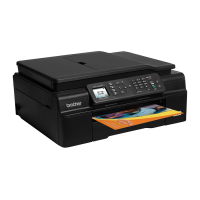
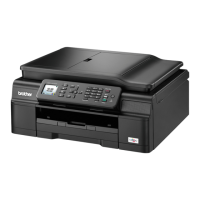
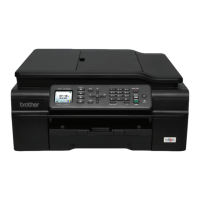
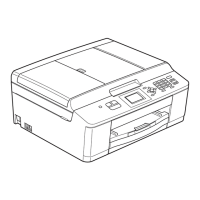
Brother MFC-J435W - User Manual

Brother MFC-J435W
121 pages
Print Icon
To Next Page IconTo Next Page
Loading...
BASIC USER’S GUIDE
MFC-J425W
MFC-J430W
MFC-J435W
Version 0
USA/CAN

Table of Contents

Other manuals for Brother MFC-J435W

Questions and Answers

  • J
    Joel DeanJul 26, 2025
    Why does my Brother All in One Printer say 'Cannot Print Replace Ink'?
    • K
      Kevin BrownJul 26, 2025
      If your Brother All in One Printer shows 'Cannot Print Replace Ink', it indicates that one or more of the ink cartridges have reached the end of their life. You should replace the ink cartridges.
  • A
    Andrea AtkinsonAug 2, 2025
    What to do if my Brother All in One Printer cannot detect the ink cartridge?
    • M
      Mary ReidAug 3, 2025
      There are several reasons why your Brother All in One Printer might not detect a new ink cartridge. It could be due to installing the cartridge too quickly. In this case, take out the new ink cartridge and re-install it slowly until it clicks. Also, if you are not using Genuine Brother Innobella™ ink, the machine may not detect the ink cartridge. Try using a new Genuine Brother Innobella™ Ink Cartridge; if the error is not cleared, call Brother Customer Service. Finally, the ink cartridge might not be installed properly, so remove it and re-install it slowly until it clicks.
  • D
    davidsonjasonAug 10, 2025
    How to fix 'B&W Print Only Replace Ink' on Brother All in One Printer?
    • J
      Justin HansenAug 10, 2025
      If your Brother All in One Printer is only printing in black and white and prompting you to replace the ink, it means that one or more of the color ink cartridges have reached the end of their life. Replace the ink cartridges to resolve this issue.
  • B
    batesjessicaAug 17, 2025
    What to do if my Brother All in One Printer shows a Comm.Error?
    • D
      Dawn HuffAug 17, 2025
      If your Brother All in One Printer displays a 'Comm.Error', it means that poor telephone line quality caused a communication error. To resolve this, try sending the fax again or connect the machine to another telephone line. If the problem persists, contact your telephone company to inspect your telephone line.

Summary

Loading Paper

Loading Paper and Other Print Media

Instructions on how to load single-size and single-type paper into the tray.

Loading Envelopes and Postcards

Guidance on properly loading envelopes and postcards for printing.

Paper Type and Size Settings

How to select the correct paper type and size for optimal print quality.

Sending a Fax

How to Send a Fax

Step-by-step guide on initiating and sending a fax from the machine.

Receiving a Fax

Choose the Correct Receive Mode

Guides selection of the appropriate receive mode based on line setup.

Troubleshooting

Error and Maintenance Messages

Lists common error messages, their causes, and suggested actions.

Document and Paper Jams

Steps for clearing document jams in the ADF and paper jams in the machine.

Printing Difficulties

Solutions for common printing issues like no printout or poor quality.

Machine Information and Reset Functions

How to check serial number, reset network, speed dial, or all settings.

Specifications

Fax Specifications

Technical details for fax functionality, including modem speed and resolution.

Brother MFC-J435W Specifications

General IconGeneral
Print TechnologyInkjet
Max Scan Resolution1200 x 2400 dpi
Fax Modem Speed14.4 Kbps
Paper Input Capacity100 sheets
Automatic Document FeederYes, 20 sheets
Duplex PrintingManual
Output Paper Capacity50 sheets
Memory64 MB
Max Print Resolution6000 x 1200 dpi
Max Print Speed (Black)33 ppm
Scanner TypeFlatbed
Copy Speed (Color)20 cpm
ConnectivityWireless 802.11b/g
Display1.9" LCD
Mobile PrintingBrother iPrint&Scan

Related product manuals