EasyManua.ls Logo

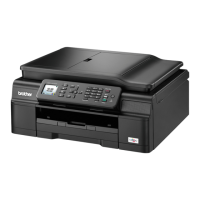
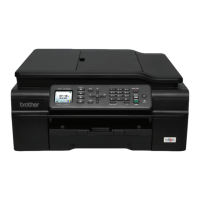
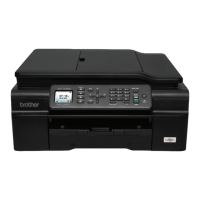
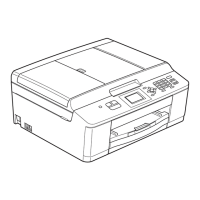
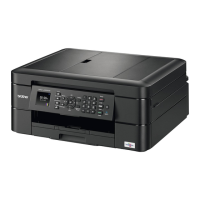
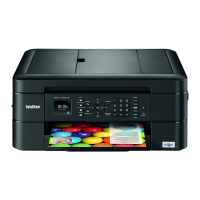
Brother MFC-J470DW - User Manual

Brother MFC-J470DW
139 pages
Print Icon
To Next Page IconTo Next Page
Loading...
Basic User’s Guide
MFC-J470DW
Version 0
UK/IRE/GEN

Table of Contents

Other manuals for Brother MFC-J470DW

Questions and Answers

  • S
    Stephanie SimsSep 23, 2025
    Why does my Brother MFC-J470DW All in One Printer say 'No Caller ID'?
    • M
      Matthew ReedSep 23, 2025
      This message indicates that there is no incoming call history, either because you did not receive calls or you have not subscribed to the Caller ID service from your telephone company. If you want to use the Caller ID feature, contact your telephone company.
  • R
    Rachael BlakeAug 23, 2025
    Why is my Brother MFC-J470DW All in One Printer printing in B&W only and saying 'Replace Ink'?
    • H
      Heather MaloneAug 23, 2025
      This happens when one or more of the colour ink cartridges have reached the end of their life. Replace the ink cartridges to restore colour printing.
  • M
    Marcus RomeroAug 25, 2025
    How to fix 'Cannot Print Replace Ink' on my Brother MFC-J470DW All in One Printer?
    • J
      Joseph RuizAug 25, 2025
      This message indicates that one or more of the ink cartridges have reached the end of their life. To resolve this, replace the ink cartridges.
  • L
    Linda HillAug 26, 2025
    Why does my Brother MFC-J470DW say 'Cover is Open'?
    • L
      Lisa SolomonAug 27, 2025
      This message appears because either the scanner cover or the ink cartridge cover is not properly closed. Make sure that the scanner cover is locked in the closed position. Also, firmly close the ink cartridge cover until it locks into place.
  • S
    Shannon BaileyAug 27, 2025
    What does 'Ink low' mean on my Brother All in One Printer?
    • L
      linda33Aug 27, 2025
      The 'Ink low' message means that one or more of the ink cartridges are nearing the end of their life. It is recommended to order a new ink cartridge. You can continue printing until the LCD shows 'Cannot Print'.
  • A
    Amber CohenSep 17, 2025
    What to do if BT Call Sign is ON on my Brother All in One Printer?
    • S
      Shane SmithSep 17, 2025
      If BT Call Sign is set to ON, you cannot change the Receive Mode from Manual to another mode. Set BT Call Sign to OFF.
  • G
    Gregory ParrishSep 14, 2025
    What does 'Comm.Error' mean on my Brother MFC-J470DW?
    • D
      Donald Oliver IISep 14, 2025
      A 'Comm.Error' indicates a communication error, usually caused by poor telephone line quality. If the problem continues, contact the telephone company to check your telephone line.
  • B
    Bob LarsonSep 15, 2025
    What does 'No Response/Busy' mean on my Brother MFC-J470DW All in One Printer?
    • G
      glendanielsenSep 15, 2025
      The 'No Response/Busy' message means that the number you dialled has not answered or is busy. Verify the number and try again.
  • J
    Judith SerranoSep 6, 2025
    What to do if my Brother MFC-J470DW displays 'High Temperature'?
    • C
      Christopher MillerSep 6, 2025
      This message indicates that the room temperature is too high. Lower the room temperature, allow the machine to cool down, and then try again.
  • R
    rhahnSep 3, 2025
    What does 'Unable to Clean/Init/Print/Scan' mean on my Brother MFC-J470DW All in One Printer?
    • B
      Brad PopeSep 3, 2025
      This message indicates that the machine has a mechanical problem or a foreign object is inside. Open the scanner cover and remove any foreign objects and paper scraps from inside the machine.

Summary

General Information

Control Panel Overview

Details the functions of buttons and the LCD on the control panel.

Basic Operations and Settings

Covers basic operations, LCD indications, and volume adjustments.

LCD Display Settings

Instructions for adjusting LCD backlight brightness.

Loading Paper

Loading Paper and Other Print Media

Instructions for loading various paper types into the machine's paper tray.

Loading Envelopes

Steps and important notes for loading envelopes into the paper tray.

Paper Settings

How to configure paper type and size settings on the machine.

Loading Documents

Using the ADF

Instructions for loading documents into the Automatic Document Feeder.

Using the Scanner Glass

Guide for placing documents directly on the scanner glass.

Unscannable Area

Details the unprintable margins for scanned documents.

Sending a Fax

How to Send a Fax

Step-by-step process for sending a fax from the machine.

Fax Sending Settings

How to adjust settings like scan size and transmission type.

Transmission Verification Report

Information on the report that confirms fax transmission success.

Receiving a Fax

Receive Modes

Explanation of different modes for receiving faxes automatically or manually.

Receive Mode Settings

Configuration options for ring delay and F/T ring time.

Fax Detect

How to use the feature to detect and receive fax calls.

Telephone and External Devices

Voice Operations and Caller ID

Explains voice features and Caller ID usage.

Telephone Line Type Settings

How to configure the machine for PBX or ISDN lines.

Connecting External Devices

Steps for connecting TADs and external telephones.

Dialling and Storing Numbers

Manual and Speed Dialling

How to dial manually and use speed dial for quick access.

Storing Numbers and History

Guide to storing numbers and managing call history.

Making Copies

How to Copy

Step-by-step guide for performing basic copy operations.

Copy Options

Details on adjusting copy settings like paper type and size.

How to Print from a Computer

Printing a Document

Instructions for printing documents from a connected computer.

How to Scan to a Computer

Before Scanning

Essential setup steps before using the machine as a scanner.

Scanning Operations

Instructions for scanning via ControlCenter4 and the control panel.

Routine Maintenance

Replacing Ink Cartridges

Step-by-step guide for replacing the ink cartridges.

Cleaning the Machine

Instructions for cleaning the scanner glass and print head.

Checking Print Quality

How to check and improve print quality.

Troubleshooting

Identifying Your Problem

Initial steps to diagnose and resolve machine issues.

Error and Maintenance Messages

Explains common error messages and their solutions.

Paper Jam Issues

Procedures for clearing document and paper jams.

Printing Difficulties

Solutions for common printing problems like no printout.

Reset Functions

Information on resetting machine settings to factory defaults.

Settings and Features Tables

Menu Table Overview

Explains the menu structure and factory settings.

Fax Configuration Settings

Details of various fax settings like receive mode and resolution.

Scan Configuration Settings

Options for configuring scan type, resolution, and file format.

Entering Text

How to input text and characters using the machine's keypad.

Specifications

General Machine Specifications

Details on power, display, and memory capacity.

Fax Specifications

Technical details on fax compatibility, resolution, and speed dial.

Scanner Specifications

Technical details on scanner color depth, resolution, and scanning area.

Consumable Items

Information on ink cartridges and their service life.

Brother MFC-J470DW Specifications

General IconGeneral
Duplex printingYes
Print technologyInkjet
Maximum resolution1200 x 6000 DPI
Print speed (ISO/IEC 24734) mono12 ipm
Print speed (ISO/IEC 24734) color10 ipm
Duplex print speed (ISO/IEC 24734) mono3 ipm
Print speed (black, normal quality, A4/US Letter)33 ppm
Print speed (color, normal quality, A4/US Letter)27 ppm
Copier resize25 - 400 %
Maximum copy resolution1200 x 2400 DPI
Maximum number of copies99 copies
N-in-1 copy function (N=)4
Copy speed (black, normal quality, A4)5 cpm
Scan toCloud, E-mail, File, Image, OCR
Scanner typeADF scanner
Grayscale levels256
Input color depth30 bit
Output color depth24 bit
Image formats supportedBMP, JPG, PNG, TIF
Maximum scan resolution19200 x 19200 DPI
Document formats supportedPDF
FaxingColor faxing
Fax memory170 pages
Modem speed14.4 Kbit/s
Fax coding methodsJPEG, MH, MMR (Fax coding method), MR
Fax transmission speed7 sec/page
Fax speed dialing (max numbers)40
Digital senderNo
Printing colorsBlack, Cyan, Magenta, Yellow
Maximum duty cycle2500 pages per month
Recommended duty cycle50 - 1000 pages per month
Page description languagesGDI
Total input capacity100 sheets
Total output capacity50 sheets
Auto document feeder (ADF) input capacity20 sheets
Envelopes sizes10, C5, DL, Monarch
Photo paper sizes10x15, 13x18 cm
Maximum print size210 x 297 mm
Paper tray media typesCoated paper, Envelopes, Glossy paper, Photo paper, Plain paper, Transparencies
Non-ISO print media sizes2L, Executive (184 x 267mm), Index card, L, Letter (media size)
ISO A-series sizes (A0...A9)A4, A5, A6
ISO B-series sizes (B0...B9)B5
ISO C-series sizes (C0...C9)C5
Maximum ISO A-series paper sizeA4
DisplayLCD
Product colorBlack
Display diagonal1.8 \
Market positioningHome & office
Standard interfacesUSB 2.0, Wireless LAN
USB 2.0 ports quantity1
Wi-Fi standards802.11b, 802.11g, Wi-Fi 4 (802.11n)
Security algorithms128-bit WEP, 64-bit WEP, SSID, WPA-PSK, WPA2-PSK
Online services supportedDropbox, Evernote, Facebook, Flickr, Google Drive, Picasa, Sky Drive
Mobile printing technologiesApple AirPrint, Brother iPrint & Scan, Google Cloud Print
Compatible memory cardsMMC Mobile, MMC+, MS Duo, MS Micro (M2), MS PRO, SD, SDHC, SDXC
Sound pressure level (printing)50 dB
AC input voltage220 - 240 V
AC input frequency50 - 60 Hz
Power consumption (off)0.2 W
Power consumption (standby)3.5 W
Power consumption (PowerSave)1.1 W
Power consumption (average operating)18 W
Package depth456 mm
Package width478 mm
Package height244 mm
Package weight10700 g
Operating temperature (T-T)10 - 35 °C
Operating relative humidity (H-H)20 - 80 %
Mac operating systems supportedMac OS X 10.5 Leopard, Mac OS X 10.6 Snow Leopard, Mac OS X 10.7 Lion, Mac OS X 10.8 Mountain Lion
Server operating systems supportedWindows Server 2003, Windows Server 2003 x64, Windows Server 2008, Windows Server 2008 R2, Windows Server 2008 x64
Windows operating systems supportedWindows 7 Home Basic, Windows 7 Home Basic x64, Windows 7 Home Premium, Windows 7 Home Premium x64, Windows 7 Professional, Windows 7 Professional x64, Windows 7 Starter, Windows 7 Starter x64, Windows 7 Ultimate, Windows 7 Ultimate x64, Windows 8, Windows 8 Enterprise, Windows 8 Enterprise x64, Windows 8 Pro, Windows 8 Pro x64, Windows 8 x64, Windows Vista Business, Windows Vista Business x64, Windows Vista Enterprise, Windows Vista Enterprise x64, Windows Vista Home Basic, Windows Vista Home Basic x64, Windows Vista Home Premium, Windows Vista Home Premium x64, Windows Vista Ultimate, Windows Vista Ultimate x64, Windows XP Home, Windows XP Home x64, Windows XP Professional, Windows XP Professional x64
Sustainability certificatesBlue Angel, ENERGY STAR
Fax compatibilityITU-T G3
Weight and Dimensions IconWeight and Dimensions
Depth374 mm
Width410 mm
Height180 mm

Related product manuals