EasyManua.ls Logo

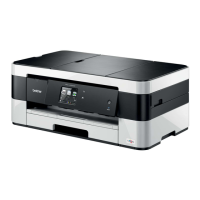
Brother MFC-J4620DW - User Manual

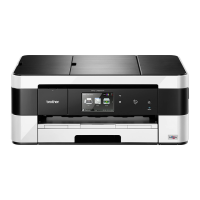
Brother MFC-J4620DW
80 pages
Print Icon
To Next Page IconTo Next Page
Loading...
Basic User’s Guide
MFC-J4620DW
MFC-J4625DW
Version 0
UK

Table of Contents

Other manuals for Brother MFC-J4620DW

Questions and Answers

  • M
    Mathew ByrdSep 16, 2025
    What does ink absorber pad full mean on Brother printer?
    • M
      Martin RodriguezSep 16, 2025
      The Brother printer displays 'Ink Absorber Pad Full' when the ink absorber box or flushing box is full. The ink absorber box or flushing box must be replaced. Contact Brother customer service or your local Brother Authorised Service Centre to have your machine serviced.
  • B
    Brandon HunterAug 25, 2025
    How to fix out of memory error on Brother printer?
    • J
      Jon FosterAug 25, 2025
      If your Brother printer displays 'Out of Memory', it indicates that the machine's memory is full. If a fax-sending or copy operation is in process, press or Quit or Close and wait until the other operations that are in process finish, and then try again. You can also press Send Now to send the pages scanned so far, or press Partial Print to copy the pages scanned so far. To gain extra memory, you can turn off Memory Receive or print the faxes that are in the memory.
  • D
    Dana HarperAug 25, 2025
    What to do if Brother printer says no paper fed?
    • J
      Jamie SandovalAug 26, 2025
      If your Brother printer displays 'No Paper Fed', it indicates that the machine is either out of paper or the paper is not loaded correctly in the paper tray. Refill the paper tray, or remove and reload the paper correctly, then press OK on the Touchscreen. Alternatively, the paper tray might not be fully inserted; remove it and reinstall it until it locks. Other causes can be that the paper was not inserted in the centre position of the manual feed slot, the Jam Clear Cover is not closed correctly, paper dust has accumulated on the surface of the paper pick-up rollers, the paper is jammed in the machine or the paper feed rollers may be stained with ink.
  • C
    cassandrathompsonAug 26, 2025
    What to do if my Brother printer cannot detect ink?
    • R
      Robert RichardAug 26, 2025
      If your Brother printer shows 'Cannot Detect', it could be due to several reasons. You might have installed a new ink cartridge too quickly, so take it out and reinstall it slowly and firmly until the cartridge lever lifts. An ink cartridge might not be installed correctly, or a used ink cartridge was reinstalled, so install a new one. If you are using non-Brother Original ink, replace it with a Brother Original ink cartridge. It is also possible that the ink cartridge must be replaced, or the new ink cartridge has an air bubble, so turn the ink cartridge so that the ink supply port is pointing downward, and then reinstall the cartridge. Finally, the wrong Brother model ink cartridge may have been installed, so check the model numbers and install the correct ink cartridges.
  • D
    Daniel PhillipsSep 18, 2025
    What does ink absorber pad near full mean on Brother printer?
    • T
      Thomas Roberts MDSep 18, 2025
      The Brother printer displays 'Ink Absorber Pad NearFull' when the ink absorber box or flushing box is nearly full. The ink absorber box or flushing box must be replaced soon. Contact Brother customer service or your local Brother dealer.
  • S
    Sharon ArmstrongSep 23, 2025
    What to do if Brother MFC-J4620DW All in One Printer prints only first page from iOS device?
    • J
      Joshua RuizSep 23, 2025
      If your Brother All in One Printer prints only the first page when printing a multiple-page document from an iOS device, ensure that you are running the latest version of iOS.
  • J
    jennifer56Sep 8, 2025
    How to fix wrong ink colour on Brother printer?
    • U
      upittsSep 8, 2025
      If your Brother printer displays 'Wrong Ink Colour', it means that an ink cartridge has been installed in the wrong position. Check which ink cartridges are not matched by colour to their ink cartridge positions and move them to their correct positions.
  • S
    Sheila MillsSep 9, 2025
    How to fix Comm.Error on Brother printer?
    • T
      Timothy RosalesSep 9, 2025
      If your Brother printer displays 'Comm.Error', it means that poor telephone line quality caused a communication error. If the problem continues, call the telephone company and ask them to check your telephone line.
  • P
    porterjamesSep 2, 2025
    How to fix Touchscreen Initialisation Failed on Brother printer?
    • J
      John QuinnSep 3, 2025
      If your Brother printer displays 'Touchscreen Initialisation Failed', it means that the Touchscreen was pressed before the power on initialization was completed. Make sure that nothing is touching or resting on the Touchscreen, especially when plugging in the machine. Debris may be stuck between the lower part of the Touchscreen and its frame. Insert a piece of stiff paper between the lower part of the Touchscreen and its frame and slide it back and forth to push out the debris.
  • D
    Dana WaltonSep 1, 2025
    Why does my Brother printer say wrong paper?
    • J
      Justin BooneSep 1, 2025
      If your Brother printer displays 'Wrong Paper', it means that the paper size setting does not match the size of paper in the tray. Check that the paper size you choose on the Touchscreen matches the size of the paper in the tray, load the paper in the proper orientation, and set the paper guides to the indicators for your paper size. If you are printing from your computer, make sure the paper size you choose in the printer driver matches the size of paper in the tray.

Summary

Basic Users Guide

General Information

General Information (continued)

Control Panel Overview

An overview of the machine's control panel, including the touchscreen LCD.

Loading Paper

Loading Paper in the Paper Tray

Step-by-step instructions for loading paper into the standard paper tray.

Loading Paper (continued)

Loading Paper in the Manual Feed Slot

Instructions for using the manual feed slot for special print media, one sheet at a time.

Loading Documents

Using the ADF

Step-by-step guide for loading documents into the Automatic Document Feeder (ADF).

Loading Documents (continued)

Using the Scanner Glass

Instructions for loading single pages or book pages onto the scanner glass.

Printing from a Computer

How to Print a Document

Detailed steps for installing the printer driver and printing from a computer.

Copying

How to Copy

Step-by-step instructions for performing copy operations and stopping a copy job.

Copying (continued)

Scanning to a Computer

Scan to PDF via ControlCenter4

Guide to scanning documents as PDF files using the ControlCenter4 software.

Scanning to a Computer (continued)

Scan to PDF via Touchscreen

Instructions for scanning documents to PDF files directly from the machine's touchscreen.

Printing and Scanning with NFC

How to Print with NFC

Steps to print photos and documents from an NFC-enabled Android device.

How to Scan with NFC

Steps to scan photos and documents to an NFC-enabled Android device.

Printing Photos from Memory Card or USB

PhotoCapture Center Operations

How to print photos directly from memory cards or USB flash drives.

Printing Photos from Memory Card;USB (continued)

Telephone Services and External Devices

Sending a Fax

How to Send a Fax

Step-by-step guide for sending faxes using the ADF or scanner glass.

Sending a Fax (continued)

Receiving a Fax

Receive Modes

Explanation of different Receive Modes (Fax Only, Fax/Tel, Manual, External TAD).

Choosing the Receive Mode

Guidance on selecting the appropriate Receive Mode based on line setup.

Receiving a Fax (continued)

Routine Maintenance

Cleaning and Checking the Machine

Instructions for cleaning the scanner glass and ADF unit.

Checking Print Quality

How to print and interpret a Print Quality Check Sheet to diagnose print issues.

Routine Maintenance (continued)

Checking Print Alignment

Procedure to adjust print alignment for blurred or skewed text and images.

Troubleshooting

Identifying the Problem

Initial checks to perform when experiencing issues with the machine.

Error and Maintenance Messages

Explanation of common error and maintenance messages displayed on the touchscreen.

Troubleshooting (continued)

Document Jam

Steps to clear document jams from the ADF and inside the machine.

If You Are Having Difficulty With Your Machine

Printing Difficulties

Solutions for common printing problems like headers/footers, slow speed, and smudging.

Brother MFC-J4620DW Specifications

General IconGeneral
Typeall in one
Colorwhite/black, multi
Touch Screenyes
Display Size3.7 inches
Tray Capacity150
Automatic Document Feeder Capacity20 sheets
Paper Sizeletter, legal
Paper Handling1-sheet, 150-sheet tray loader, 20-sheet, 50-sheet
Color Print Speed35 pages per minute
Mono Print Speed27 pages per minute
Print Resolution Monoup to 6000 x 1200
Print Resolution Colorup to 6000 x 1200
Two-Sided Printingno
Maximum Number of Pages Per Monthup to 13, 000
Reduction and Enlargementyes
Photo Printingno
Scanner Typeflatbed
Scan Resolutionup to 2400 x 1200
Duplex Scanyes
Copier Resolution Monoup to 600 x 600
Copier Resolution Colorup to 600 x 600
Fax Functionyes
Cartridgeslc203bk, lc203c, lc203m, lc203y
Number Of Cartridges4
Number of Ink Tanks0
Internal Memoryyes
Memory Cardyes
Networkwired, wireless
Connectivitybrother iprint&scan, google cloud print
OS Compatibilitywindows, mac os
Mobile Devices Connectionno
Weight and Dimensions IconWeight and Dimensions
Height7.4 inches
Width18.9 inches
Net Weight20.6 pounds

Videos

How to Replace the Ink Cartridges in a Brother MFC J4620DW Printer

Related product manuals