EasyManua.ls Logo

Brother MFC-J4410DW - User Manual

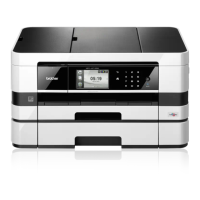
Brother MFC-J4410DW
222 pages
Print Icon
To Next Page IconTo Next Page
Loading...
Software User’s Guide
For DCP users; This documentation is for both MFC and DCP models. Where it says 'MFC' in this user's
guide, please read 'MFC' as 'DCP'.
Not all models are available in all countries.
Version 0
USA

Table of Contents

Other manuals for Brother MFC-J4410DW

Questions and Answers

  • L
    Lisa LopezSep 18, 2025
    What to do if Brother MFC-J4410DW displays 'Connection Fail'?
    • M
      Maria KingSep 18, 2025
      If your Brother All in One Printer displays 'Connection Fail', it means you tried to poll a fax machine that is not in Polled Waiting mode. Check the other fax machine's polling setup.
  • L
    Lisa LoveAug 25, 2025
    How to clear paper jam in the back of Brother MFC-J4410DW?
    • S
      samuelwolfeAug 25, 2025
      If your Brother All in One Printer shows 'Paper Jam [Rear]', it means paper is stuck inside the machine. You should remove the jammed paper by following the steps in the manual, and then make sure the paper guides are set to the correct paper size.
  • M
    Melissa HarrisAug 25, 2025
    Why does my Brother All in One Printer only print in black and white and says 'Replace Ink'?
    • P
      parkdeniseAug 26, 2025
      If your Brother All in One Printer displays 'B&W Print Only Replace Ink', it indicates that one or more of the color ink cartridges have reached the end of their life. Replacing the ink cartridges should resolve this issue.
  • R
    Regina PottsAug 27, 2025
    What to do if I cannot complete the Wi-Fi Direct network setup configuration on my Brother MFC-J4410DW All in One Printer?
    • W
      Wendy WellsAug 27, 2025
      If you're having trouble completing the Wi-Fi Direct network setup on your Brother All in One Printer, consider the following: * Double-check the SSID and password displayed on your Brother machine or mobile device during manual configuration. * Try the one-push configuration using WPS (recommended), setting the Brother machine as a G/O. * Ensure your Brother machine is within about 3.3 feet (1 meter) of the mobile device. * Move your Brother machine to an obstruction-free area. * Move other devices away from the Brother machine or the mobile device. * Turn your Brother machine off and then on again. If using the Brother machine as a client, check the number of allowed devices in the Wi-Fi Direct network and how many are currently connected.
  • M
    Mr. Troy HenrySep 18, 2025
    What to do if Brother MFC-J4410DW displays 'Not Registered'?
    • B
      Bianca LeSep 18, 2025
      If your Brother All in One Printer displays 'Not Registered', it means you tried to access a Speed Dial number that has not been stored in the machine. Set up the Speed Dial number.
  • D
    Danielle HerreraNov 25, 2025
    Why am I getting error messages when configuring Wi-Fi Direct on my Brother MFC-J4410DW All in One Printer?
    • D
      deanna41Nov 25, 2025
      If you're getting error messages when setting up Wi-Fi Direct from the control panel, here are a few things to try: * Ensure your Brother machine and mobile device are close to each other and in an area free from obstructions, as communication issues can arise if they are too far apart. * If using the PIN Method of WPS, double-check that you've entered the correct PIN. * Make sure no other devices are trying to connect to the Wi-Fi Direct network simultaneously. * Confirm that both your machine and mobile device are in Wi-Fi Direct mode. If manually configuring, verify the password is correct and that your mobile device's IP address is configured via DHCP. * If another mobile device is already connected to the Wi-Fi Direct network, wait for that connection to shut down before tr...
  • D
    David JacksonSep 9, 2025
    What does 'Ink Absorber Full' mean on Brother MFC-J4410DW?
    • D
      David ClarkSep 9, 2025
      If your Brother All in One Printer displays 'Ink Absorber Full', it means the ink absorber box or flushing box is full and will need to be replaced. Contact Brother Customer Service or a Brother Authorized Service Center to have your machine serviced.
  • M
    mitchellmccormickSep 12, 2025
    What does 'InkAbsorberNearFull' mean on Brother MFC-J4410DW?
    • J
      Julie SmithSep 12, 2025
      If your Brother All in One Printer displays 'InkAbsorberNearFull', it means the ink absorber box or flushing box is nearly full and will need to be replaced soon. Call Brother Customer Service or a Brother Authorized Service Center to have your machine serviced.
  • A
    Anthony WilsonSep 4, 2025
    What does 'Media is Full' mean on my Brother MFC-J4410DW All in One Printer?
    • M
      Michelle KellySep 4, 2025
      If your Brother All in One Printer displays 'Media is Full', it means the memory card or USB Flash memory drive you are using has no available space or already contains 999 files. Your machine can only save if the memory card or USB Flash memory drive contains fewer than 999 files. Delete unused files to free some space and try again.
  • K
    Kristina FarmerSep 2, 2025
    What to do if Brother All in One Printer says 'Cannot Detect'?
    • J
      Jennifer GarrettSep 2, 2025
      If the Brother All in One Printer displays 'Cannot Detect', it could be due to several reasons. If you installed a new ink cartridge too quickly, take it out and reinstall it slowly until it latches. Also, make sure you are using Genuine Brother Innobella™ ink; if not, try using a new genuine cartridge. If the error persists, contact Brother Customer Service.

Summary

Printing (Windows)

Status Monitor

Monitors printer status, paper jams, and ink levels, providing error notifications.

Printer driver settings

Explains how to access and configure various print settings via the printer driver interface.

Advanced tab

Details advanced print options including color settings, scaling, watermarks, and more.

Scanning (Windows)

Scanning a document using the TWAIN driver

Guides scanning using the TWAIN driver for compatibility with various applications.

Auto Crop

Describes the auto-cropping feature for scanning multiple documents placed on the scanner glass.

Document Size

Explains how to select document sizes, including custom options, for scanning.

Using Nuance PaperPort 12 SE

Introduces Nuance PaperPort 12SE for managing scanned documents, organizing, and file conversion.

ControlCenter4 (Windows)

Overview

Provides an overview of ControlCenter4 as a utility for accessing applications and controlling scan button settings.

Photo tab

Details functions for printing, editing, emailing, and capturing images within ControlCenter4.

Scan tab

Covers scan options including file types, document size, advanced settings, and OCR functionality.

Device Settings tab

Explains how to configure machine settings like Remote Setup and Address Book access.

Brother PC-FAX Software (For MFC models)

PC-FAX sending

Guides on sending documents as faxes directly from the computer using the Brother PC-FAX software.

Setting up user information

Details on configuring user information for fax headers and cover pages.

Address Book

Explains how to manage the address book for PC-FAX sending, including adding and editing contacts.

PC-FAX receiving

Explains how to view and store faxes received on the computer via the PC-FAX Receive software.

Firewall Settings (For Network Users)

UDP Port number information for Firewall configuration

Lists required UDP port numbers for network printing, scanning, and PC-Fax services.

Windows XP SP2 or higher users

Instructions for configuring Windows Firewall exceptions for network scanning and PC-Fax.

Windows 7 users

Steps to configure Windows Firewall advanced security settings for network scanning and PC-Fax.

Printing and Faxing (Macintosh)

Status Monitor

Describes how to monitor machine status, view error messages, and update status information.

Choosing page setup options

Explains how to configure page setup settings, paper size, orientation, and scale for printing.

2-sided Printing

Details how to perform 2-sided printing, including long-edge and short-edge binding options.

Sending a fax (For MFC models)

Guides on sending faxes directly from applications on Macintosh systems.

Scanning (Macintosh)

Scanning a document using the TWAIN driver

Guides on using the TWAIN driver for scanning documents on Macintosh systems.

Scanning an image into your computer

Explains how to scan a whole page or a portion by pre-scanning the document.

Resolution

Details changing scanning resolution and its impact on memory and transfer time.

Using Presto! PageManager

Introduces Presto! PageManager for document management, editing, and OCR capabilities on Macintosh.

ControlCenter2 (Macintosh)

Using ControlCenter2

Introduces ControlCenter2 as a utility for accessing applications and configuring scan button settings.

SCAN

Details the four scan buttons (Image, OCR, E-mail, File) and their configurations.

File types

Lists the available file types for saving scanned images from ControlCenter2.

REMOTE SETUP (For MFC models)

Explains how to open the Remote Setup program to configure machine and network settings.

Remote Setup & PhotoCapture Center (Macintosh)

Remote Setup (For MFC models)

Details configuring machine settings via the Remote Setup application.

PhotoCapture Center

Explains how to access memory cards or USB drives installed in the machine from a computer.

For USB cable users

Provides instructions for accessing PhotoCapture Center™ using a USB cable connection.

USB Cable Scanning

Using the Scan button over a USB cable connection

Guides on using the scan button via USB for direct scanning to applications or storage.

Scan to E-mail

Describes scanning documents directly to an email application as an attachment.

Scan to Image

Explains scanning documents into graphics applications for viewing and editing.

Scan to OCR

Details scanning documents and converting them to editable text files.

Network Scanning

Configuring Network Scanning for Windows

Instructions for setting up network scanning on Windows, including IP address or name configuration.

Using the Scan button on your network

Guides on using the scan button for network scanning to computers or email servers.

Scan to FTP

Explains how to scan documents directly to an FTP server on the local network or internet.

Scan to Network (Windows)

Details scanning documents directly to a shared folder on a CIFS server over the network.

Using Web Services for scanning on your network (Windows Vista SP2 or later and Windows 7)

Guides on using Web Services protocol for network scanning with Windows Vista/7.

Brother MFC-J4410DW Specifications

General IconGeneral
Print technologyInkjet
Maximum resolution6000 x 1200 DPI
Economical printingYes
Duplex printing modeAuto
Print speed (ISO/IEC 24734) mono18 ipm
Print speed (ISO/IEC 24734) color16 ipm
Duplex print speed (ISO/IEC 24734) mono6 ipm
Print speed (black, normal quality, A4/US Letter)33 ppm
Print speed (color, normal quality, A4/US Letter)25 ppm
All-in-one functionsCopy, Fax, Print, Scan
Networking standardsIEEE 802.3, IEEE 802.3u
Color all-in-one functionscopy, fax, print, scan
Digital senderNo
Printing colorsBlack, Cyan, Magenta, Yellow
Maximum duty cycle- pages per month
Recommended duty cycle250 - 1000 pages per month
Number of print cartridges4
Copier resize25 - 400 %
Maximum copy resolution1200 x 1200 DPI
Maximum number of copies99 copies
N-in-1 copy function (N=)2, 4
Time to first copy (black, normal)18 s
Copy speed (black, normal quality, A4)20 cpm
Scan toE-mail, E-mail Server, File, FTP, Image, OCR, USB
Scan driversICA, TWAIN, WIA
Scanner typeFlatbed & ADF scanner
Grayscale levels256
Input color depth48 bit
Maximum scan areaLegal (216 x 356) mm
Output color depth24 bit
Image formats supportedBMP, JPG, PNG, TIF
Maximum scan resolution19200 x 19200 DPI
Document formats supportedPDF
Optical scanning resolution2400 x 2400 DPI
FaxingColor faxing
Fax memory200 pages
Modem speed336 Kbit/s
Fax coding methodsJPEG, MH, MMR (Fax coding method), MR
Fax resolution (black)203 x 392 DPI
Fax transmission speed3.37 sec/page
Fax speed dialing (max numbers)100
Paper input typePaper tray
Total input capacity150 sheets
Total output capacity50 sheets
Total number of input trays-
Auto document feeder (ADF) input capacity20 sheets
Photo paper sizes9x13, 10x15, 13x18 cm
Custom media width148 - 297 mm
Maximum print size297 x 432 mm
Custom media length148 - 432 mm
Paper tray media typesEnvelopes, Glossy paper, Photo paper, Plain paper, Transparencies
Paper tray media weight64 - 220 g/m²
Non-ISO print media sizesLegal
ISO A-series sizes (A0...A9)A3, A4, A5, A6
Photo paper sizes (imperial)4x6, 5x7, 5x8, 3.5x5 \
Borderless printing media sizes4x6, 5x7, A3, A4, A6, Letter
Maximum ISO A-series paper sizeA3
Multi-Purpose Tray media weight64 - 105 g/m²
Auto Document Feeder (ADF) media weight64 - 90 g/m²
DisplayTFT
Control typeTouch
Product colorBlack, Ivory
Display diagonal1.8 \
Market positioningHome & office
Standard interfacesUSB 2.0
USB 2.0 ports quantity1
Wi-Fi standards802.11b, 802.11g, Wi-Fi 4 (802.11n)
Security algorithms128-bit WEP, 64-bit WEP, SSID, WPA-PSK, WPA2-PSK
Mobile printing technologiesApple AirPrint, Google Cloud Print
Compatible memory cardsMemory Stick (MS), MMC, MMC+, MS Duo, MS PRO, SD, SDHC
Sound pressure level (copying)50 dB
AC input voltage220 - 240 V
AC input frequency50 - 60 Hz
Power consumption (off)0.4 W
Power consumption (standby)5.5 W
Power consumption (PowerSave)1.5 W
Power consumption (average operating)21 W
Operating temperature (T-T)10 - 35 °C
Operating relative humidity (H-H)20 - 80 %
Mac operating systems supportedMac OS X 10.5 Leopard, Mac OS X 10.6 Snow Leopard, Mac OS X 10.7 Lion
Server operating systems supportedWindows Server 2003, Windows Server 2003 x64, Windows Server 2008, Windows Server 2008 R2, Windows Server 2008 x64
Sustainability certificatesBlue Angel, ENERGY STAR
Package depth266 mm
Package width564 mm
Package height416 mm
Package weight11500 g
Bundled softwareBrother MFL-Pro Suite\\r Brother ControlCentre4 (Win)\\r Nuance® Paperport® 12 SE + OCR (Win)\\r Reallusion® FaceFilter Studio (Win8)\\r Brother ControlCentre2 (Mac)\\r NewSoft® Presto!® PageManager9 (Mac)
Weight and Dimensions IconWeight and Dimensions
Depth290 mm
Width480 mm
Height186 mm

Related product manuals