EasyManua.ls Logo

Brother MFC-J880DW - User Manual

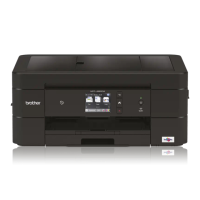
Brother MFC-J880DW
645 pages
Print Icon
To Next Page IconTo Next Page
Loading...
Online User's Guide
MFC-J460DW
MFC-J480DW
MFC-J485DW
MFC-J680DW
MFC-J880DW
MFC-J885DW
© 2015 Brother Industries, Ltd. All rights reserved.

Table of Contents

Other manuals for Brother MFC-J880DW

Questions and Answers

  • S
    simstiffanyAug 17, 2025
    What to do if my Brother MFC-J880DW says 'A device is already connected'?
    • F
      Felicia JohnsonAug 18, 2025
      If your Brother Printer displays the message 'A device is already connected. Press OK' while using Wi-Fi Direct, it means that two mobile devices are already connected when the Brother machine is the Group Owner. To resolve this, wait for the current connection between your Brother machine and the other mobile device to shut down, and then try configuring the Wi-Fi Direct settings again. You can check the connection status by printing the Network Configuration Report.
  • M
    mandersonAug 20, 2025
    Why does my Brother All in One Printer show Connection Error 02?
    • K
      Kristen WilliamsAug 20, 2025
      If you are getting a 'Connection Error 02' on your Brother All in One Printer, it means the printer isn't connected to the network. Ensure the network connection is stable. If you tried using Web or Apps right after turning on the printer, the network might not be ready yet. Give it some time and try again.
  • D
    Daniel RushAug 22, 2025
    What to do if my Brother All in One Printer displays Connection Error 03?
    • T
      Thomas MerrittAug 22, 2025
      A 'Connection Error 03' on your Brother All in One Printer indicates incorrect network or server settings, or a problem with the network or server itself. Verify that your network settings are correct. Alternatively, wait a bit and try again later. If you attempted to use the Web or Apps feature immediately after powering on the printer, the network connection might not have been fully established yet; in that case, wait and try again.
  • D
    Denise MorrisAug 26, 2025
    What causes Server Error 03 on Brother All in One Printer?
    • L
      Lauren BakerAug 26, 2025
      If your Brother All in One Printer displays 'Server Error 03', it means the file you're trying to upload has an issue. It might be too large, have the wrong format, or be corrupted. Here's what you can do: * Check the service's size or format restrictions. * Save the file as a different type. * Try to get a new, uncorrupted version of the file.
  • B
    Brett CookAug 27, 2025
    What does Authentication Error 02 mean on Brother All in One Printer?
    • M
      micheledavisAug 27, 2025
      If you encounter 'Authentication Error 02' on your Brother All in One Printer, it means the temporary ID you entered is incorrect or has expired. Make sure you enter the correct temporary ID. If the ID has expired, apply for Brother Web Connect access again to get a new temporary ID, and then use it to register the account to the printer.
  • K
    kristinataylorAug 30, 2025
    Why does my Brother All in One Printer show Server Error 13?
    • T
      Timothy McphersonAug 30, 2025
      If you're seeing 'Server Error 13' on your Brother All in One Printer, it means there's a problem with the service, making it temporarily unavailable. Wait a while and try again. If the error persists, try accessing the service from a computer to check if it's down.
  • J
    Joel MitchellSep 1, 2025
    How to fix Authentication Error 01 on Brother All in One Printer?
    • H
      Hector MartinSep 1, 2025
      If your Brother All in One Printer is showing 'Authentication Error 01', it means the PIN you entered to access the account is incorrect. The PIN is the four-digit number that was entered when registering the account to the machine. Enter the correct PIN.
  • C
    carla09Sep 4, 2025
    How to correct Connection Error 07 on Brother All in One Printer?
    • X
      xberrySep 4, 2025
      If your Brother All in One Printer displays 'Connection Error 07', it means the date and time settings are incorrect. Set the date and time correctly. Keep in mind that if the printer's power cord is disconnected, the date and time settings may reset to factory settings.
  • B
    Brandon ParkerSep 6, 2025
    How to resolve Server Error 01 on Brother All in One Printer?
    • M
      Micheal NunezSep 7, 2025
      If you're getting 'Server Error 01' on your Brother All in One Printer, the printer's authentication information has expired or is invalid. To fix this, apply for Brother Web Connect access again to get a new temporary ID. Then, use the new ID to register the account to the printer.
  • E
    Emily MartinSep 9, 2025
    What to do for Shortcut Error 02 on Brother All in One Printer?
    • W
      William WardSep 9, 2025
      If your Brother All in One Printer shows 'Shortcut Error 02', it means the shortcut can't be used because the account was deleted after the shortcut was registered. Delete the shortcut, then register the account and shortcut again.

Summary

Before You Use Your Brother Machine

Applicable Models

Lists the models covered by this user guide.

Definitions of Notes

Explains symbols, conventions, and warning types used.

Important Note

Provides crucial usage advice and product information.

Introduction to Your Brother Machine

Before Using Your Machine

Covers essential checks and setup before operating the machine.

Control Panel Overview

Details the buttons and display elements of the machine's control panel.

LCD Overview

Explains the status indicators and information shown on the machine's LCD screen.

Settings Screen Overview

Provides an overview of the menus and options available on the machine's touchscreen.

Paper Handling

Load Paper

Instructions on how to load various types of paper into the machine.

Load Documents

Guidance on placing documents for scanning, copying, or faxing.

Print

Print from Your Computer (Windows)

Explains how to perform print operations from a Windows computer.

Print from Your Computer (Macintosh)

Details how to print documents and photos from a Macintosh computer.

Scan

Scan Using the Scan Button on Your Brother Machine

Instructions for scanning directly from the machine's control panel.

Scan from Your Computer (Windows)

Describes various methods for scanning from a Windows computer.

Scan from Your Computer (Macintosh)

Explains how to scan documents and photos from a Macintosh computer.

Troubleshooting

Error and Maintenance Messages

Lists common error messages and provides solutions for troubleshooting.

Document Jams

Guides on how to locate and remove paper jams from various machine parts.

Printer Jam or Paper Jam

Procedures for clearing paper jams from different locations within the machine.

Network Problems

Addresses common issues related to network connectivity and setup.

Brother MFC-J880DW Specifications

General IconGeneral
DisplayLCD
Control typeTouch
Product colorBlack
Display diagonal2.7 \
Market positioningHome & office
Mac operating systems supportedMac OS X 10.8 Mountain Lion, Mac OS X 10.0 Cheetah, Mac OS X 10.9 Mavericks
Other operating systems supportedAndroid, iOS, Windows Phone
Server operating systems supportedWindows Server 2012 R2 x64, Windows Server 2003, Windows Server 2008 R2 x64, Windows Server 2012 x64, Windows Server 2008 x64, Windows Server 2003 x64, Windows Server 2008
Windows operating systems supportedWindows 7 Enterprise, Windows 8, Windows Vista Home Premium, Windows 10 Education, Windows 7 Enterprise x64, Windows 8 Enterprise, Windows Vista Home Premium x64, Windows 10 Education x64, Windows 7 Home Basic, Windows 8 Enterprise x64, Windows Vista Ultimate, Windows 10 Enterprise, Windows 7 Home Basic x64, Windows 8 Pro, Windows Vista Ultimate x64, Windows 10 Enterprise x64, Windows 7 Home Premium, Windows 8 Pro x64, Windows XP Home, Windows 10 Home, Windows 7 Home Premium x64, Windows 8 x64, Windows XP Home x64, Windows 10 Home x64, Windows 7 Professional, Windows 8.1, Windows Vista Business, Windows XP Professional, Windows 10 Pro, Windows 7 Professional x64, Windows 8.1 Enterprise, Windows Vista Business x64, Windows XP Professional x64, Windows 10 Pro x64, Windows 7 Starter, Windows 8.1 Enterprise x64, Windows Vista Enterprise, Windows 7 Starter x64, Windows 8.1 Pro, Windows Vista Enterprise x64, Windows 7 Ultimate, Windows 8.1 Pro x64, Windows Vista Home Basic, Windows 7 Ultimate x64, Windows 8.1 x64, Windows Vista Home Basic x64
Noise level50 dB
Wi-Fi standards802.11g, 802.11b, Wi-Fi 4 (802.11n)
Cabling technology10/100Base-T(X)
Security algorithmsWPA2-AES, APOP, SSID, 64-bit WEP, WPA2-PSK, 128-bit WEP, WPS, WPA-AES, SMTP-AUTH, WPA-PSK, WPA-TKIP
Ethernet LAN data rates10, 100 Mbit/s
Online services supportedBox, Facebook, OneDrive, Dropbox, Flickr, OneNote, Evernote, Google Drive, Picasa
Mobile printing technologiesApple AirPrint, Brother iPrint & Scan, Mopria Print Service, Google Cloud Print
Direct printing-
Standard interfacesNFC, Ethernet, USB 2.0, Wireless LAN
Compatible memory cardsMMC, MMC Mobile, MiniSD, MMC+, MiniSDHC, MS Duo, MS Micro (M2), MS PRO, SD, MS PRO Duo, MicroSD (TransFlash), SDHC, MicroSDHC, SDXC
Copier resize25 - 400 %
Maximum copy resolution1200 x 1200 DPI
Maximum number of copies99 copies
Copy speed (black, normal quality, A4)6 cpm
Envelopes sizes10, DL, C5, Monarch
Photo paper sizes10x15, 13x18 cm
Paper tray media typesEnvelopes, Glossy paper, Plain paper, Coated paper, Recycled paper
Non-ISO print media sizes2L, Executive (184 x 267mm), Letter (media size), Index card, L
ISO A-series sizes (A0...A9)A5, A6, A4
ISO C-series sizes (C0...C9)C5
Maximum ISO A-series paper sizeA4
Digital senderNo
Printing colorsBlack, Cyan, Magenta, Yellow
Number of print cartridges4
Sustainability certificatesNordic Swan Ecolabel, ENERGY STAR
Scan toImage, Fax, Memory Card, USB, E-mail, File, OCR
Scan driversICA, TWAIN, WIA
Scanner typeADF scanner
Grayscale levels256
Input color depth30 bit
Maximum scan areaA4 (210 x 297) mm
Output color depth24 bit
Image formats supportedBMP, JPG, PNG, TIF
Maximum scan resolution19200 x 19200 DPI
Document formats supportedPDF
Optical scanning resolution1200 x 2400 DPI
Print technologyInkjet
Maximum resolution6000 x 1200 DPI
Duplex printing modeAuto
Print speed (ISO/IEC 24734) mono12 ipm
Print speed (ISO/IEC 24734) color10 ipm
Print speed (black, normal quality, A4/US Letter)27 ppm
Print speed (color, normal quality, A4/US Letter)23 ppm
Bundled softwareBrother Control Center 4 Nuance PaperPort 14 SE Brother Control Center 2 Pagemanager 9
FaxingColor faxing
Fax memory200 pages
Modem speed14.4 Kbit/s
Fax resolution (black)203 x 203 DPI
Package depth249 mm
Package width477 mm
Package height456 mm
Package weight11200 g
AC input voltage220 - 240 V
AC input frequency50 - 60 Hz
Power consumption (off)0.2 W
Power consumption (standby)3.5 W
Power consumption (average operating)19 W
Paper input typePaper tray
Total input capacity100 sheets
Total output capacity50 sheets
Auto document feeder (ADF) input capacity20 sheets
Storage temperature (T-T)20 - 33 °C
Operating temperature (T-T)10 - 35 °C
Operating relative humidity (H-H)20 - 80 %
Weight and Dimensions IconWeight and Dimensions
Depth341 mm
Width400 mm
Height172 mm

Related product manuals