EasyManua.ls Logo

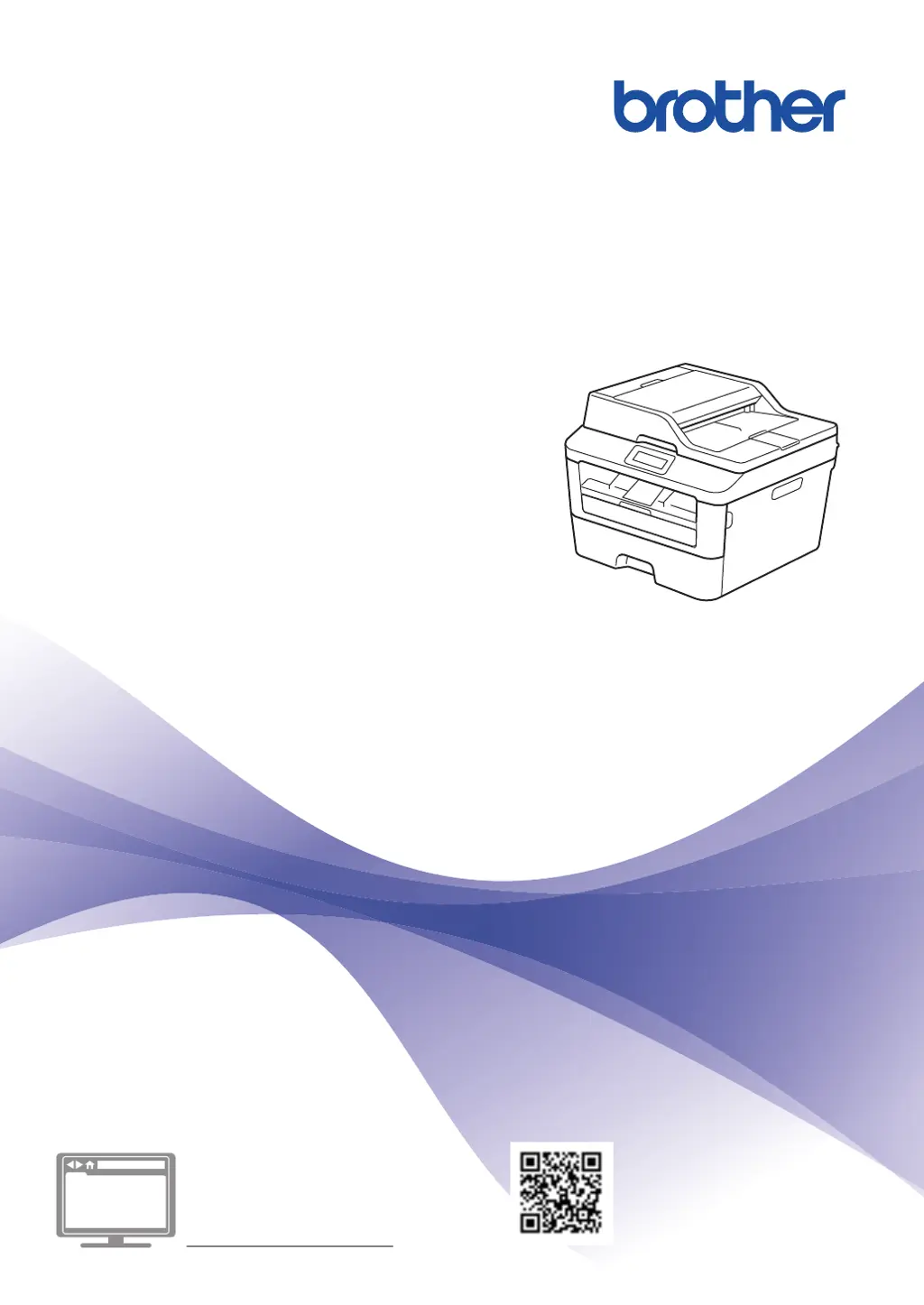
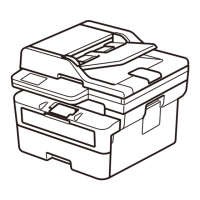
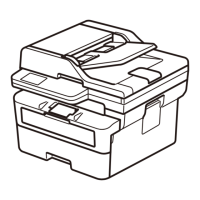
Brother MFC-L2703DW - User Manual

Brother MFC-L2703DW
77 pages
Print Icon
To Next Page IconTo Next Page
Loading...
Basic User's Guide
DCP-L2520D
DCP-L2540DW
DCP-L2541DW
MFC-L2700D
MFC-L2701D
MFC-L2700DW
MFC-L2701DW
MFC-L2703DW
Online User's Guide
This Basic User's Guide does not contain all
the information about the machine.
To learn detailed information, read the Online
User's Guide at
solutions.brother.com/manuals

Table of Contents

Other manuals for Brother MFC-L2703DW

Questions and Answers

  • H
    Heather HardySep 23, 2025
    Why I cannot send a fax from my Brother MFC-L2703DW?
    • S
      Shannon HumphreySep 23, 2025
      Check all line cord connections. Make sure the telephone line cord is plugged into the telephone wall socket and the LINE socket of the machine. If you subscribe to DSL or VoIP services, contact your service provider for connection instructions. Make sure you pressed Fax and the machine is in Fax mode. Print the Transmission Verification Report and check for an error. Contact your administrator to check your Secure Function Lock Settings. Ask the other party to check that the receiving machine has paper.
  • C
    Crystal CardenasAug 23, 2025
    Why is 2-sided printing disabled on my Brother MFC-L2703DW?
    • T
      Tonya JarvisAug 23, 2025
      2-sided printing is disabled on your Brother printer because the back cover of the machine is not closed completely. Close the back cover of the machine until it locks in the closed position.
  • H
    hugheskristinAug 25, 2025
    What to do if my Brother MFC-L2703DW Printer says 'Jam Inside'?
    • N
      nwilliamsAug 25, 2025
      If your Brother printer displays 'Jam Inside', open the front cover and remove the toner cartridge and drum unit assembly. Then, pull out the jammed paper. Close the front cover. If the error message remains, press Start.
  • E
    Emily CollinsAug 27, 2025
    Why does my Brother MFC-L2703DW say 'No Paper'?
    • K
      Kayla PierceAug 27, 2025
      The 'No Paper' message on your Brother printer indicates that the machine is out of paper, or the paper is not loaded correctly in the paper tray. Refill the paper in the paper tray, ensuring the paper guides are set to the correct size. Alternatively, remove the paper and load it again, making sure the paper guides are correctly adjusted, and avoid overfilling the paper tray.
  • P
    pdunnAug 27, 2025
    How to fix 'Jam Tray' error on Brother MFC-L2703DW?
    • H
      harrissandraAug 27, 2025
      If your Brother printer shows a 'Jam Tray' error, pull the paper tray out completely and remove the jammed paper. Then, put the paper tray firmly back into the machine.
  • K
    Kevin PerezSep 16, 2025
    How to improve fax sending quality on Brother MFC-L2703DW Printer?
    • R
      Robyn WoodsSep 16, 2025
      Try changing your resolution to Fine or S.Fine. Make a copy to check your machine’s scanner operation. If the copy quality is not good, clean the scanner.
  • A
    Andrew MonroeSep 13, 2025
    What does 'Size Error DX' mean on my Brother MFC-L2703DW Printer?
    • H
      Harold LarsonSep 13, 2025
      If your Brother printer displays 'Size Error DX', the paper size specified in the printer driver and the machine's menu are not available for automatic 2-sided printing. Press Stop/Exit. Choose a paper size supported by 2-sided printing. Paper size available for automatic 2-sided printing is A4. (For Philippines: Letter, Legal and Folio)
  • D
    Dennis RiddleSep 14, 2025
    Why does my Brother MFC-L2703DW say 'Scan Unable'?
    • A
      adriana62Sep 14, 2025
      If your Brother printer displays 'Scan Unable', it means the document is too long for 2-sided scanning. Press Stop/Exit and use an appropriate size paper for 2-sided scanning.
  • C
    Charles ChapmanSep 5, 2025
    How to resolve 'Jam 2-sided' error on Brother MFC-L2703DW Printer?
    • J
      Justin MeyerSep 6, 2025
      If your Brother printer displays a 'Jam 2-sided' error, it means the paper is jammed underneath the paper tray or the fuser unit. Pull the paper tray and the 2-sided tray out completely, open the back cover and then remove the jammed paper. Close the back cover, and put the paper tray and the 2-sided tray firmly back in the machine.
  • D
    Dennis WashingtonSep 3, 2025
    What does 'Drum !' mean on my Brother MFC-L2703DW and how to fix it?
    • D
      David MorrisSep 3, 2025
      The 'Drum !' message on your Brother printer indicates that the corona wire on the drum unit must be cleaned or the drum unit or the toner cartridge and drum unit assembly is not installed correctly. Clean the corona wire on the drum unit. Also put the toner cartridge in the drum unit. Then reinstall the toner cartridge and drum unit assembly in the machine.

Summary

Customer Service Contact Information

Product Registration

Information on registering your Brother product online for support and updates.

Latest Driver and Software Updates

User Guide Symbols and Conventions

General Information

Control Panel Overview

Explains the machine's control panel buttons, display, and modes.

Paper Handling

Loading Paper

Instructions on how to load paper into the paper tray for printing.

Printing Documents

Duplex Printing

Instructions for duplex printing, copying two pages onto one sheet.

Making Copies

Copying Documents

Step-by-step guide for making copies of documents using the scanner glass or ADF.

Scanning Documents

Scanning from Computer

Instructions for scanning documents and photos to a computer using Brother software.

Faxing Operations

Send a Fax

Detailed steps for sending faxes from the machine or computer.

Fax Receive Modes

Explanation of different modes for receiving faxes automatically or manually.

Troubleshooting Guide

Identifying Problems

Initial checks and guidance for resolving common machine issues.

Error and Maintenance Messages

Lists common error messages and their causes and actions.

Clearing Document and Paper Jams

Steps to find and clear paper jams in various locations within the machine.

Appendix

Entering Text on the Machine

Guide on inputting characters and text using the machine's dial pad.

Replacing Supplies

Brother MFC-L2703DW Specifications

General IconGeneral
Printer TypeLaser
Print ResolutionUp to 2400 x 600 dpi
Duplex PrintingYes
ADF Capacity35 sheets
Monthly Duty CycleUp to 10, 000 pages
FunctionsPrint, Copy, Scan, Fax
Fax Modem Speed33.6 kbps
Display2-line LCD
Processor266 MHz
Memory32 MB
Dimensions (W x D x H)409 x 398.5 x 316.5 mm
Print Speed (Black)Up to 30 ppm
ConnectivityUSB, Ethernet, Wi-Fi
Paper Capacity250-sheet input tray
Mobile PrintingBrother iPrint&Scan, Google Cloud Print, Apple AirPrint
Scan ResolutionUp to 1200 x 1200 dpi
Copy Speed (Black)Up to 30 cpm (Black)
Maximum Paper SizeA4
Toner YieldApprox. 1, 200 pages

Related product manuals