EasyManua.ls Logo

Brother P-touch 9500PC - User Manual

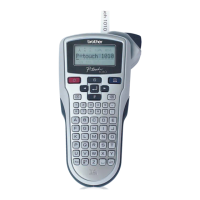
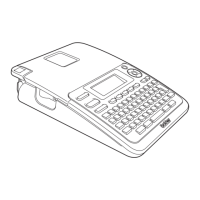
Brother P-touch 9500PC
240 pages
Print Icon
To Next Page IconTo Next Page
Loading...
Quick Reference (English)
Guide de référence rapide (Français)

Table of Contents

Other manuals for Brother P-touch 9500PC

Questions and Answers

  • A
    abellAug 15, 2025
    What to do if my Brother Label Maker PT-9500PC does not print and shows a printing error?
    • M
      melissa48Aug 15, 2025
      If the Brother Label Maker PT-9500PC does not print and you receive a printing error, ensure the interface cable is correctly connected, the tape cassette is properly installed, and the tape compartment cover is closed. Also, make sure the USB interface cable is not connected during a serial connection.
  • A
    Alicia SimpsonAug 18, 2025
    Why does the power button not light up on my Brother PT-9500PC Label Maker?
    • A
      April JohnsonAug 18, 2025
      If the power button on your Brother Label Maker PT-9500PC does not light up or flash, check that the power supply cord is connected correctly.
  • L
    Linda CummingsAug 21, 2025
    Why is my Brother P-touch 9500PC PT-9500PC not printing?
    • T
      Tiffany BartlettAug 21, 2025
      If your Brother Label Maker PT-9500PC is not printing and you're receiving an error, it could be due to a few reasons. Make sure the interface cable is correctly connected, the tape cassette is properly installed, and the tape compartment cover is fully closed. Also, ensure that the USB interface cable is not connected during a serial connection.
  • A
    Andrea FuentesAug 27, 2025
    What to do if a data transmission error appears on my Brother Label Maker?
    • P
      Patrick SalasAug 27, 2025
      If you're seeing a data transmission error on your computer when using the Brother Label Maker, it might be due to an incorrect port selection. For Windows, choose the right port from the 'Print to the following port' list in the printer Properties. Use PTUSB for a USB connection on Windows® 98/98 SE/Me or USB00n for Windows® 2000 Pro/XP. If you're using a serial connection, select COM1 if your PT-9500PC is on COM1, or COM2 if it's on COM2. Another potential cause is a mismatch in baud rates between your computer and the PT-9500PC.
  • K
    kimberlyrodriguezAug 30, 2025
    How to fix a Brother P-touch 9500PC when the power button doesn't light up?
    • R
      Randall WelchAug 30, 2025
      If the power button on your Brother Label Maker PT-9500PC doesn't light up or flash, ensure the power supply cord is properly connected.
  • D
    Daniel JimenezSep 2, 2025
    Why does a data transmission error appear on my personal computer when using the Brother P-touch 9500PC PT-9500PC?
    • K
      Katie CarterSep 2, 2025
      If you encounter a data transmission error on your personal computer when using the Brother Label Maker PT-9500PC, ensure that you've selected the correct port in the printer properties. For a USB connection, choose PTUSB for Windows 98/98 SE/Me or USB00n for Windows 2000 Pro/XP. For a serial connection, select COM1 if the PT-9500PC is connected to COM1, or COM2 if it's connected to COM2. Also, verify that the baud rates for both the computer and the PT-9500PC are the same.
  • K
    Kimberly GonzalezSep 5, 2025
    Why is striped tape appearing while printing with my Brother P-touch 9500PC PT-9500PC?
    • R
      Robert CookSep 5, 2025
      If striped tape appears while printing with your Brother Label Maker PT-9500PC, it indicates that the tape cassette is empty. Install a new tape cassette, and then either press the feed/cut button or turn the PT-9500PC off and on.
  • R
    Rebecca CabreraSep 12, 2025
    Why does my Brother P-touch 9500PC Label Maker print striped tape?
    • J
      Juan Gomez MDSep 12, 2025
      If your Brother Label Maker PT-9500PC is printing striped tape, it's likely because the tape cassette is empty. Install a new tape cassette, and then either press the feed/cut button or turn the PT-9500PC off and on.
  • L
    Larry GomezNov 23, 2025
    How to fix baud rate setting issues with Brother PT-9500PC Label Maker?
    • M
      Mrs. Denise HernandezNov 23, 2025
      If the baud rate cannot be set using the Change Baud Rate Wizard or the Brother PT-9500PC utilities, first ensure that the PT-9500PC is turned on and that the interface cable is correctly connected. Also, verify that the COM port where the PT-9500PC is connected matches the COM port selected in the Change Baud Rate Wizard. Make sure that the USB interface cable is not connected during a serial connection. If you encounter Error 1 or Error 5, and another serial connection device is using the same COM port for Windows NT 4.0/2000 Pro/XP, change the COM port for the serial connection device or connect the PT-9500PC to a COM port that is not being used. Depending on the personal computer, the COM port may be turned off as a default at the factory. Some old personal computers may not support th...

Summary

Introduction

General Precautions

Guidelines for handling and operating the PT-9500PC to prevent damage or malfunction.

Before Use

Confirming Included Accessories

Lists and describes all items included with the PT-9500PC package.

Connecting the PT-9500 PC

Provides instructions on connecting the PT-9500PC to power and a computer.

Installing the Tape Cassette

Details the procedure for installing a tape cassette into the printer.

Installing the Software

Using Windows

Detailed instructions for installing software on Windows operating systems.

Using Mac OS

Instructions for installing software on Macintosh operating systems.

Uninstalling the Software

Steps to remove P-touch software from Windows and Macintosh.

Creating Labels: Windows Version

Starting P-touch Editor

Steps to launch and start using the P-touch Editor software for label design.

Creating a Name Badge

Step-by-step guide to creating a name badge using P-touch Editor.

After Printing

Procedures for handling labels after they have been printed.

Creating Labels: Macintosh Version

Starting P-touch Editor

Steps to launch P-touch Editor on Macintosh for label creation.

Creating a Name Badge

Step-by-step guide to creating a name badge on Macintosh using P-touch Editor.

After Printing

Details on handling labels after printing on Macintosh.

Appendix

Creating Bar Code Labels

Guide to creating various types of bar code labels with the PT-9500PC.

Maintenance

Procedures to maintain the PT-9500PC, including cleaning.

Troubleshooting

Guide to resolving common issues and error messages with the PT-9500PC.

Product Specifications

Detailed technical specifications for the PT-9500PC printer.

Brother P-touch 9500PC Specifications

General IconGeneral
Print technologyDirect thermal
Vertical printingYes
Network readyNo
Dimensions (WxDxH)116 x 190 x 127 mm
Standard interfacesUSB 1.1
Compatible operating systemsWindows 95/98/98SE/NT4.0/2000/XP, Mac OS 8.6-9.x/X 10.1-10.2.6
Bundled softwareP-Touch Editor 4.0 P-Touch Quick Editor
Maximum label width36 mm
Product colorBlack, Silver
Weight and Dimensions IconWeight and Dimensions
Weight1200 g

Related product manuals