6
by green and amber LEDs lighting on the BDP-3
ethernet port, and by assignment of an IP address
by the router. View the IP address on the front panel
by pressing the Down key. Your IP Address begins
aer eth0
You can use this IP address to access the Bryston
Web Interface from any web-enabled device on
the same local network as the BDP-3. Enter the
IP address in your web browser’s address bar.
Any device running the Bonjour service will also
respond to the URL http://bryston-bdp-3.local
All Macintosh computers and iOS have this service
built in. Windows computers can run this service
once downloaded from the Apple website. Android
devices do not currently support Bonjour and must
use the numerical IP address.
Since virtually all modern routers assign IP
addresses to client devices, this IP address may
periodically change which can be a nuisance.
To x your BDP-3’s IP address, either invoke the
DHCP reservation function in your router, or simply
set a Static IP address in Bryston Web Interface.
Instructions on how to do so are located in the
Firmware User’s Manual.
Wireless Bridge
If you do not have easy access to an ethernet
connection in your listening room, you may
purchase an aer-market “wireless bridge” or
powerline ethernet bridge from most computer
electronics stores. Contact Bryston for further
information as needed.
Control
Your BDP-3 is designed to be controlled primarily
using a portable web-enabled device like a tablet
or smartphone. You may also control it from a
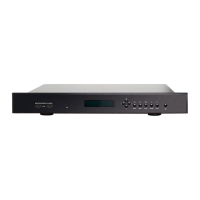
computer. Some front panel controls are also
provided. Though you could control the unit
entirely from the front panel, you will quickly nd
that library navigation is much simpler using a web
enabled device. Basic transport controls are also
available on the optional BR-2 IR remote control.
Web User Interface
Instead of providing an app to download from an
app store, Bryston includes a “web app” which
is accessible from any Android, iOS, or most
other modern web enabled portable tablet or
smartphone. Use the web browser on your device
(usually Chrome on Android, Safari on iOS) to
access the webUI. Bryston has a convenient web-
application useful for linking to your BDP-3. To nd
all BDPs running current rmware on your network,
use a web browser and navigate to
http://my.bryston.com then tap or click the link to
your BDP-3 Dashboard.
iOS
Many customers prefer using an iPad or iPad mini
as a remote control for the BDP. Open Safari. Use
my.bryston.com or navigate directly to http://
bryston-bdp-3.local which brings up the Dashboard
- the home page of the Bryston WebUI. You can then
add the page as an icon on your home screen to


 To Next Page