VGA INPUT
14
15
OTHER CONNECTIONSOTHER CONNECTIONS
Q
fig. 19
Audio Cables
fig. 20
Y
fig. 21
RV
fig. 22
- You can use your LCD-TV as a
monitor for your personal computer.
1. Connect the D type 15-pin VGA
interface cable (not supplied) to
VGA Input Y on the LCD-TV.
See fig. 21.
2. Connect the audio cable (not
supplied) to Audio Input R on the
back of the LCD-TV (if necessary).
See fig. 21.
3. Press the PC E or SOURCE K
to select the PC input.
See fig. 22.
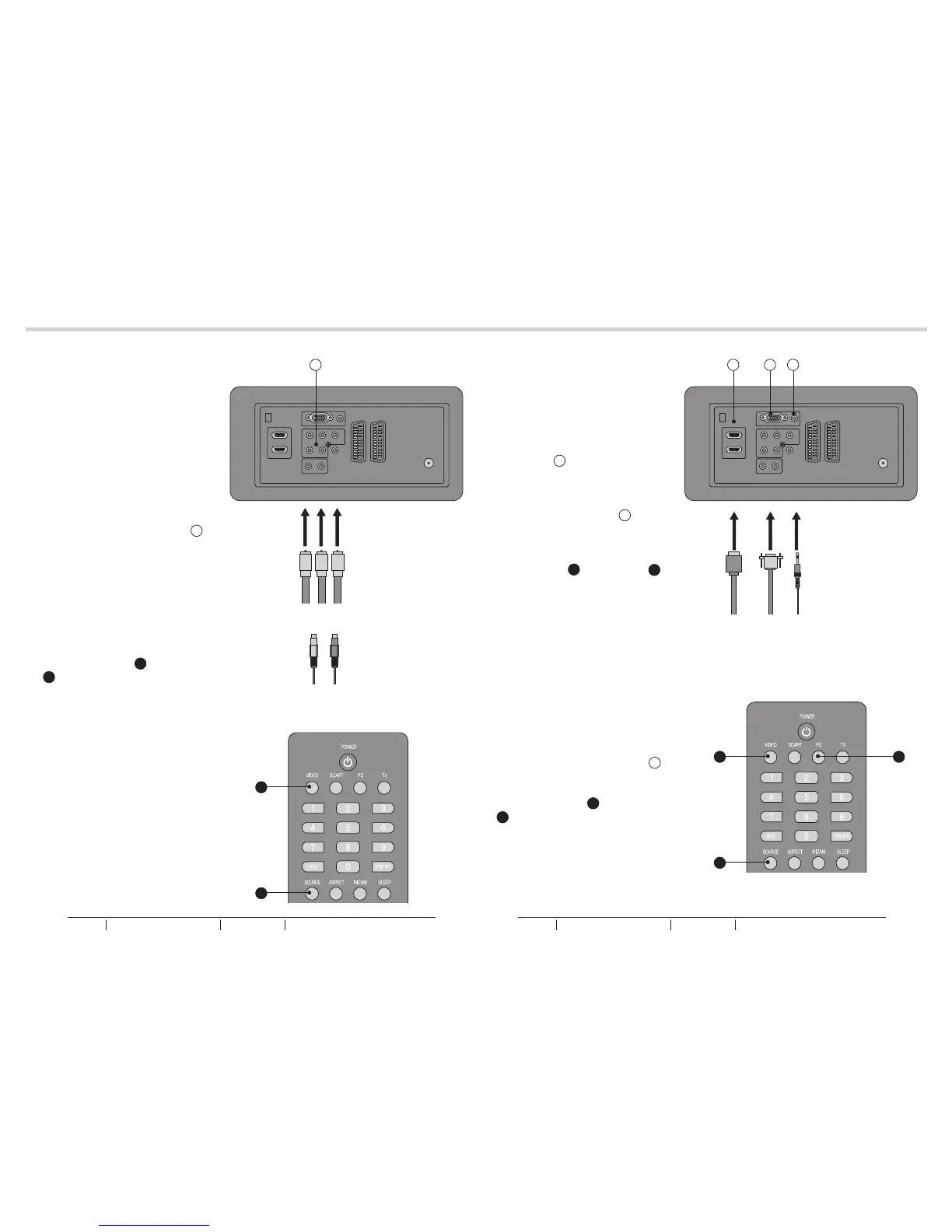
YPbPr INPUT
3. Turn on the power of the LCD-TV
first and then turn on the power
of the AV device.
2. Connect the (Y, Pb, Pr) cables
and audio cables to the
Component and Audio Input Q
on the TV.
See fig. 19.
1. Make sure that the power of the
LCD-TV and the AV device are
off.
- For connecting devices such as
video cameras.
K
Y PrPb
4. Press the VIDEO B or SOURCE
K to select the YPbPr input.
See fig. 20.
B
1. Connect the cable from the HDMI
devices to the TV HDMI Input V.
See fig. 21.
2. Press the VIDEO B or SOURCE
K to select the HDMI input.
See fig. 22.
3. Operate the corresponding external
equipment. (Refer to external
equipment operating guide.)
HDMI INPUT
CAUTION: You must ensure both
devices are switched off before
connection.
to PC
K
B E
HDMI
Cable
BUSH HD Ready Digital LCDTV User Manual Customer Helpline 0845 604 0105BUSH HD Ready Digital LCDTV User Manual Customer Helpline 0845 604 0105



 To Next Page