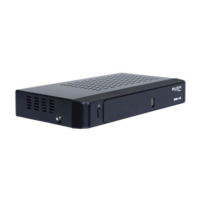
The right arrow button lets you delete a channel
from the TV list.
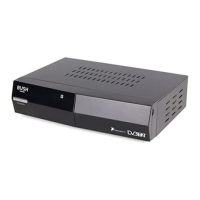
The [RED] button opens/returns to the full TV
listing menu and shows you the full channel line
up available.
The [GREEN] button will show you all your
channels in your favourite list.
The [YELLOW] button lets you edit your favourite
channel list so that you can add and delete
channels that you use most often.
The [BLUE] button lets you lock channels so
that they can’t be viewed. This can be useful
if you want to restrict children from watching
unsuitable channel content.
DON’T FORGET! To lock and unlock a
channel you will need to enter the code
0000.
The [SWAP] button shows any Free to Air
channels that you have manually tuned.
DON’T FORGET! You must enable ‘Show
Manual Channels’ in the settings menu
before you can view Free to Air channels.
The menu system
The main menu
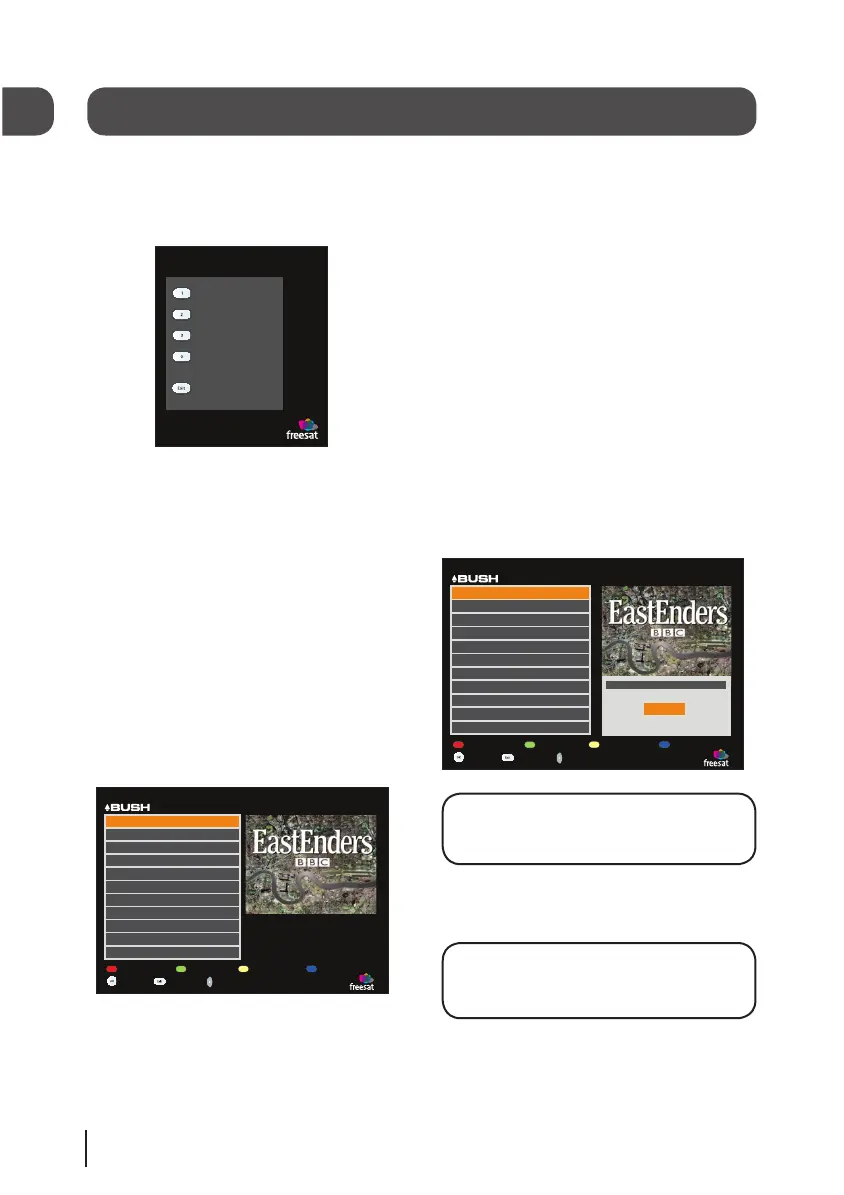
To open the main menu screen press the [MENU]
button on the remote control.
To select a menu, press the relevant number
button to open it. For example press [1] on the
remote control to open ‘TV Listings’.
To close any of the menu screens, press the
[EXIT] button.
TV listings menu
The TV listings menu shows you all of your
available channels. This list is updated
automatically each time you open the menu, so
there is no need to re-tune your digital box when
new channels become available.


 To Next Page