13
02
03
04
05
06
07
08
01
Once you have finished setting up your View21 box, you can connect to the
internet via WiFi if required.
To connect to an internet router using WiFi, make sure your router, View21 box
and TV are switched on.
To connect via WiFi:
1
Press the button to display the Main Menu.
2
Repeatedly press the
button or
button to select ‘Settings’ in the
bar.
3
Press the button.
4
Repeatedly press the
button or
button to select ‘System’ in the
Settings bar.
5
Press the button.
6
Use the and buttons to select
‘WiFi setup’.
Connecting to the Internet via WiFi
7
Press the button.
8
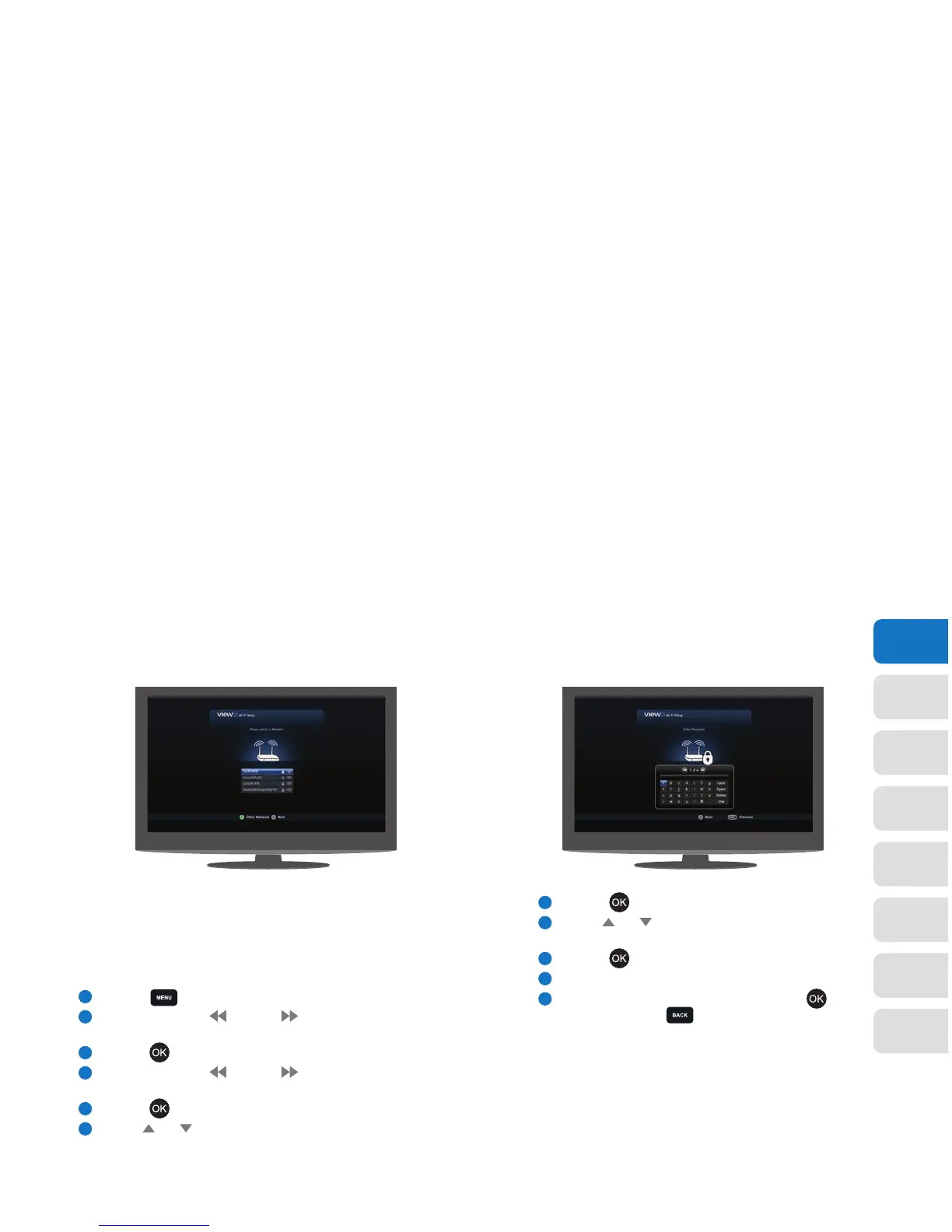
Use the and buttons to select your WiFi router
from the displayed list of WiFi connections.
9
Press the button.
10
If your WiFi is password-protected, enter the password.
11
To accept the WiFi connection details, press the
button. Or press the button to exit the function
without applying any changes.
You are now connected to the internet via your WiFi router.
You will only need to re-enter your password if it changes,
or if you re-run the install process for your View21 box.
Note: If ‘WiFi setup’ is not displayed on your screen, the
network adaptor may not be functioning correctly. Please
consult a technician.


 To Next Page