For any help concerning set up and use of your TV please call the Customer Helpline: 0 345 604 0105
Viewing Videos via USB
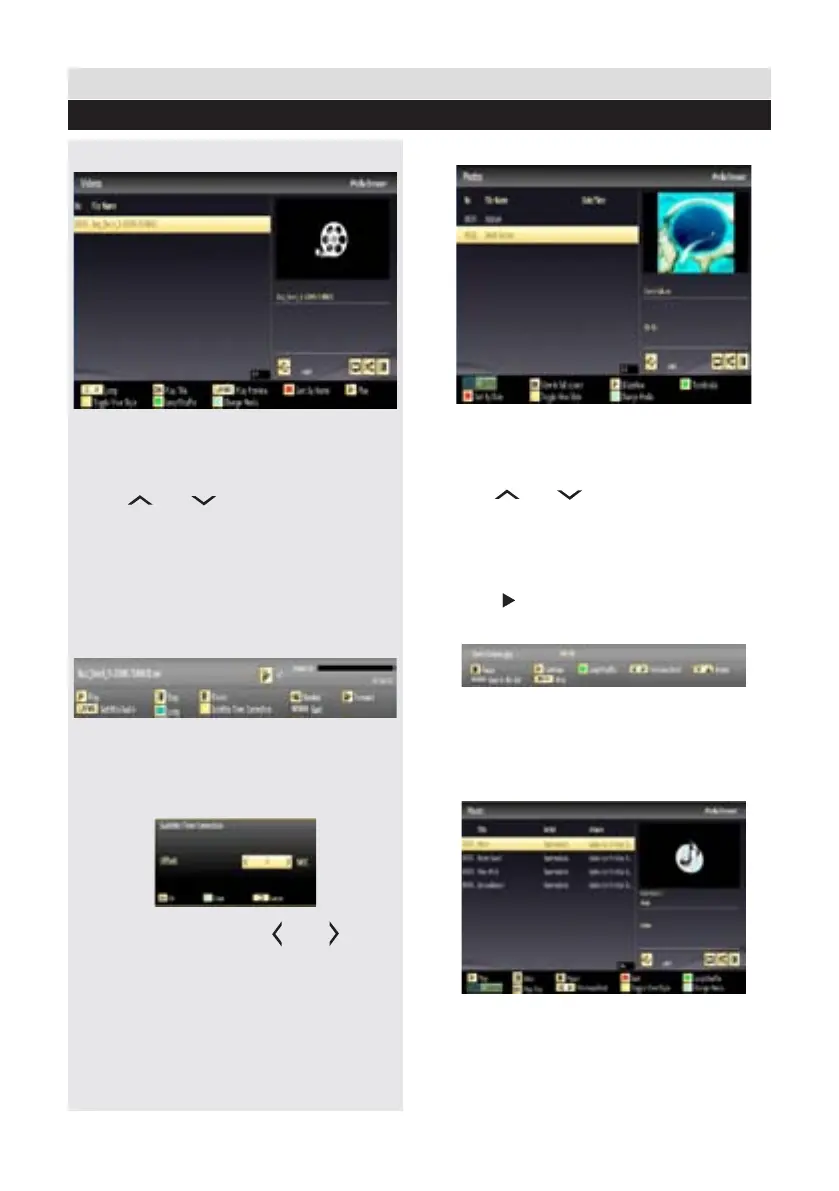
1. Select Videos from the Media Browser
screen and press OK button.
2. All video les will be ltered and listed.
3. Use
“ ” or “ ” button to select a video le
and press OK button to play a video. Follow the
information on the operations bar for using other
commands.
Video Playback Screen
The following screen will be displayed while
playing a video le.
Subtitle Time Correction
Press YELLOW button during the video playback
for activating Subtitle Time Correction screen.
1. Enter an offset value using “ ” or “ ” button.
2. Press YELLOW button to conrm or press
RETURN button to switch back to previous menu.
Viewing Photos via USB
1. Select Photos from the Media Browser screen
and press OK button. All photo les will be ltered
and listed.
2. Use
“ ” or “ ” button to select a photo le
and press OK button to play a video. Follow the
information on the operations bar for using other
commands.
Displaying Photos in Slideshow Mode
1. Press
(PLAY) button when viewing photo
les to activate slideshow mode.
2. Press RETURN to go back to Photos screen.
Follow the information on the operations bar for
using other commands.
Playing Music via USB
1. Select Music from the Media Browser screen
and press OK button. All music les will be ltered
and listed.
General TV Operation
Media Browser - continued
34







 To Next Page