For any help concerning set up and use of your TV please call the Customer Helpline: 0044 845 604 0105
MediaBrowserConguration
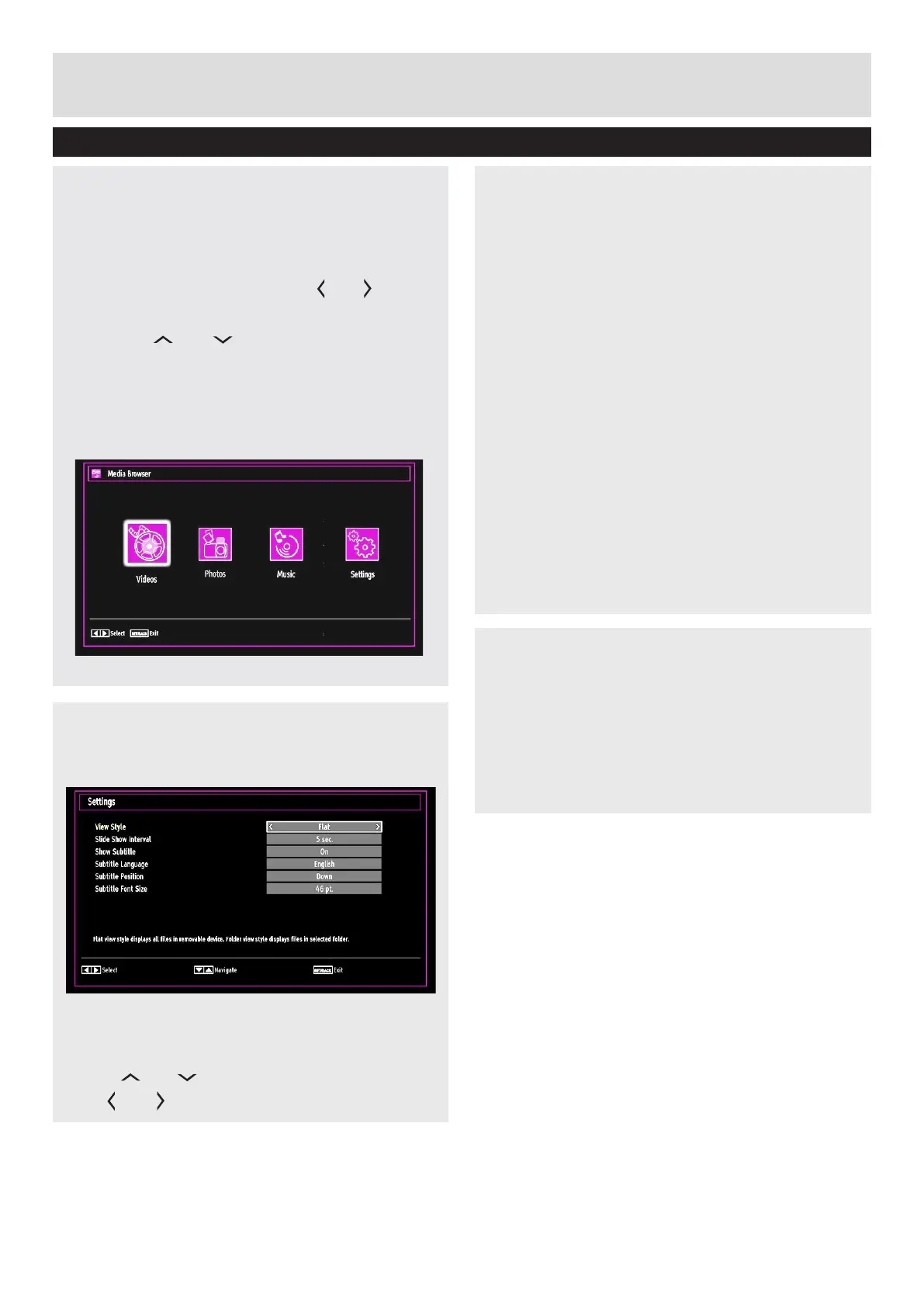
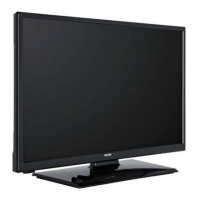
Select Settings icon from the main media
browser page to view the current preferences.
You can set your Media Browser preferences by
using the Settings dialogue.
Operation
Press “ ” or “ ” button to highlight an item.
Use “ ” or “ ” button to congure an item.
Only available when a USB device is plugged into
the TV.
Starting Media Browser
1. Press MENU button on the remote control and
select “Media Browser” pressing “ ” or “ ” button.
2. Press OK button to continue.
3. Use the“ ” or “ ” button to select a device
and press OK. Media Browser menu contents
(depending on the contents of your USB drive)
will be displayed. You can play music, picture
and video les from the connected USB memory
stick.
Advanced Features
Media Browser
View Style
Sets default browsing mode. Sets default browsing
mode as folder or at. Select “Directory” to display
les in a folder or “Normal” to view les directly.
If you select the view style “Directory” the menu
point “All” will appear in the media browser (See
the section: Media playback using media browser).
The option “All” gives you an overview of the
directories images, music, videos.
Slide Show Interval
Sets slide show interval time.
Show Subtitle
Sets subtitle enabling preference.
Subtitle Language
Sets supported subtitle language.
Subtitle Position
Sets subtitle position as up or down.
Subtitle Font Size
Sets subtitle font size (max. 54pt).
Loop/ShufeduringPlayback
Press BLUE button once to disable Loop.
Press again to disable both Loop and Shufe.
Press once more to enable only Loop.
Press again to enable all and again to deactivate
all.
By the change of the symbols you can see which
feature is enabled.
29


 To Next Page