42
If you require any technical guidance or find that your product is not operating as intended, a simple solution can often be found in the Troubleshooting section of these instructions,
6. Press the OK button or the INFO button to display the
function bar: Silde Show / Single view / Previous / Next /
Rotate / Quick Menu (Interval Time / Repeat / Slideshow
Effect / Background Music).
7. Press the EXIT button to return to the previous menu.
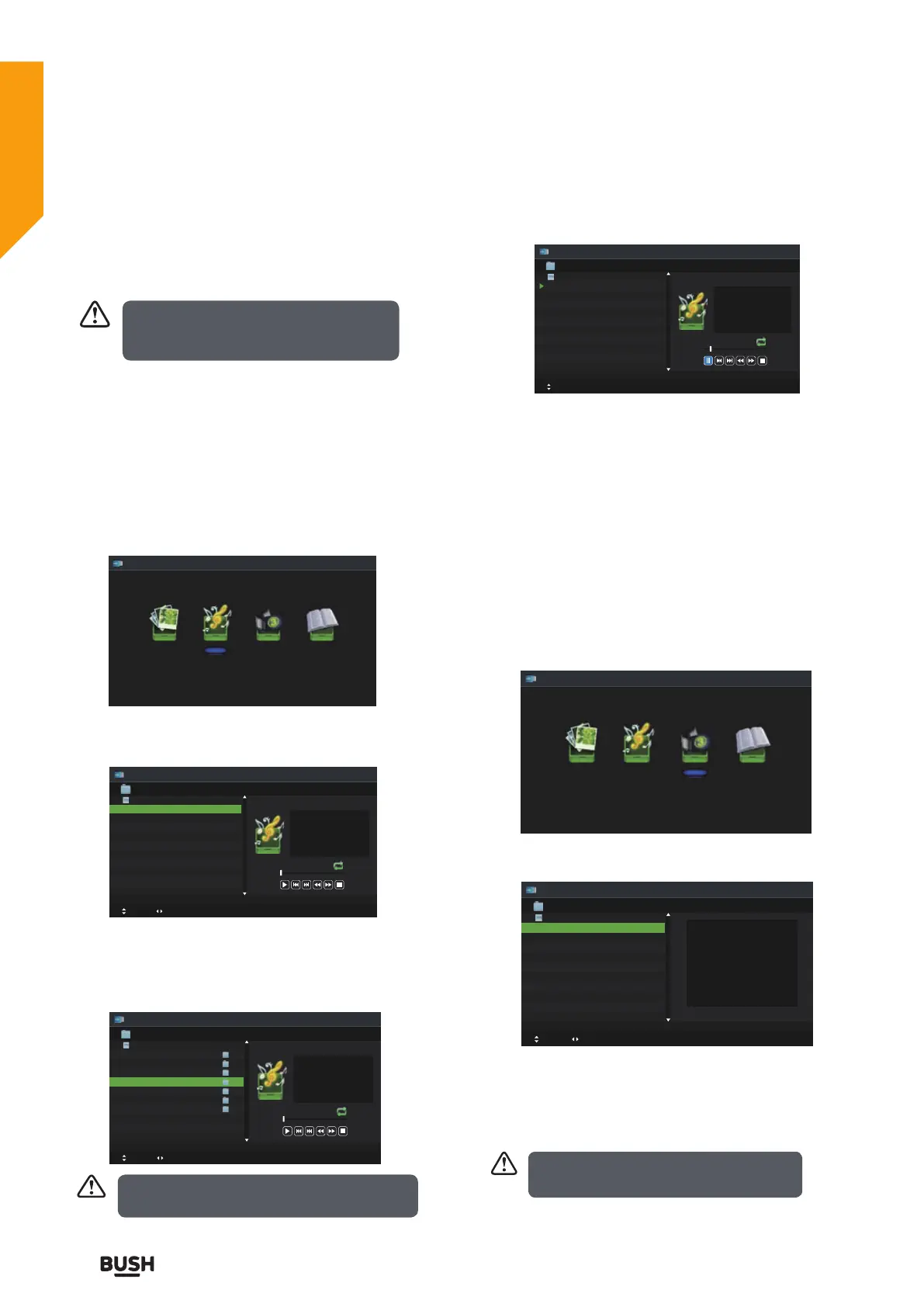
Listening to Music
1. Press the INPUT button on the top of the TV or the
INPUT button on the remote control then press the
buttons to MEDIA and then press the OK button.
2. Press the
buttons to select Music and then press
the OK button.
3. Press the
buttons to select your storage device
and then press the OK button.
4. Press the
buttons to navigate in the music folder
and then press the OK button. If you want to select the
specified music, press the
buttons to select the
music file and then press the OK button.
5. Press the
II or OK button to start to play.
6. Press the
buttons and then press the OK button
to select the function: Play / Previous / Next / FB / FF/
Stop / Quick Menu (Repeat).
7. Press the EXIT button to return to the previous menu.
Viewing Movies
1. Press the INPUT button on the top of the TV or the
INPUT button on the remote control then press the
buttons to MEDIA and then press the OK button.
2. Press the
buttons to select Movie and then press
the OK button.
3. Press the
buttons to select your storage device
and then press the OK button.
4. Press the
buttons to navigate in the movie folder
and then press the OK button. If you want to select the
specified movie, press the
buttons to select the
movie file and then press the OK button.
If this folder also contains music files,
you can select a music track to play at
the same time you view your photos.
Photo Music Movie Text
Music
Move
Change Page CH+/- Plalyer OK Selete EPG Quick Menu EXIT Return
USB1
00 : 00 : 00
Title
Artist
Album
Track
Year
Date
FileSize
00 : 00 : 00
USB1
Music
Move
Change Page CH+/- Plalyer OK Selete EPG Quick Menu EXIT Return
USB1/Music
00 : 00 : 00
Title
Artist
Album
Track
Year
Date
FileSize
00 : 00 : 00
AITEMP
Movie
MY PVR
Photo
Text
Music
LE32G
1/1
Some audio file formats will not be supported.
Supported File format: MP3.
Music
Move
CH+/- FileList OK Selete EPG Quick Menu EXIT Return
USB1/Music/Call Me Maybe.mp3
00 : 03 : 13
Title
Artist
Album
Track
Year
Date
FileSize
00 : 00 : 22
Call Me Maybe.mp3
Good Time.mp3
1/1
Call Me Maybe.mp3 1/2
Call Me Maybe
Carly Rae Jepsen
Call Me Maybe
2012-02-27
2013-02-01
3.9MB
Photo Music Movie Text
Movie
Move
Change Page OK Selete EPG Quick Menu EXIT Return
USB1
USB1
Some audio file formats will not be supported.
Supported File format: MPEG 1/2.
Standard features
Simple everyday use
Standard features


 To Next Page