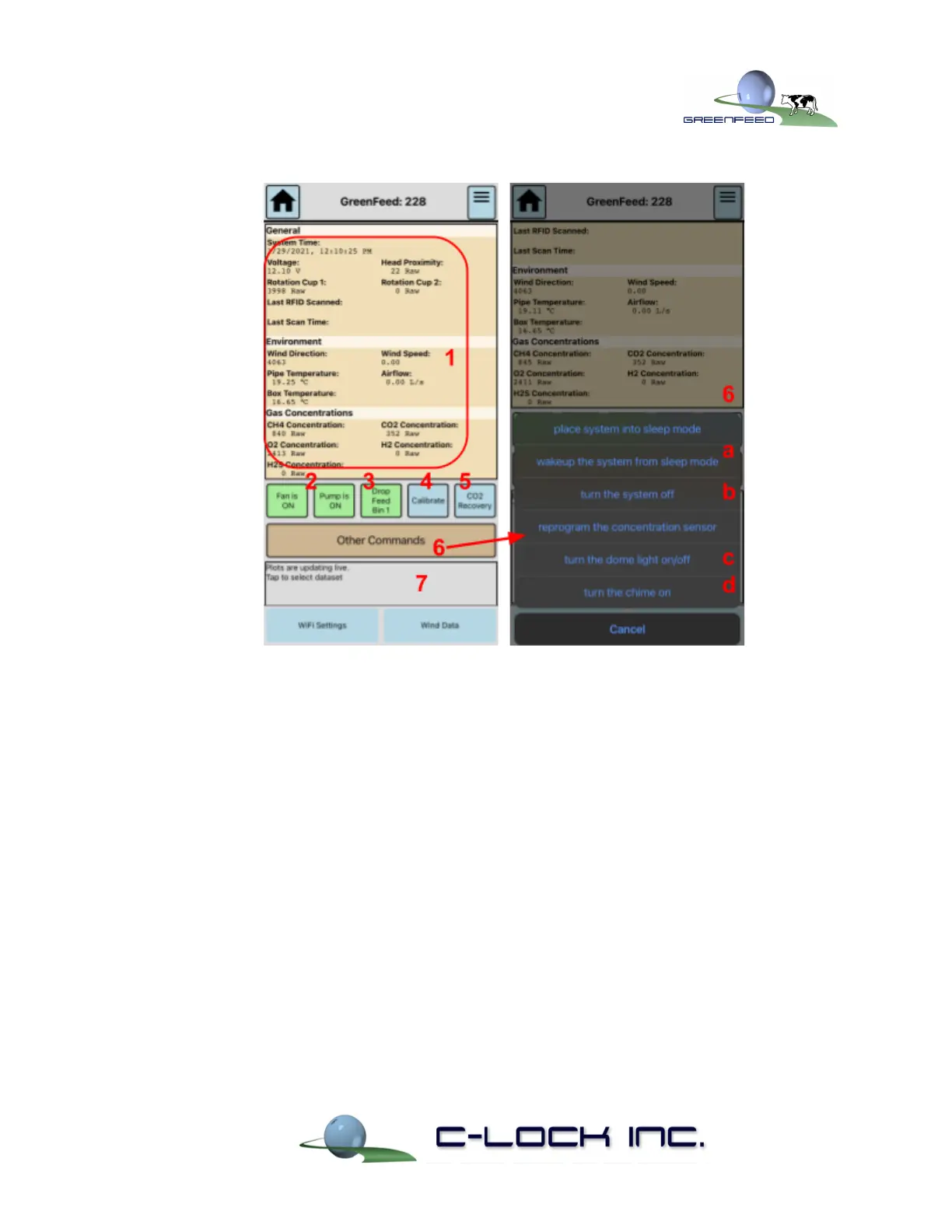
Figure 9) Viewing and Controlling a GreenFeed System from Control Feed
3.3. Connecting GreenFeed to a Different WiFi Network
To change the WiFi network that GreenFeed connects to:
1. Tap “WiFi Settings”
2. Tap the button with the WiFi network you wish GreenFeed to use
3. In the box that appears, select WPA2
● If the network is an open network (no password), select None
4. Enter the password for the network under “Password” (if applicable).
5. Tap Add. The system will immediately reboot and connect to the new network.
● When the reboot occurs, Control Feed may state that it has unexpectedly
disconnected. If this happens, wait ~2 minutes and reconnect.


 To Next Page