SECTION 5: WEATHER ®
making
since 1986
ater work
5D. RAIN SWITCH
This section of the controller is used to activate the
use of a rain switch and have the controller turn
irrigation off due to rain detection.
5D.1 Rain Switch setup
From the WEATHER SETUP screen (Figure 5.2).
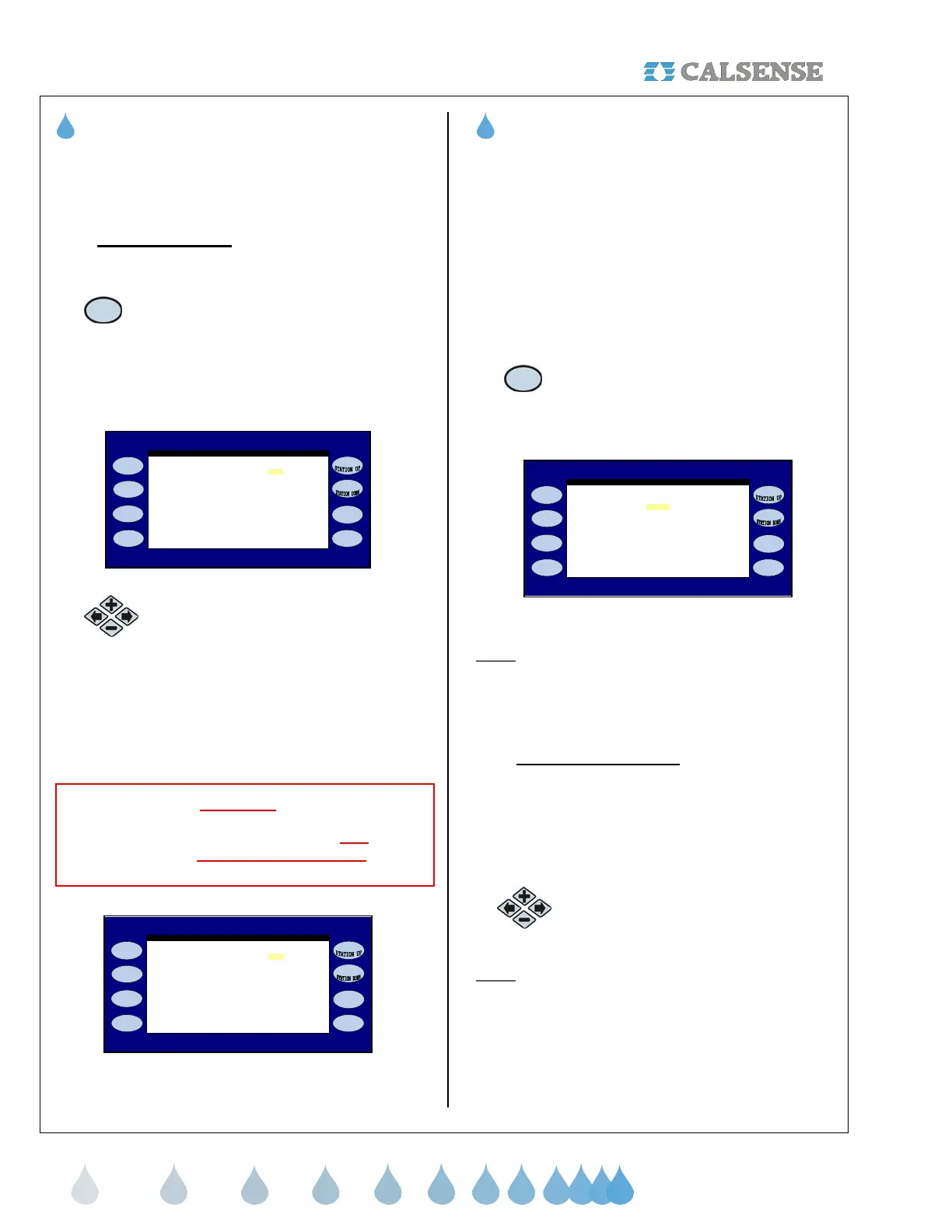
1. Press the RAIN SWITCH Menu key
if you want to activate a Rain
Switch.
The RAIN SWITCH SETUP screen is displayed
(Figure 5.19).
a Rain Switch Device? NO
and NO FLOW errors.
A Rain Switch is a device like a
MINI-CLIK or RAIN GUARD,
There's a special way to wire them to
this controller to avoid NO CURRENT
Is the controller connected to
RAIN SWITCH SETUP
Figure 5.19
2.
Press the PLUS or MINUS keys to
change the setting.
If you select YES, the screen will change to read
(Figure 5.20), “Irrigation will be stopped when the
rain switch detects rain”. If you do not want irrigation
to be affected by the rain switch leave the setting at
the default setting of NO (Figure 5.20).
CAUTION:
If YES is selected, and the controller is not hooked
up to a rain switch irrigation will be halted
. This is
due to rain switch wiring requirements.
a Rain Switch Device? YES
and NO FLOW errors.
A Rain Switch is a device like a
MINI-CLIK or RAIN GUARD,
There's a special way to wire them to
this controller to avoid NO CURRENT
rain switch detects rain.
Is the controller connected to
RAIN SWITCH SETUP
Irrigation will be STOPPED when the
Figure 5.20
THIS CONCLUDES THE RAIN SWITCH SECTION
5E. ET
The ET section of the controller is used to program
the use evapotransperation data accessed from an
ET Gage, or pre-determined values to compute
irrigation run times using the following:
• Irrigate using ET table
• Using ET averaging
• Adjust allowable percentage of historical ET
• Use of Crop Coefficients
From the WEATHER SETUP screen (Figure 5.2):
1. Press the ET Menu key.
The DAILY ET SETUP screen is displayed
(Figure 5.21).
PROG A: NO - - -
PROG D: NO - - -
ET TABLE ET AVERAGING
DRIP 2: NO - - -
DRIP 1: NO - - -
PROG B: NO - - -
IRRIGATE USING USE
DAILY ET SETUP
8:00PM TO 8:00PM
(NO PROGRAM TAG)
PROG C: NO - - -
PROG E: NO - - -
Figure 5.21
Note: The text line directly under the heading bar
will have each program tag if you are currently using
them. (See Section 3 Start Times & Water Days /
Name:). If you do not have any selected the default
(………………………..) will appear.
5E.1 Irrigate using ET table
A NO next to a program indicates the program is not
using ET. Once YES is selected for a program, any
station assigned to that program will use daily ET to
automatically adjust the amount of time the station
will run during its next irrigation.
1. Press the PLUS or MINUS keys to
change the setting.
Note: If the setting is changed to YES for a program,
the USE ET AVERAGING setting will automatically
change to YES for that particular program.


 To Next Page