SECTION 10: MANUAL KEY ®
making
since 1986
ater work
1. Press the MASTER VALVE
OVERRIDE Menu key.
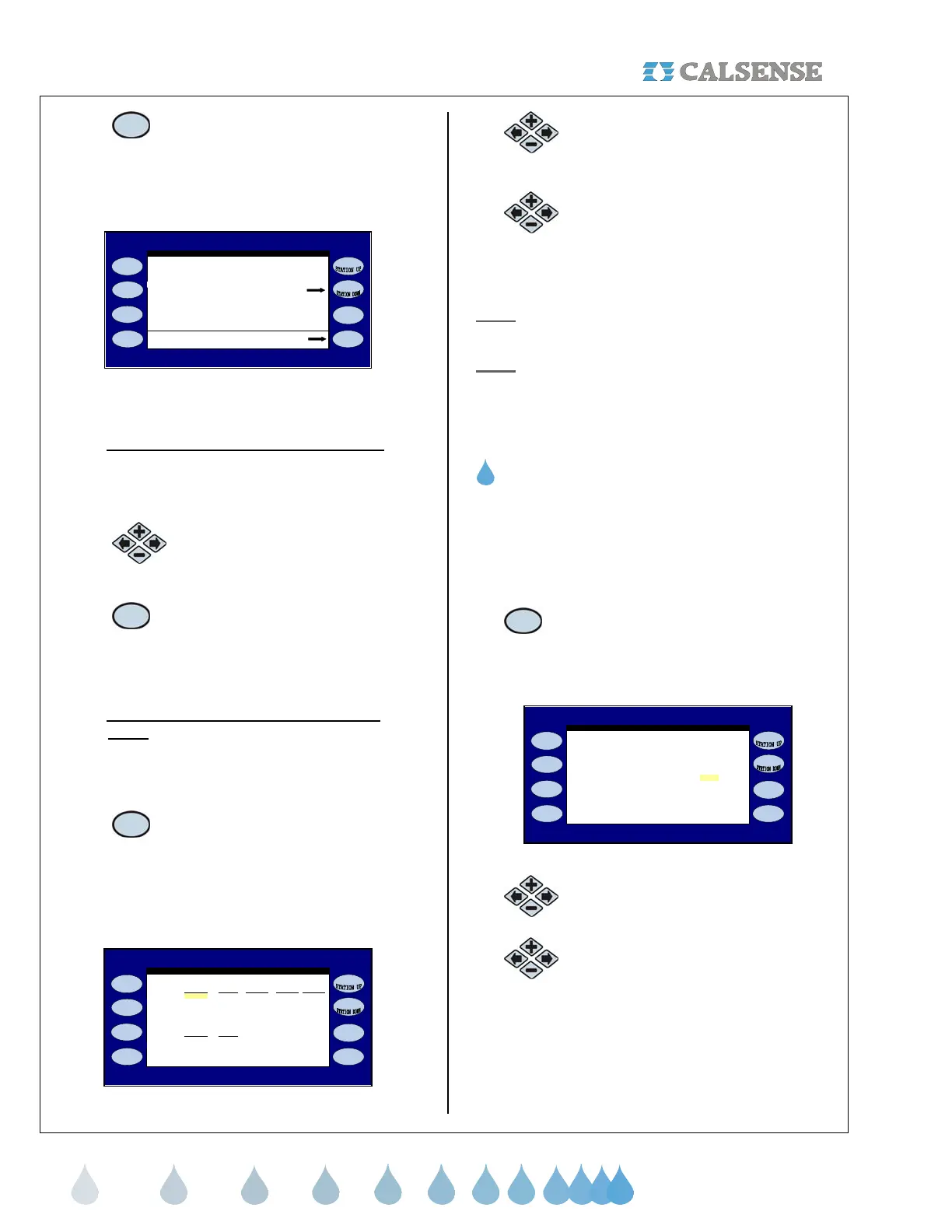
The MASTER VALVE OVERRIDE screen is
displayed (Figure 10.5).
OPEN the MASTER VALVE for 4.0 HOURS
be used to OPEN the Master Valve.)
(Master Valve Override may onl
WEEKLY SCHEDULE FOR OPENING M
MASTER VALVE OVERRIDE
Figure 10.5
10C.1 Open Master Valve for Specified Time
From the MASTER VALVE OVERRIDE screen
(Figure 10.5).
1.
Press the PLUS or MINUS
keys to change the Open
Master Valve time.
2.
Press the OPEN MASTER
VALVE FOR #.## HOURS
Menu key to activate the time
period.
10C.2 Weekly Schedule for Opening Master
Valve
From the MASTER VALVE OVERRIDE screen
(Figure 10.5).
1.
Press the WEEKLY
SCHEDULE FOR OPENING
MV Menu key.
The SCHEDULE OPENING THE MASTER VALVE
screen is displayed (Figure 10.6).
Open OFF OFF OFF OFF OFF
Close OFF OFF OFF OFF OFF
Open OFF OFF
Close OFF OFF
SCHEDULE OPENING THE MASTER VALVE
MON TUE WED THU FRI
SAT SUN
Figure 10.6
2.
Press the PLUS or MINUS keys
to change the “Open master
valve time”.
3.
Press the blue ARROW keys to
change from the open and close
entry and to change from one day
to the next.
Note: This is a rolling schedule that will repeat every
week.
Note: All daily settings will have to be set to OFF to
terminate the weekly schedule.
THIS CONCLUDES THE MASTER VALVE
OVERRIDE SECTION
10D. LEARN EXPECTEDS
Learn expecteds allows you to learn the expected
flow rate for each station. This will occur at the next
scheduled irrigation for that station.
From the MANUAL MENU screen (Figure 10.1).
1. Press the LEARN EXPECTED
Menu key to access the LEARN
THE EXPECTED FLOW RATES
screen (Figure 10.7).
PROG A . . . . . . . . . . . . . . . . . . . . NO
Learn The Expected Flow Rates for:
DRIP 1 . . . . . . . . . . . . . . . . . . . . NO
LEARN THE EXPECTED FLOW RATES
each station and use the measured flow
to set the expected flow rate.
t the next program start, turn on
DRIP 2 . . . . . . . . . . . . . . . . . . . . NO
PROG B . . . . . . . . . . . . . . . . . . . . NO
PROG C . . . . . . . . . . . . . . . . . . . . NO
PROG D . . . . . . . . . . . . . . . . . . . . NO
PROG E . . . . . . . . . . . . . . . . . . . . NO
Figure 10.7
2.
Press the PLUS or MINUS keys to
change the program setting.
3.
Press the blue ARROW keys to
change from one program to the
next.
THIS CONCLUDES THE LEARN EXPECTEDS
SECTION


 To Next Page