4.1 Using menus 17
4 Teach Your Camera New Tricks
We have already mentioned the ALT key. Use it to switch the camera into
<ALT> mode (or CHDK mode) where all CHDK menus and scripts are acces-
sible. Note that while in <ALT> mode, none of the keys (including the shut-
ter release) work in the traditional way. To return to normal operation, you
must leave <ALT> mode. This is done with another click on the
ALT key.
<ALT> mode is indicated by a small <ALT> sign at the bottom of the display
(blue in Recording Mode and white in Playback Mode).
Now, where is this mysterious key? There is no key on your camera la-
beled
ALT. In fact, the actual key acting as the ALT key varies from camera to
camera:
f
A series and SD series: the Print button is used. A short press (like a click)
is sufficient; a long press will either have no effect or invoke a native
camera function.
f
G series and S series: the Shortcut button is used by default. Actually,
the ALT function can be assigned to the
Shortcut, Flash, Timer, ISO, or
Video buttons.
4.1 Using menus
Invoking the CHDK menu is almost as simple as invoking the native menu.
Switch to the <ALT> mode by pressing the
ALT button, and then press the
MENU button. You can exit the menu by pressing the MENU button again
or by pressing the
ALT button, which will also leave <ALT> mode and return
to normal mode.
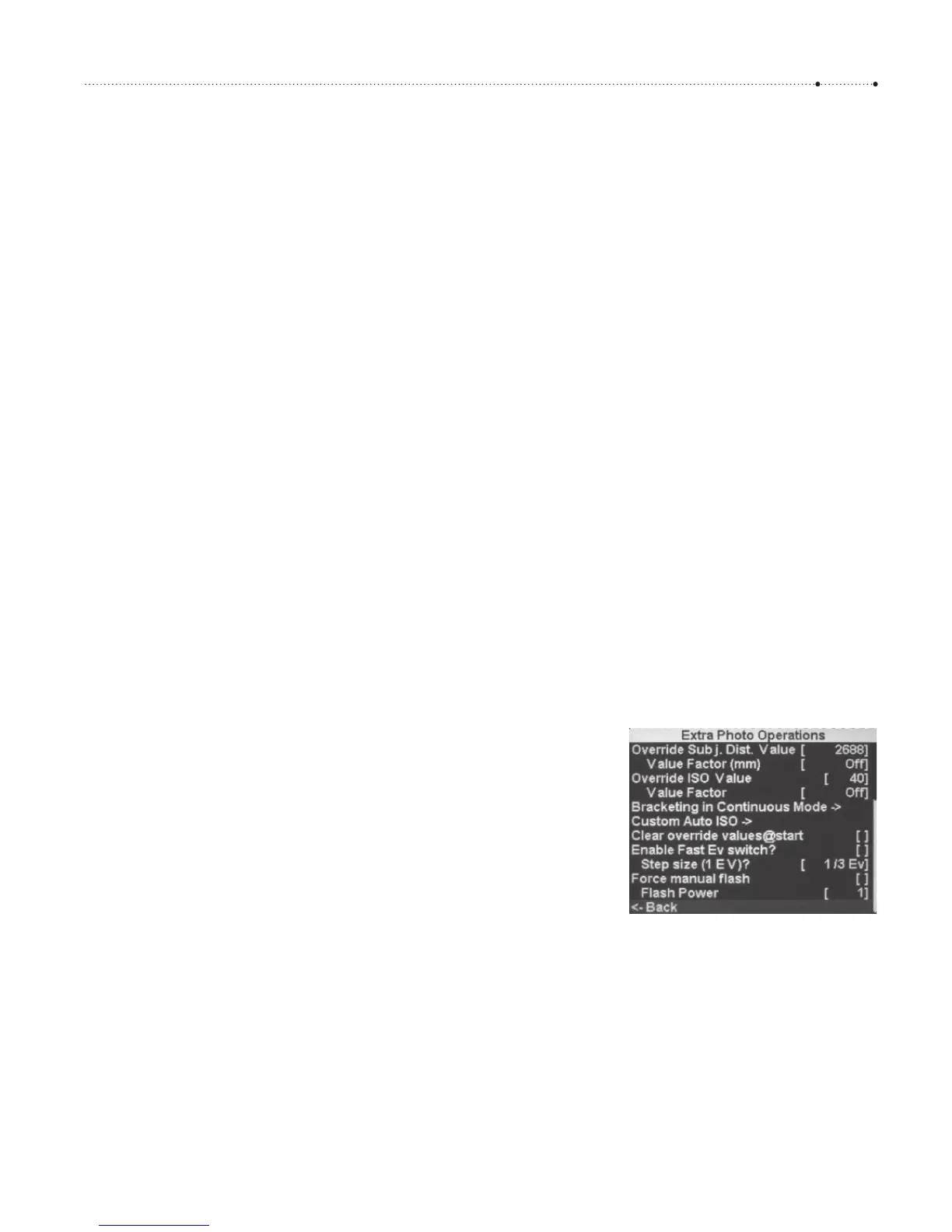
Some menus are too large to be displayed on the screen. In this case, the
menu shows a scroll bar at the right-hand side. Use the
UP and DOWN
buttons to scroll to the desired position.
Menu items are either parameters or submenus. A right arrow identi-
fies submenus. To open a submenu, press the
FUNC/SET button. To return
from a submenu to the higher menu level, navigate to the last item on the
screen which should be named Back. Press
FUNC/SET on that item. Alter-
natively, you can press the
DISP button to return to the parent menu.
Pressing the
LEFT, RIGHT, or FUNC/SET buttons changes values in the
other menu entries. The change immediately becomes active—an extra
Figure 4-1
The Extra Photo Operations submenu.
The scroll bar on the right-hand side
indicates that the menu is scrolled
down to the bottom. The last entry, the
Back entry, leads back to the main
menu. This submenu has two child
submenus: Bracketing in Continuous
Mode and Custom Auto ISO.





 To Next Page