EasyManua.ls Logo

Canon CR-1 - User Manual

Canon CR-1
58 pages
Print Icon
To Next Page IconTo Next Page
Loading...
Before using the instrument, be sure to read this manual thoroughly.
Keep the manual where it is easily accessible.
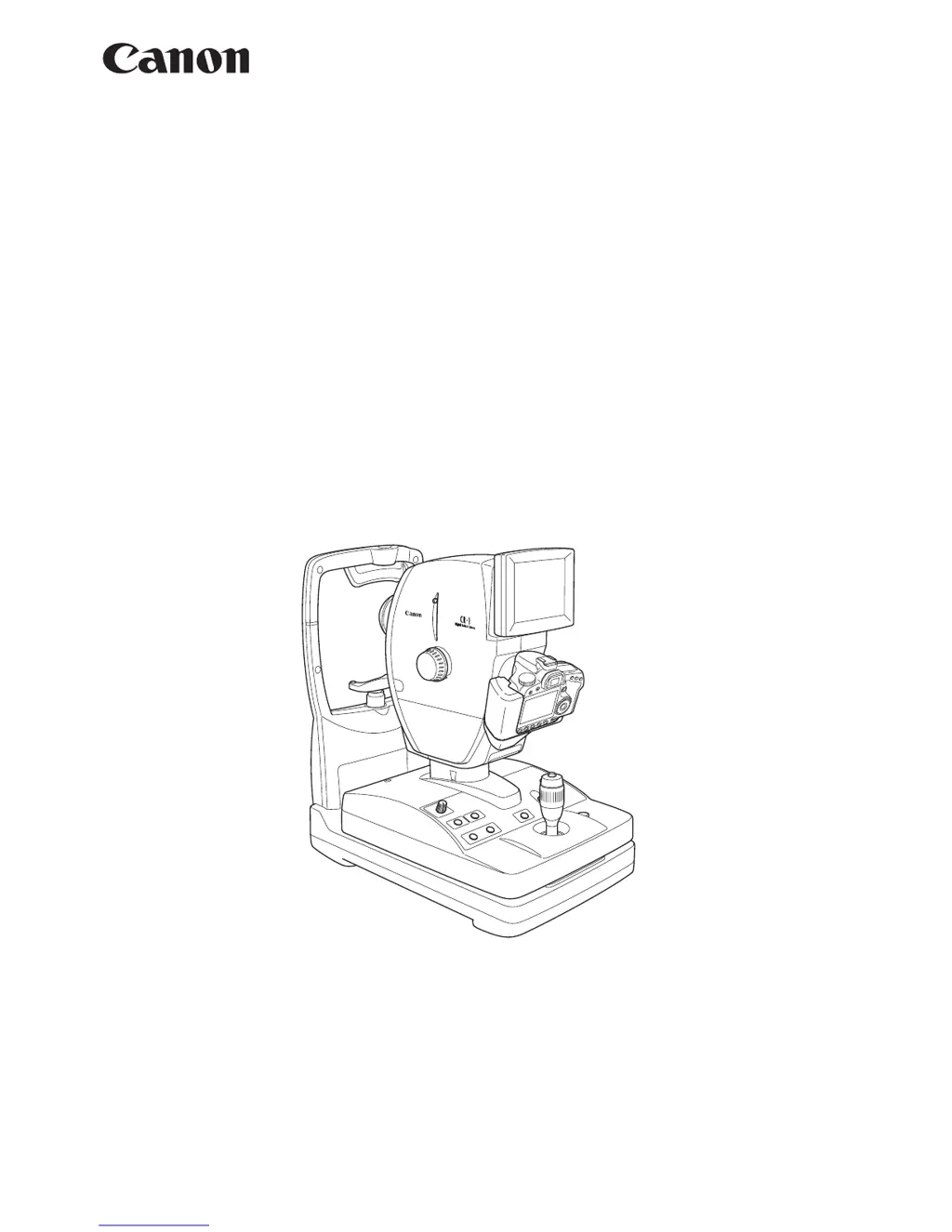
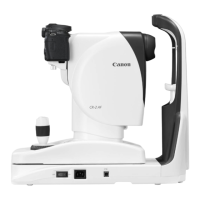
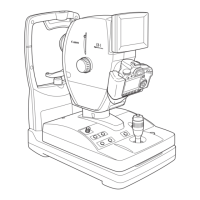
Digital Retinal Camera
CR-1
Operation Manual

Questions and Answers

  • K
    Kimberly TaylorAug 15, 2025
    Why does the Canon Digital Camera power lamp not light up?
    • D
      Debra BrownAug 15, 2025
      The power lamp may not light up on your Canon Digital Camera due to several reasons: * The power cable might be disconnected. Ensure the power is off and connect the cable properly. * An indoor circuit breaker may have tripped. Find the cause and reset the circuit breaker. * The cable might be cut. In this case, turn off the power and contact a Canon representative or distributor.
  • A
    Aaron FordAug 18, 2025
    Why is it hard to see working distance dots on Canon CR-1?
    • D
      Daniel WrightAug 18, 2025
      If it is hard to see the working distance dots on your Canon Digital Camera, it may be because the light used for observation is too bright. Reduce the brightness.
  • H
    hweberAug 22, 2025
    How to fix stiff movement of Canon CR-1 Digital Camera retinal camera main unit?
    • E
      Eric RyanAug 22, 2025
      If the retinal camera main unit movement is stiff at the upper limit on your Canon Digital Camera, it may be because the camera was subjected to severe vibration while it was in transit. Turn the operation lever, and move the main unit to the upper level by raising and lowering it several times.
  • H
    Haley ClarkAug 25, 2025
    What to do if sharp images cannot be taken with Canon CR-1 Digital Camera?
    • K
      Kelly FosterAug 26, 2025
      If you're unable to take sharp images with your Canon Digital Camera, consider the following: * Ensure the patient's pupil is sufficiently dilated. If it's too small, use the SP switch to activate the SP function. * Make sure the positioning is correct and perform positioning. * Focus the image. * Instruct the patient to open their eye wider if eyebrows or eyelashes are blocking the pupil. * If the patient's eye is opaque, a sharp image cannot be taken. * If the patient blinked, take another image. * Verify that the flash intensity, diopter compensation lever, SP functions, and other settings are correct. * Clean the lens if it's dirty. * Ask the patient to remove contact lenses.
  • A
    Anthony ReyesAug 28, 2025
    What to do if the split lines are not visible on Canon CR-1?
    • R
      Rachel CohenAug 29, 2025
      If the split lines are not visible on your Canon Digital Camera, consider the following: * Reduce the brightness for observation if it's too strong. * Press the focus indicator switch to display the split bar. * Ensure the patient’s pupil is sufficiently dilated. If it is still too small, press the SP switch to activate the SP function. * Perform positioning. * Focus the image. * Instruct the patient to open his or her eye wider if eyebrows or eyelashes are blocking the pupil. * If the patient’s vitreous body is unclear, focusing cannot be performed with the split lines. * Set the diopter compensation lever to the no compensation position.
  • N
    Nicole JohnsonSep 1, 2025
    What to do if black points appear on photographed images in the same area with Canon CR-1?
    • L
      lisariceSep 1, 2025
      If black points appear on photographed images in the same area, it may be due to: * Dust or other substance adhering to the surface of the objective lens. Clean the lens. * Dust or other substance adhering to the surface of the CMOS sensor of the EOS digital camera. Clean the CMOS sensor by referring to the operation manual for the EOS digital camera.
  • Z
    zgarciaSep 4, 2025
    What to do if the split lines do not align on Canon CR-1?
    • W
      William LopezSep 4, 2025
      If the split lines do not align on your Canon Digital Camera, it might be because the diopter of the patient’s eye is outside the range of -10 to +15 D. Turn the focus knob to focus so that the cross hair lines in the field of view and the fundus image can be seen clearly at the same time.
  • G
    graybrandiSep 7, 2025
    What to do if the image on Canon CR-1 monitor is faint?
    • J
      Justin DyerSep 8, 2025
      If what appears on the monitor screen is faint and hard to see, it might be because the brightness of the monitor has not been adjusted. Increase the value of the MONITOR set at the SET MENU.
  • H
    higginsjeffreySep 12, 2025
    What to do if the working distance dots are not visible on Canon CR-1?
    • P
      Phillip SellersSep 12, 2025
      If the working distance dots are not visible on your Canon Digital Camera, it is likely because the pupil position is not aligned properly. Align the pupil position properly.

Summary

Safety Information

Regulations

Details compliance with international standards like IEC 60601.

Electromagnetic Emissions

Specifies electromagnetic emission compliance and guidance for the CR-1.

Electromagnetic Immunity

Outlines electromagnetic immunity levels and guidance for device operation.

Recommended Separation Distances

Provides guidelines for safe distances from RF transmitters to prevent interference.

General Safety Information

Meaning of Caution Signs

Explains the symbols used for warnings and cautions in the manual.

Installation and Environment of Use

Details safe installation locations and environmental conditions for operation.

Power Supply Safety

Covers safety precautions for power supply and electrical connections.

Handling Precautions

Provides instructions for safe handling, operation, and general use of the instrument.

Labels and Markings on the Instrument

Features

Notes for Using the Instrument

Before Use

Essential checks and preparations before operating the retinal camera.

Environment of Use

Guidelines for selecting appropriate installation and operating environments.

Description

Main Unit Components

Identifies and describes the main physical components of the CR-1 unit.

Operation Panel

Details the functions of each button and indicator on the CR-1 operation panel.

Monitor Display Screens

Explains the information displayed on the monitor during operation.

Operation

Preparation Steps

Outlines the initial steps required before starting retinal imaging.

Adjusting Position and Focusing

Guides the user through aligning the patient and focusing the image.

Photography Procedure

Details the process of capturing retinal images with the CR-1.

Settings

Daily Inspection and Maintenance

Inspection Procedures

Lists routine checks to ensure safe and normal operation of the instrument.

Troubleshooting Guide

Provides solutions for common problems and error messages encountered.

What to Do when Displays Appear

Explains how to respond to specific error messages or displays.

Cleaning and Disinfection

Instructions for cleaning and disinfecting key components like lenses and rests.

Refilling Chin Rest Paper

Steps for replacing the disposable chin rest paper.

Power Cable Connections

Guidance on correctly connecting the power cable to the instrument.

EOS Digital Camera Attachment;Removal

Procedures for mounting and dismounting the connected EOS digital camera.

USB Cable Connection

Instructions for establishing a USB connection between the CR-1 and a computer.

Instrument Carrying Procedure

Safe procedures for transporting or moving the retinal camera.

Service Information

Repair and Service Contact

Information on how to request repairs and what details to provide.

Main Specifications

Components

Canon CR-1 Specifications

General IconGeneral
BrandCanon
ModelCR-1
CategoryDigital Camera
LanguageEnglish

Related product manuals