Need help?
Do you have a question about the Canon FAXPHONE B95 and is the answer not in the manual?
Instructions for safe operation, care, and maintenance of the fax machine and its components.
Guidelines for placing the fax machine in a suitable environment for optimal operation and safety.
Instructions on connecting the fax machine to a power source and precautions related to electricity.
Requirements before installing Canon facsimile equipment, covering location and order information.
Details on the electrical power requirements for the fax machine, including outlet specifications.
Instructions on connecting the fax machine to the telephone network and power supply.
Procedures for malfunctions and compliance information related to FCC rules.
Installation prerequisites for Canon facsimile equipment in Canada, including location and order information.
Electrical power specifications and compliance notice for Canadian users.
Instructions on how to unpack the fax machine and identify included items.
Step-by-step guide to remove protective pieces and shipping tapes from the fax machine.
Instructions on attaching components, specifically the multi-purpose tray, to the fax machine.
Detailed steps for connecting the telephone line, handset, and any external devices to the fax.
Guide for plugging the fax machine into a standard AC power outlet for operation.
Recommendations and best practices for loading paper into the fax machine's multi-purpose tray.
Step-by-step instructions for correctly loading paper into the fax's multi-purpose tray.
Important guidelines and precautions for using and storing the Canon BX-3 Black BJ Cartridge.
Step-by-step process for installing the BJ Cartridge into the fax machine's cartridge holder.
How to test the fax machine's functionality after installation, typically by making copies.
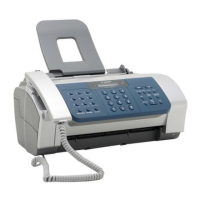
Identifies and illustrates the primary physical parts of the fax machine.
Details the buttons and functions located on the fax machine's operation panel.
Provides guidance on using the numeric buttons to input various characters and data.
Instructions on how to fix errors made while entering data on the fax machine's operation panel.
How to configure the fax to match the telephone line type (e.g., rotary or tone).
Procedure to set the fax machine's internal clock for accurate date and time display.
How to register your fax number and personal/company name for document identification.
Instructions to configure the fax for automatic daylight saving time adjustments.
How to assign phone numbers and names to one-touch dialing buttons for quick access.
How to register phone numbers under two-digit codes for speed dialing.
How to record voice tags (names/phrases) to enable voice-activated dialing.
Procedure to change or update existing voice tags registered for voice dialing.
How to remove previously registered voice tags from the fax machine.
Information on document sizes, scanned area, and types of documents suitable for faxing.
Step-by-step guide on how to load documents into the fax machine's document tray correctly.
Specifications for the type, size, and weight of paper recommended for fax machine use.
Instructions on how to use the fax machine to make high-quality copies of documents.
Steps to prepare documents for sending, including adjusting scanning quality.
Outlines the different methods available for sending documents via fax.
How to send a document directly by dialing the recipient's fax number.
Process for scanning a document into memory before sending, allowing document retrieval.
Method for sending documents that involves speaking with the recipient before transmission.
How to stop an ongoing fax transmission process.
Using one-touch or coded speed dialing to automatically send documents.
How to send a document by looking up contacts in the directory by name.
Process to send a document by speaking the contact's name to initiate dialing.
Various methods for dialing, including using caller history for sending.
How to send a document to a contact selected from the received calls list.
How to redial the last dialed number manually.
How the fax automatically redials if the line is busy or unanswered.
Configuring the number of redial attempts and intervals for automatic redialing.
Procedure to cancel a previously scheduled delayed fax transmission.
How to print a list of all documents currently stored in the fax machine's memory.
Procedure to retrieve and print a specific document stored in the fax's memory.
How to remove documents that are stored in the fax machine's memory.
Describes various modes for receiving documents, such as Fax/Tel, Manual, and DRPD.
How to select and configure the fax machine's receive mode.
Setting up the fax to automatically handle both fax and voice calls.
How to manually receive a fax call when the fax is set to Manual mode.
Receiving faxes using Distinctive Ring Pattern Detection service.
Requesting documents from another fax machine using the polling feature.
Configuring the Caller ID feature to display caller information and reject calls.
How to stop an ongoing fax reception process.
How to enable or disable the ink-saving feature to reduce ink consumption.
How the fax stores documents in memory during multitasking or issues.
How to record an outgoing message for the fax's answering machine function.
Configuring the fax to receive telephone messages automatically when unattended.
Adjusting the duration allowed for recording telephone messages.
Enabling the TAM Monitor feature to screen incoming calls.
Configuring the Toll Saver feature to manage call ringing based on message availability.
How to record short personal voice messages using the fax's microphone.
Procedure to delete recorded telephone messages and voice memos.
How to listen to recorded telephone messages stored in the fax.
Setting a four-digit PIN to access fax features remotely.
How to operate the fax machine remotely using phone commands and a PIN.
A table detailing commands and sub-commands for remote operation of the fax.
Registering a phone number to which telephone messages will be forwarded.
Configuring how many times the fax should automatically redial a busy number.
Enabling or disabling the requirement to enter a password for forwarding features.
What happens when a call is received at the forwarding number and how to manage it.
How to navigate and access different setting menus on the fax machine.
Adjusting the contrast level for scanning documents to optimize print quality.
Enabling or disabling the automatic dialing feature for voice calls.
Configuring automatic printing of transmission, reception, and activity reports.
Options for error correction, pause insertion, and automatic redialing during transmissions.
Adjusting settings for receiving calls, including fax/tel auto switch and caller ID.
Settings related to document reduction, paper size, and print quality.
Various system-level settings including auto test print, date format, and language.
Settings for message length, password, toll saver, and PIN entry.
Configuring Caller ID display and methods for rejecting calls.
Steps to manually print various activity reports like TX, RX, and list reports.
Explains different report types such as activity, speed dial lists, and memory documents.
Instructions for removing paper jams from the document tray and multi-purpose tray.
Guidelines for cleaning the exterior and interior of the fax machine.
How to clean the scanner unit and its cover for optimal document scanning.
How to print a test pattern to check the BJ Cartridge print head's nozzle status.
Steps to clean the print head nozzles to improve print quality.
Procedure for safely removing and replacing the BJ Cartridge in the fax machine.
Solutions for issues like paper not loading, skewing, or multiple sheets feeding.
Common issues encountered during fax transmission and their causes.
Troubleshooting steps for when a document cannot be sent successfully.
Solutions for issues related to not receiving documents automatically or manually.
Troubleshooting steps for poor print clarity, smudges, or missing dots.
Solutions for when the fax machine fails to print documents or reports.
Addressing issues causing fax images to appear blotched, uneven, or smudged.
Troubleshooting steps for issues encountered during document copying.
Solutions for dialing, connection, or interference issues with the telephone line.
Detailed causes and solutions for poor print clarity, streaks, or missing dots.
Explains common messages displayed on the LCD and provides troubleshooting actions.
Explains more LCD messages like 'CHANGE CARTRIDGE', 'CHECK DOCUMENT', and 'CHECK PRINTER'.
Covers messages like 'CLEAR PAPER JAM', 'DATA ERROR', 'DOC. TOO LONG', 'ECM RX/TX', 'MEMORY FULL', 'MSG DATA LOST'.
Explains messages like 'NO DATA', 'NO OGM', 'REC’D IN MEMORY', 'REMOVE DOCUMENT', 'TAM MEMORY FULL', 'TX/RX CANCELLED', 'TX/RX NO.'
Restrictions and capabilities of the fax during a power outage.
What the memory clear report is and when it is printed after power restoration.
 General
| Brand | Canon |
|---|---|
| Model | FAXPHONE B95 |
| Category | Fax Machine |
| Language | English |

 To Next Page