EasyManua.ls Logo

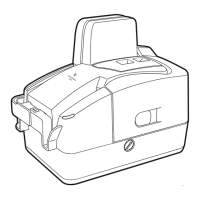
Canon FORMULA CR-50 - User Manual

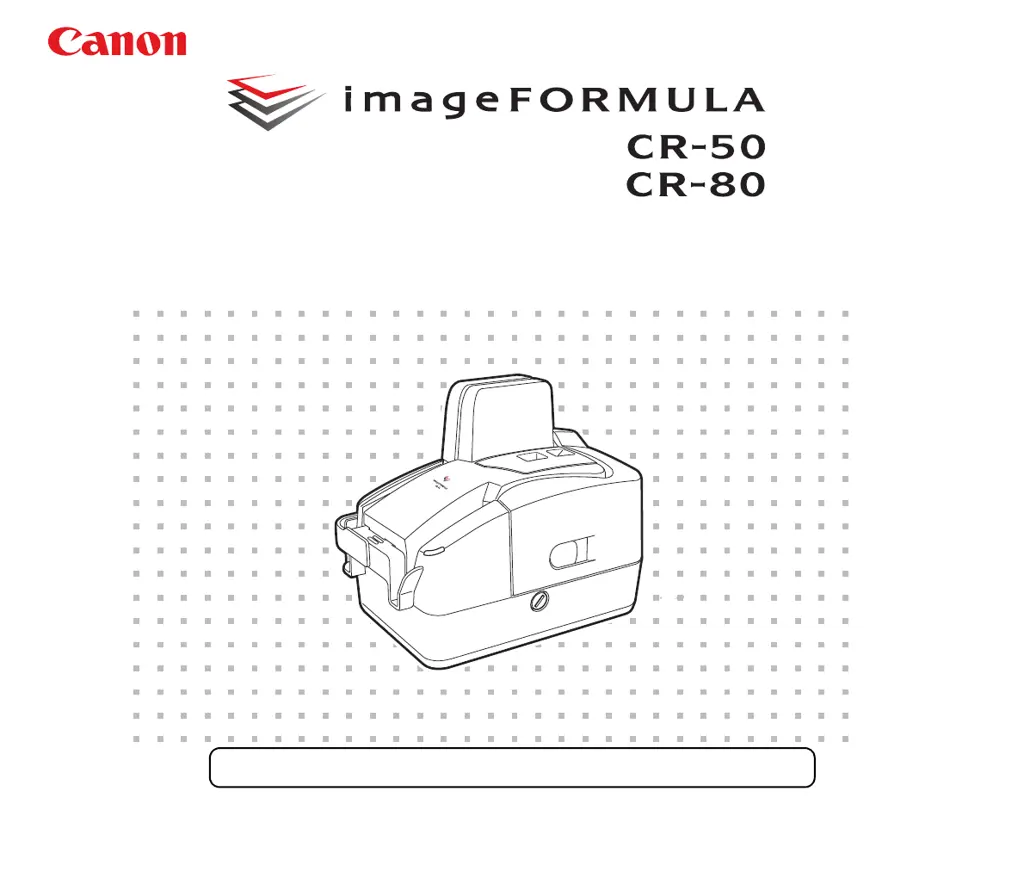
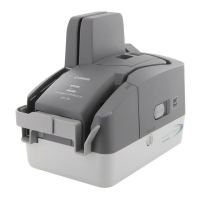
Canon FORMULA CR-50
24 pages
Print Icon
To Next Page IconTo Next Page
Loading...
Please read this manual before operating this scanner.
Operation & Maintenance Guide

Questions and Answers

  • E
    Eileen HamiltonJul 30, 2025
    What to do if my Canon FORMULA CR-50 is not recognized?
    • J
      Justin BurkeJul 30, 2025
      If your Canon Scanner is not being recognized, first ensure that the Scanning Utility is installed. If not, install it before connecting the scanner to your computer. Also, verify that the scanner is correctly connected to the computer. Using the USB cable provided with the scanner is recommended. Remove any USB hubs to connect the scanner directly.
  • M
    Matthew EvansAug 8, 2025
    Why is my Canon FORMULA CR-50 Scanner not being detected?
    • B
      Bruce SinghAug 9, 2025
      If your Canon Scanner is not recognized, make sure the Scanning Utility is installed before connecting the scanner to the computer. Also, ensure the scanner is correctly connected to the computer. It is possible that the USB interface on your computer is not compatible with the scanner; in that case, contact your local authorized Canon dealer for more information. Try using the USB cable provided with the scanner and removing any USB hubs.
  • L
    lynchchristopherAug 19, 2025
    How to fix Canon Scanner not recognized?
    • C
      chloe67Aug 19, 2025
      To fix a Canon Scanner that is not being recognized: * Install the Scanning Utility before connecting the scanner. * Ensure the scanner is correctly connected to the computer. * Use the USB cable provided with the scanner. * Remove any USB hubs. * If the problem persists, the USB interface may not be compatible; contact your local authorized Canon dealer.

Summary

INTRODUCTION

Manuals for the CR-50;80

Lists the manuals provided with the scanner for setup and operation.

Symbols Used in This Manual

Explains symbols used for warnings, cautions, and important notes in the manual.

Document Feeding and Scanning

Documents

Describes document types, sizes, thickness, weight, and handling precautions for scanning.

Placing Documents

Provides guidelines for correctly placing documents in the scanner's document tray for optimal feeding.

Scan Procedure

Outlines the step-by-step process for scanning documents using the scanner.

Troubleshooting

When the Scanner Is Not Recognized

Lists common causes and remedies when the computer does not recognize the scanner.

Clearing Paper Jams

Provides instructions and cautions for safely removing jammed paper from the scanner.

The Scanner Does Not Turn ON

Lists conditions to check and actions to take if the scanner fails to power on.

Feeding Trouble

Discusses common feeding issues like paper jams and double feeds, and their solutions.

When the Scanned Image Is Not Normal

Addresses issues affecting scanned image quality, such as dirty components or incorrect settings.

Maintenance

Daily Cleaning

Provides general precautions and instructions for daily cleaning of the scanner unit.

Cleaning the Main Unit

Describes how to wipe down the exterior of the scanner unit with a damp cloth.

Cleaning the Inside of the Scanner

Explains how to use compressed air to clean dust and paper particles from inside the scanner.

Cleaning the Scanning Glass and Rollers

Details how to clean the scanning glass and rollers to ensure image quality.

Cleaning the Magnetic Heads

Explains how to clean magnetic heads using audio head cleaner for MICR recognition.

Cleaning the Ink Jet Nozzles

Provides instructions for cleaning ink jet nozzles to prevent document staining or scratching.

Replacing the Ink Cartridge

Details the procedure for replacing the ink cartridge, including important notes and precautions.

Adjusting the Separation Roller Gap

Provides a step-by-step guide to adjust the separation roller gap to prevent double feeds.

Canon FORMULA CR-50 Specifications

General IconGeneral
InterfaceUSB 2.0
Scanning MethodContact Image Sensor (CIS)
Film Types35mm negative film, 35mm positive film (slides)
Power SupplyAC 100-240V
Dimensions11.8 x 5.7 x 7.1 in. (300 x 145 x 180 mm)
WeightApprox. 5.5 lb. (2.5 kg)

Related product manuals