8
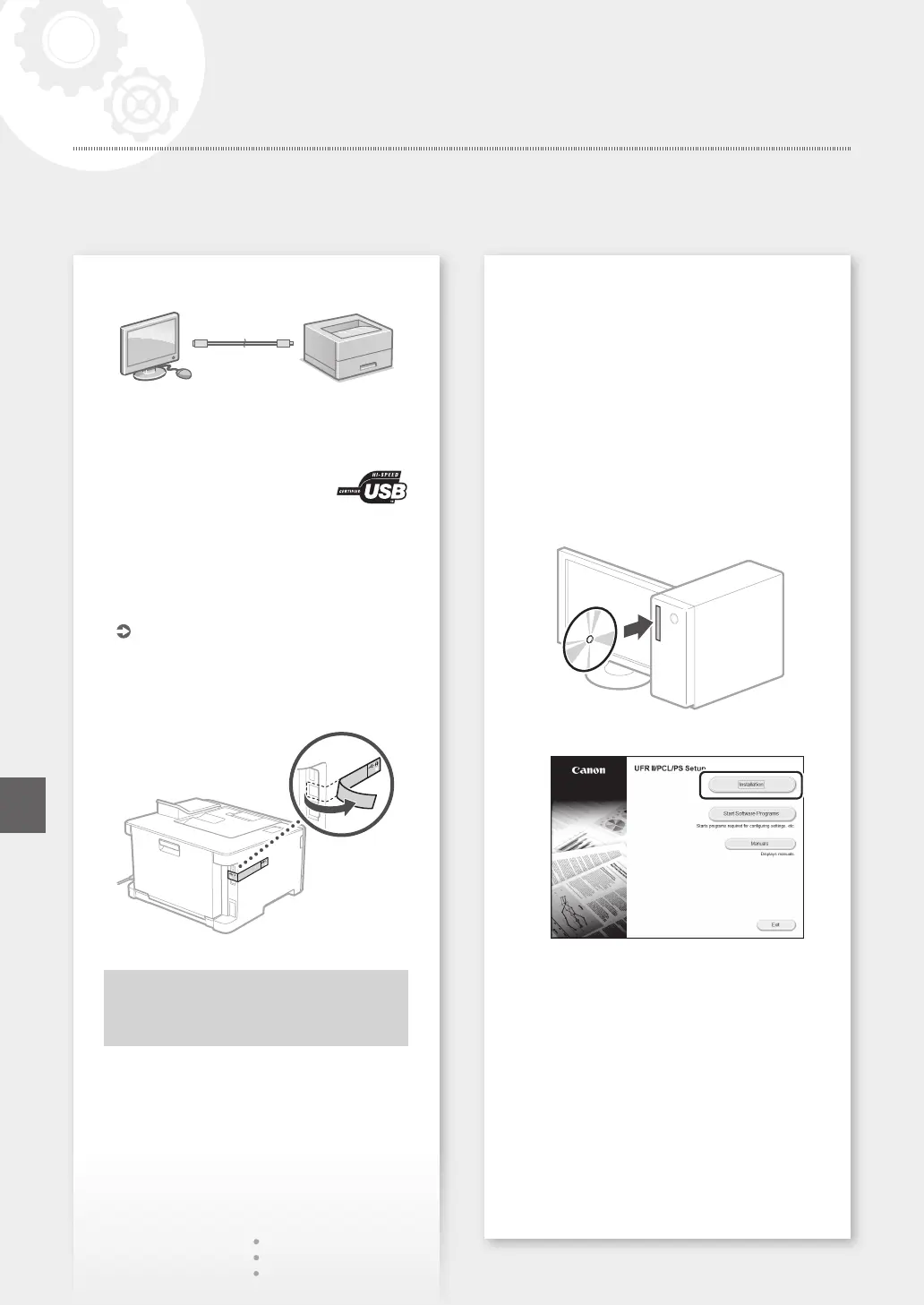
To connect via USB
•ThemachinemaynotcomewithaUSBcable
depending on the model. Have a USB cable
ready as necessary.
•MakesurethattheUSBcableyou
use has the following mark.
•DonotconnecttheUSBcablebeforeinstalling
the driver. If you did, disconnect the USB cable
from the computer, close the dialog box, and then
perform the following procedure from step 1.
1.
Install the driver and software.
P.8 "Installing the software"
•Whenascreenwithinstructionsforconnecting
the USB cable to the machine is displayed,
remove the sticker that covers the USB port.
Now you are finished with the
configuration of the initial settings.
Installing the software
•Theproceduredescribedhereisonlyapplicable
when your computer runs on the Windows OS.
Formoredetailsonthesoftwareinstallation
procedure, see the driver's manual.
•Fortheinstallationwhenyourcomputerrunson
the macOS, see the driver's manual.
•Yourmachinemaynotcomewiththedriverfor
the macOS , depending on the time of purchase.
New drivers are uploaded to the Canon website,
and you can download and use the latest one.
1.
2.
If the screen is not displayed properly, re-
inserttheCD-ROM/DVD-ROMorsearchfor
"D:\MInst.exe"ontheWindowsplatform(This
descriptionassumesthat"D:"istheCD-ROM/
DVD-ROMdrivename).
Configuring the Machine
Quick Setup
En











 To Next Page