13
En
8
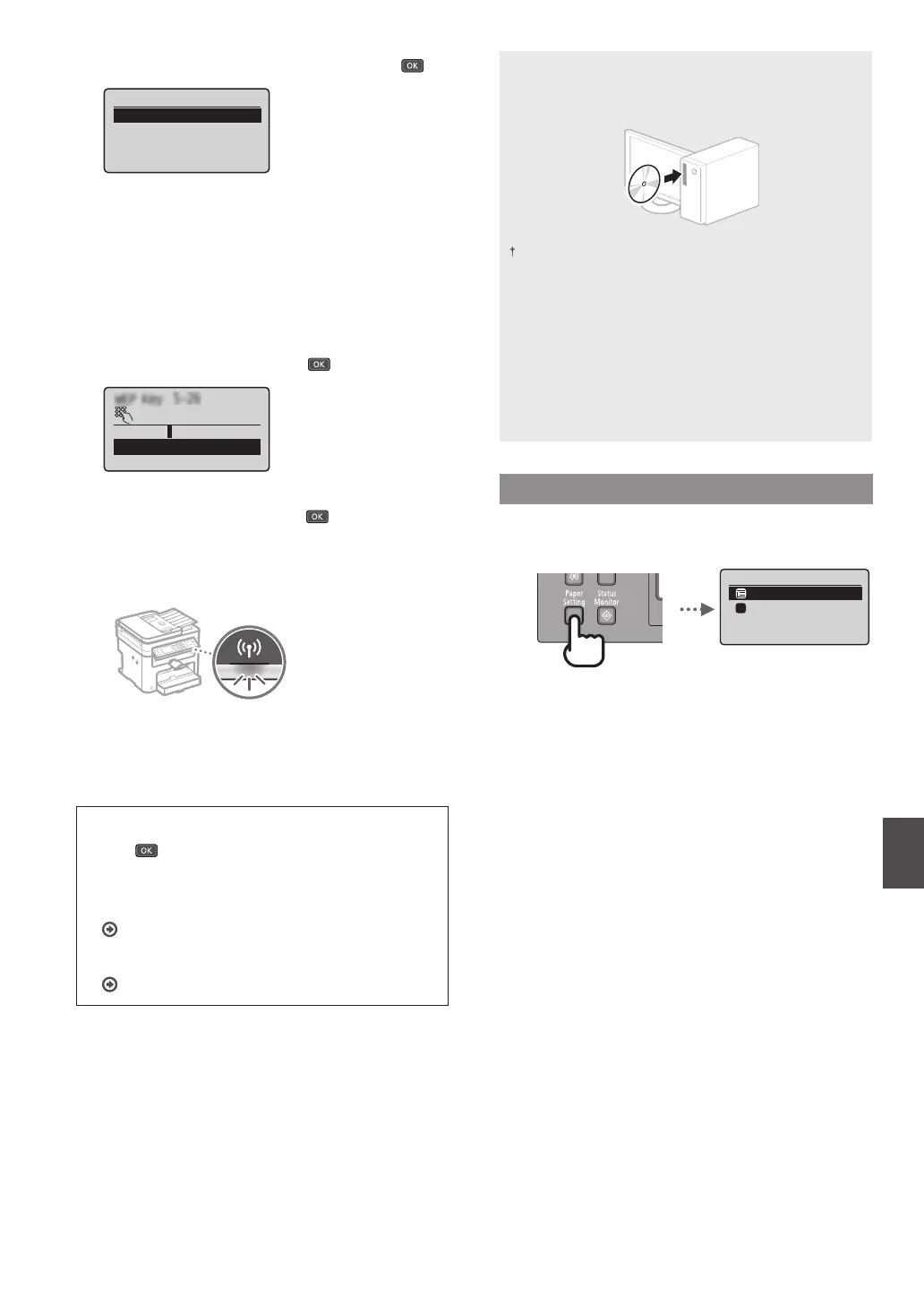
Select <Select Access Point>, and then press .
SSID Settings
Select Access Point
Enter Manually
9
Select a wireless LAN router.
If multiple matched SSIDs are displayed, select the ID that
is listed rst (the one with the strongest signal).
10
Enter the network key that you have written
down.
Enter the network key using the numeric keys.
Select <Apply>, and then press
.
WEP Key (5-26 Char.)
XXXXXXXX
<Apply>
Entry Mode: A
11
Select <Yes>, and then press .
12
After the <Connected.> screen is displayed, wait
until the Wi-Fi indicator stops blinking and turns on.
13
Wait approximately 2 minutes after the
connection.
IP address is set during this period of time.
When an error message appears:
Press
to close the screen, check whether or not the
network key is correct, and then retry the settings.
If the access point cannot be detected even after
retrying, see the following.
User’s Guide “When an Error Message Appears”
To set IP address manually:
User’s Guide “Connecting to a Wireless LAN”
For details on the installation procedures:
Install the driver and software using the provided DVD-
ROM.
You can also download the driver from the Canon website.
For details on the installation procedures, see the MF
Driver Installation Guide.
For Mac OS users:
The DVD-ROM supplied with this machine may not include
the printer driver for Mac OS. This is di erent depending
on when you purchase the machine. Please nd and
download the appropriate driver on our Canon homepage.
For further information on installation or using the driver,
see the manual for the driver.
Setting a Paper Size and Type
Following the instructions on the screen, set the paper size
and type.
Paper Settings
MP Tray
Drawer 1
Select Frequently Us
...
1











 To Next Page