1
Setting Up the Machine to Suit Your Needs
Copy Fax
Settings from
a Computer
Print
Scan
PC Fax
Print
Scan
PC Fax
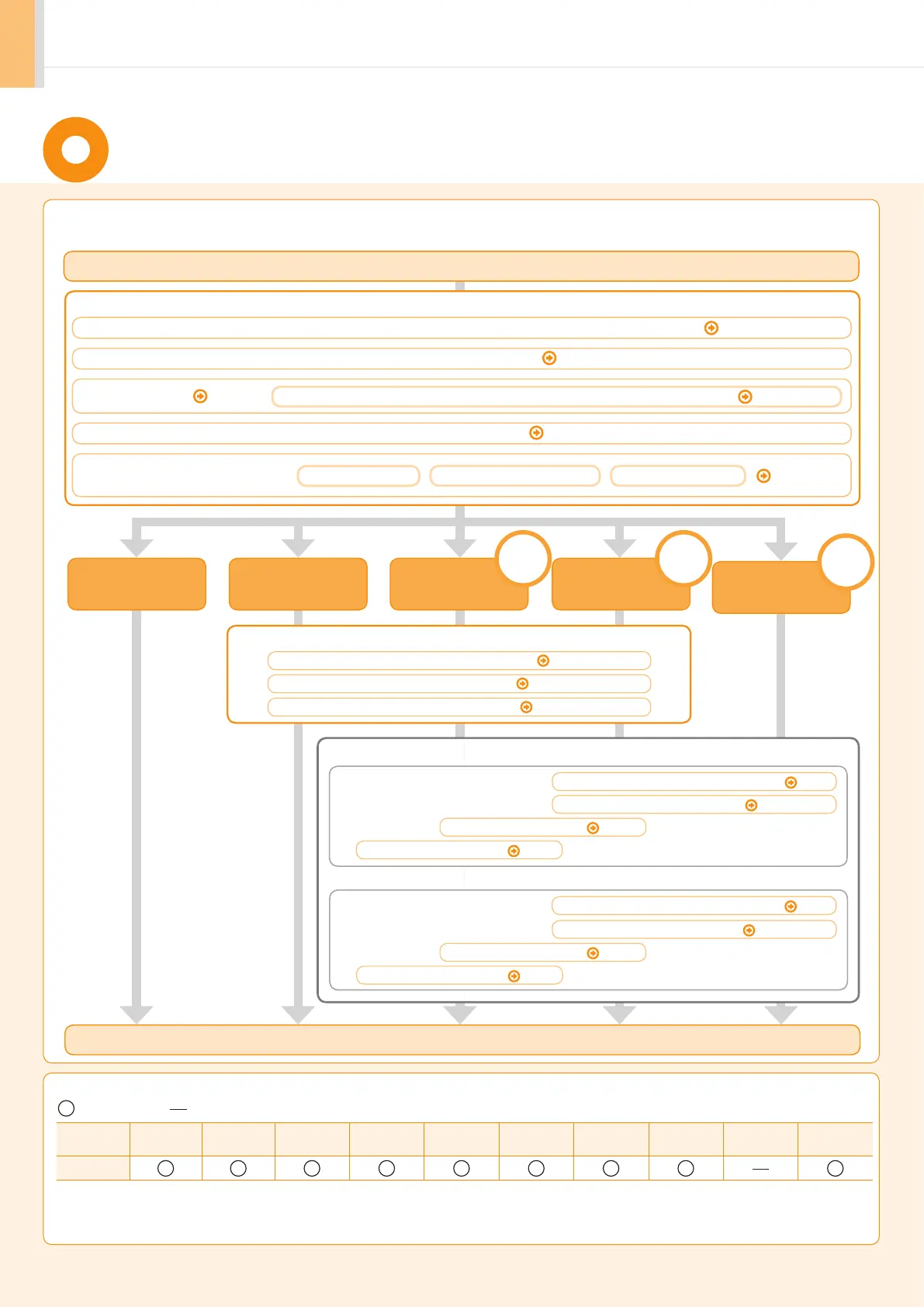
Registering the Sender Information
P. 14
Fax Settings
Settings are now complete.
Selecting the Receive Mode
P. 15
Connecting a Telephone Line
P. 16
Preparing the Toner Cartridges P. 6
Connecting the Power Cord
P. 11
Determine which machine functions (Copy, Print, Fax, PC Fax, Scan, Remote UI) you intend to use, and make settings
according to the flowchar
t below.
Start settings.
Carrying the Machine to the Installation Site and Removing the Packing Materials
P. 5
Turning the Power ON and
Specifying the Initial Settings
Language Settings
Country and Region Settings
Current Time Settings
P. 12
Loading Paper
P. 9
Settings for paper sizes and paper types are required after turning the power ON.
P. 13
Remote
UI
Network
Connection
USB
Connection
Settings in a Computer
: available : not available
Copy Print
2-sided
Printing
Fax
(PC Fax)
Scan
(USB)
Scan
(Network)
Remote UI
ADF
(1-sided)
ADF
(2-sided)
Wireless
LAN
MF4570dw
Available Features
Required Operations
Connecting to Wired LAN/Wireless LAN
P. 18
Checking the IP Address
P. A-3
Installing the Software
P. 22
Connecting a USB Cable
P. 23
Connecting to Wired LAN/Wireless LAN
P. 18
Checking the IP Address
P. A-3
Installing the Software
P. 25
Connecting a USB Cable
P. 26
For Windows
For Macintosh










 To Next Page