Registering Default Paper Settings for the Multi-
Purpose Tray
1647-036
You can register default paper settings for the multi-purpose tray. Registering default settings can save yourself the
effort of having to specify the settings each time you load the same paper into the multi-purpose tray.
● After the default paper setting is registered, the paper setting screen is not displayed when paper is loaded,
and the same setting is always used. If you load a different paper size or type without changing the paper
settings, the machine may not print properly. To avoid this problem, select <Specify When Loading Paper> in
step 3, and then load the paper.
1
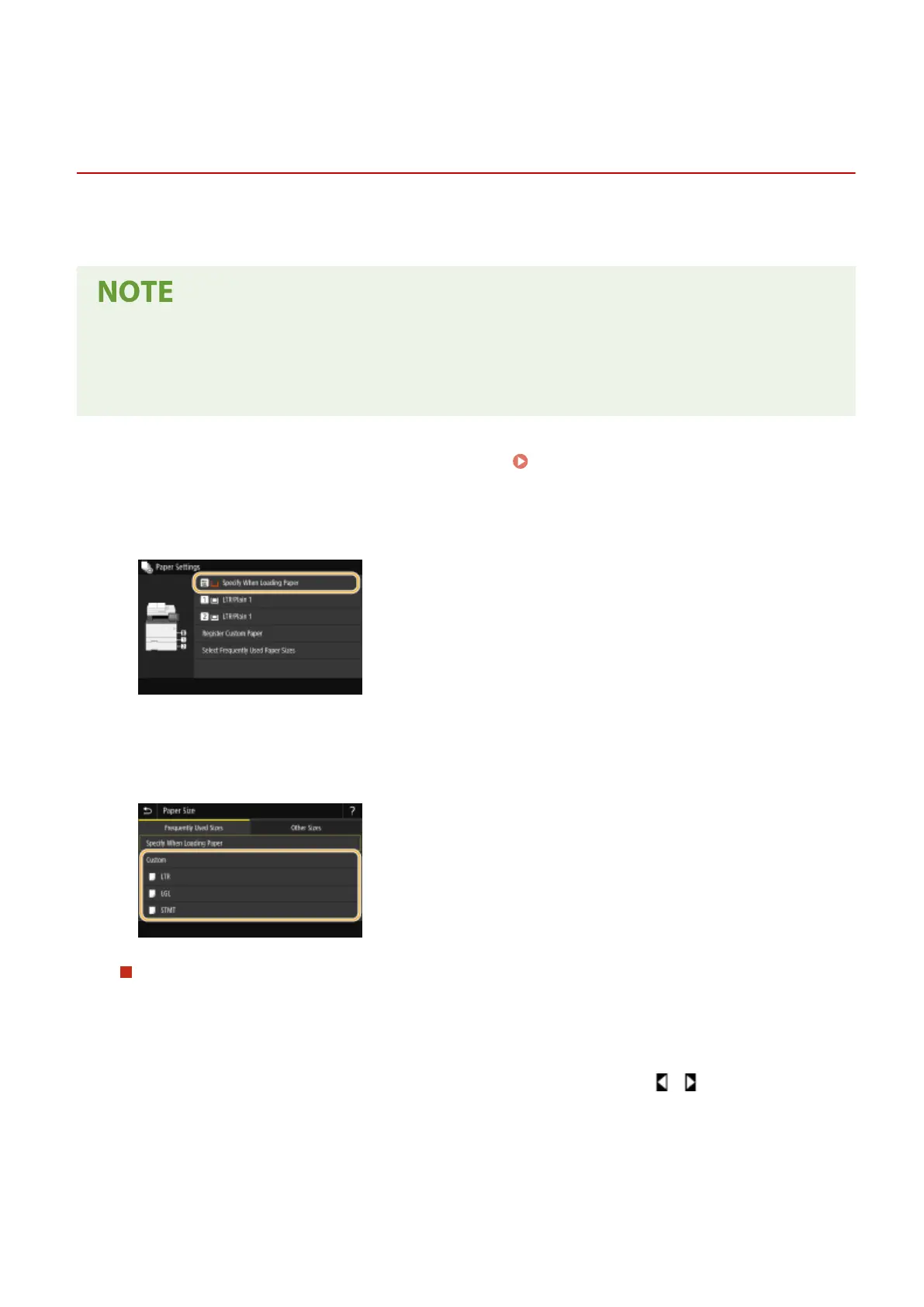
Select <Paper Settings> in the Home screen. Home Screen(P. 122)
2
Select multi-purpose tray.
3
Select the paper size in the <Frequently Used Sizes> tab.
● If the loaded paper size is not displayed, select <Other Sizes> tab.
Registering a custom paper size
1
Select <Custom>.
2
Specify the length of the <X> side and <Y> side.
● Select <X> or <Y>, and enter the length of each side using <+>/<->, with / to move the cursor
between the digits for inputting whole numbers and fractions.
Basic Operations
164




 To Next Page