EasyManua.ls Logo

Canon imagePROGRAF iPF670E - User Manual

Canon imagePROGRAF iPF670E
6 pages
Print Icon
To Next Page IconTo Next Page
Loading...
1
Setup Guide
ENG
QT6-2153-V01 PRINTED IN XXXXXXXXXXXXXXXX © CANON INC. 2016
479
Introduction
Read this manual before attempting to operate the printer.
Keep this manual in a handy location for future reference.
Details for each step are given in this Setup Guide. Simply follow the instructions to
install the printer.
If an error message is displayed during setup or other problems occur, refer to
"Responding to Messages" on page 6.
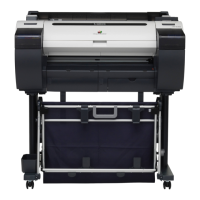
* The optional "Printer Stand ST-27" can be used with the iPF670E/iPF671E.
When using the optional stand, the stand needs to be assembled rst.
Refer to the Stand Setup Guide included with the stand for details on how
to assemble the stand.
A space larger than the following dimensions needs to be allocated when
setting up this printer.
Overview of Setup Space Required for Installation
Package Contents
Caution
Instructions in this Setup Guide show the iPF770 printer. Note that your printer may look different from these illustrations in some cases.
Installation space (W x D x H mm)
Printer only 1397 × 1308 × 807
With stand(*) mounted 1397 × 1700 × 1362
a. Printer
b. Roll holder: Already attached to printer
c. Starter ink tanks (for rst-time
installation) C, M, Y, MBK x2, BK
d. Printhead
e. Cautions When Using the iPF670E/
iPF671E, Setup Guide (this document)
f. CD-ROM (for Windows 64-bit)
g. Power cord
Preparations
1
Have 3 or more people grasp the printer carrying handles and place the printer on a at location
such as a table where it will be used.
Important
When moving the printer, always have 3
or more people rmly grasp the carrying
handles.
Holding the printer at other positions is
dangerous, and may cause injury and
damage if the printer is dropped.
The way to set the printer down or to carry
with the load only to the center of the printer,
may cause damage to the printer.
2
Remove the orange tape used to secure
the roll holder to the printer.
3
Plug the power cord into the power supply
connector on the right of the printer and
plug the other end into the outlet.
Prepare to use the printer such as by connecting the power cord.
Preparations
(P.1)
Install the Ink Tanks
(P.2)
Install the Printhead
(P.3)
(P.4)
Install the Software
(P.5)
How to Display the Electronic
Manuals
f
g
d
c
b
e
a
Question and Answer IconNeed help?

Do you have a question about the Canon imagePROGRAF iPF670E and is the answer not in the manual?

Overview

The Canon imagePROGRAF iPF670E/iPF671E is a large-format inkjet printer designed for professional use, offering high-quality printing capabilities. This setup guide outlines the initial installation and configuration steps, covering hardware setup, software installation, and network connectivity.

Function Description:

The iPF670E/iPF671E serves as a dedicated large-format printer, capable of producing high-resolution prints. Its primary function is to accurately reproduce images and documents on various media types, particularly roll paper, making it suitable for applications such as CAD, GIS, posters, and presentations. The printer utilizes a 6-color ink system (Cyan, Magenta, Yellow, Matte Black x2, Black) to achieve a wide color gamut and sharp detail. The setup process involves installing ink tanks and a printhead, followed by software installation and network configuration, ensuring the printer is ready for operation.

Important Technical Specifications:

  • Installation Space:
    • Printer only: 1397 mm (W) x 1308 mm (D) x 807 mm (H)
    • With optional stand ST-27 mounted: 1397 mm (W) x 1700 mm (D) x 1362 mm (H)
  • Ink System: 6-color ink system (C, M, Y, MBK x2, BK). Starter ink tanks are provided for initial installation.
  • Connectivity: Supports USB and network (LAN) connections.
  • Operating Systems: Compatible with Windows (64-bit and 32-bit) and Mac OS. Software for Windows 64-bit is included on a CD-ROM, while software for other OS versions needs to be downloaded from the Canon website.
  • Network Protocols: Supports TCP/IP, IPv4, and IPv6. DHCP server function is available for automatic IP address allocation.
  • Printhead: A user-installable printhead is included, designed for precise ink delivery.
  • Roll Holder: Comes with a roll holder already attached to the printer.

Usage Features:

  • Guided Setup: The printer features a display screen that provides step-by-step guidance for initial setup, including language and time zone selection, ink tank installation, and printhead installation. This simplifies the process for new users.
  • Ink Tank Installation: The process involves shaking ink tanks gently, opening the ink tank lock lever, inserting the ink tanks with ink holes facing down, and securing them until the ink lamp lights up red. The printer display guides the user through each step, ensuring correct orientation and secure attachment.
  • Printhead Installation: Users are instructed to open the top cover, lift the printhead fixer cover, remove protective parts from the printhead, insert it into the carriage, and lock it in place. The display provides visual cues and warnings to prevent damage.
  • Automatic Ink Charging: After printhead installation, the system automatically charges with ink, a process that takes approximately 10 minutes. This prepares the printer for optimal performance.
  • Software Installation: For Windows 64-bit, software is installed via an included CD-ROM. For other operating systems, software is downloaded from the Canon website. The installation process is guided by on-screen instructions.
  • Network Configuration: The printer supports both USB and LAN connections. For network connections, users can configure IP addresses manually or use DHCP. The setup guide provides instructions for setting up IP addresses and DNS dynamic update functions via the control panel.
  • Electronic Manuals: Comprehensive user manuals are available on the Canon website, accessible via the printer driver's Support sheet or direct download. These manuals provide detailed information on operation, maintenance, and troubleshooting.
  • Printhead Adjustment: After initial setup, it is recommended to execute "Auto(Standard) in Head Posi. Adj." to adjust the printhead for optimal line and color accuracy.
  • Paper Loading Guidance: The printer's control panel offers a navigation function to guide users through the process of loading roll paper.

Maintenance Features:

  • Ink Tank Replacement: The setup guide details the correct procedure for installing ink tanks, which is also applicable for replacement. Users are advised not to touch ink holes or metal contacts to prevent damage and maintain print quality.
  • Printhead Handling: Specific instructions are provided for handling the printhead, including warnings against touching protective parts and recommendations for performing the removal over a bag to prevent ink spills. Users are also advised not to reattach protective parts after removal.
  • Maintenance Cartridge: The printer requires a maintenance cartridge, and the setup guide includes instructions for its correct installation.
  • Error Message Response: The guide lists common error messages that may appear during setup, along with their causes and corrective actions. This includes issues related to ink tank installation, printhead recognition, and hardware errors. For unresolved errors, users are advised to contact their Canon dealer.
  • Ink Level Monitoring: The initial ink charging process may cause the remaining ink indicator and maintenance cartridge capacity indicator to drop, prompting users to consider purchasing replacement ink tanks.
  • Printhead Cleaning: The automatic ink charging process includes cleaning to keep the printer in optimal condition.
  • Regular Adjustments: The recommendation to adjust the printhead after setup highlights a key maintenance step to ensure consistent print quality over time.

Canon imagePROGRAF iPF670E Specifications

General IconGeneral
BrandCanon
ModelimagePROGRAF iPF670E
CategoryPrinter
LanguageEnglish

Related product manuals