30
Use paper of the same type and size for adjustment as you will use for printing.•
If you have selected Easy Settings on the printer, follow these steps to confi rm the Print Quality setting.•
Windows: Click View Settings on the Main tab to display the View Settings dialog box.•
Mac OS X: Click View set. on the Main pane to display the View settings dialog box.
•
Always make sure the loaded paper matches the type of paper specifi ed in the settings. Adjustment
cannot be completed correctly unless the loaded paper matches the settings.
•
1
2
Use Adjust Length to ensure that lines in CAD drawings are printed at exactly the right length.
In the Adjust Length menu, choose the mode of length adjustment ( A:High or B:Standard/Draft ) that suits your
particular printing application.
B:Standard/Draft : This setting is applied when Standard or Draft is selected in Print Quality in the printer
driver.
•
Check the Feed Priority setting before using Adjust Length . (→Selecting a Feed Amount Adjustment Method (Feed
Priority), User Manual)
A:High : This setting is applied when Highest or High is selected in Print Quality in the printer driver.•
Paper to
Prepare
Rolls•
An unused roll at least 10 inches wide
Sheets•
One sheet of unused paper of at least A4/Letter size
Follow these steps to change the Adjust Length setting.
Load the paper.
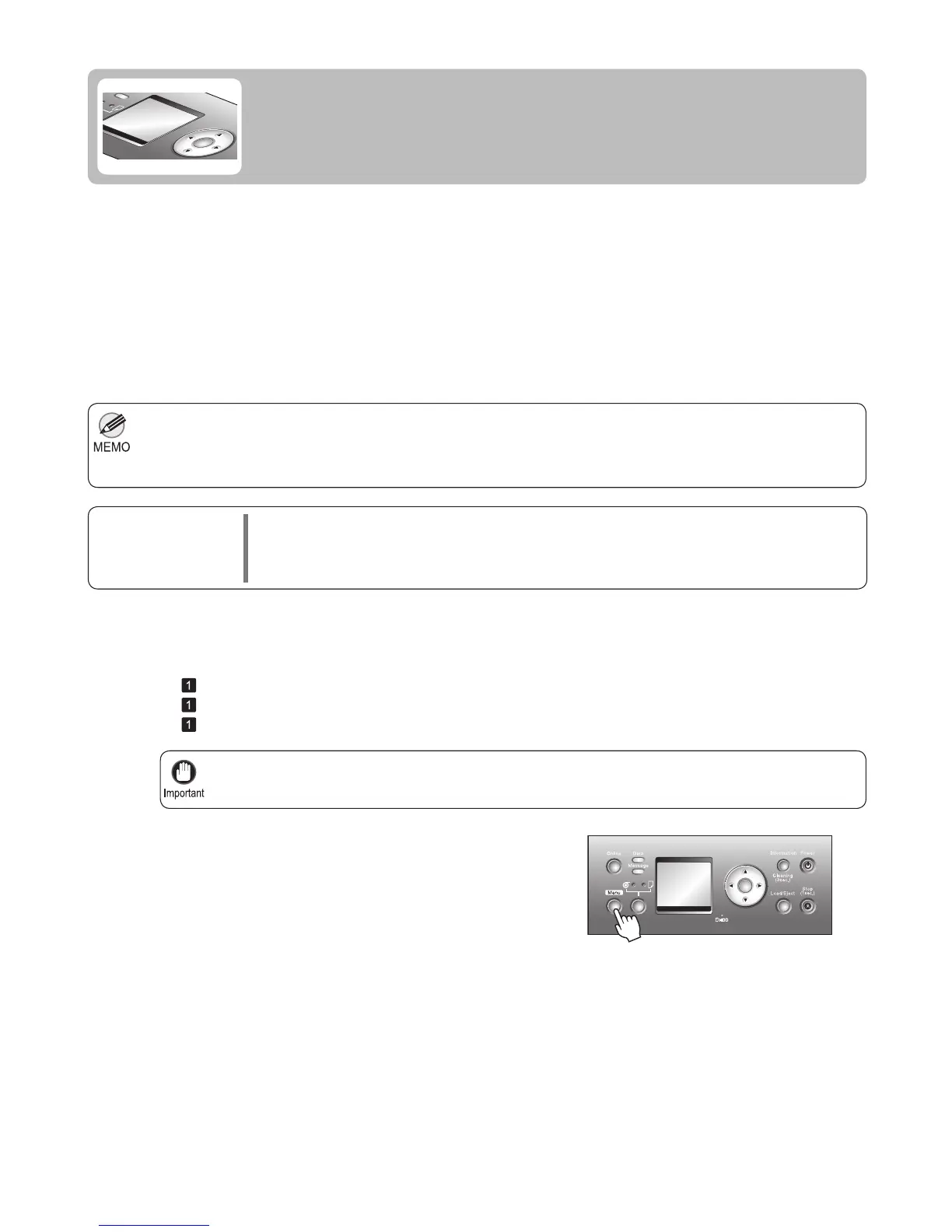
Press the Menu button to display MAIN MENU .
If Line Length Does Not Match
Adjust the length of printed lines as follows.
(→
, Attaching the Roll Holder to Rolls)
(→
, Loading Rolls in the Printer)
(→
, Loading Sheets in the Printer)
OK
OK












 To Next Page