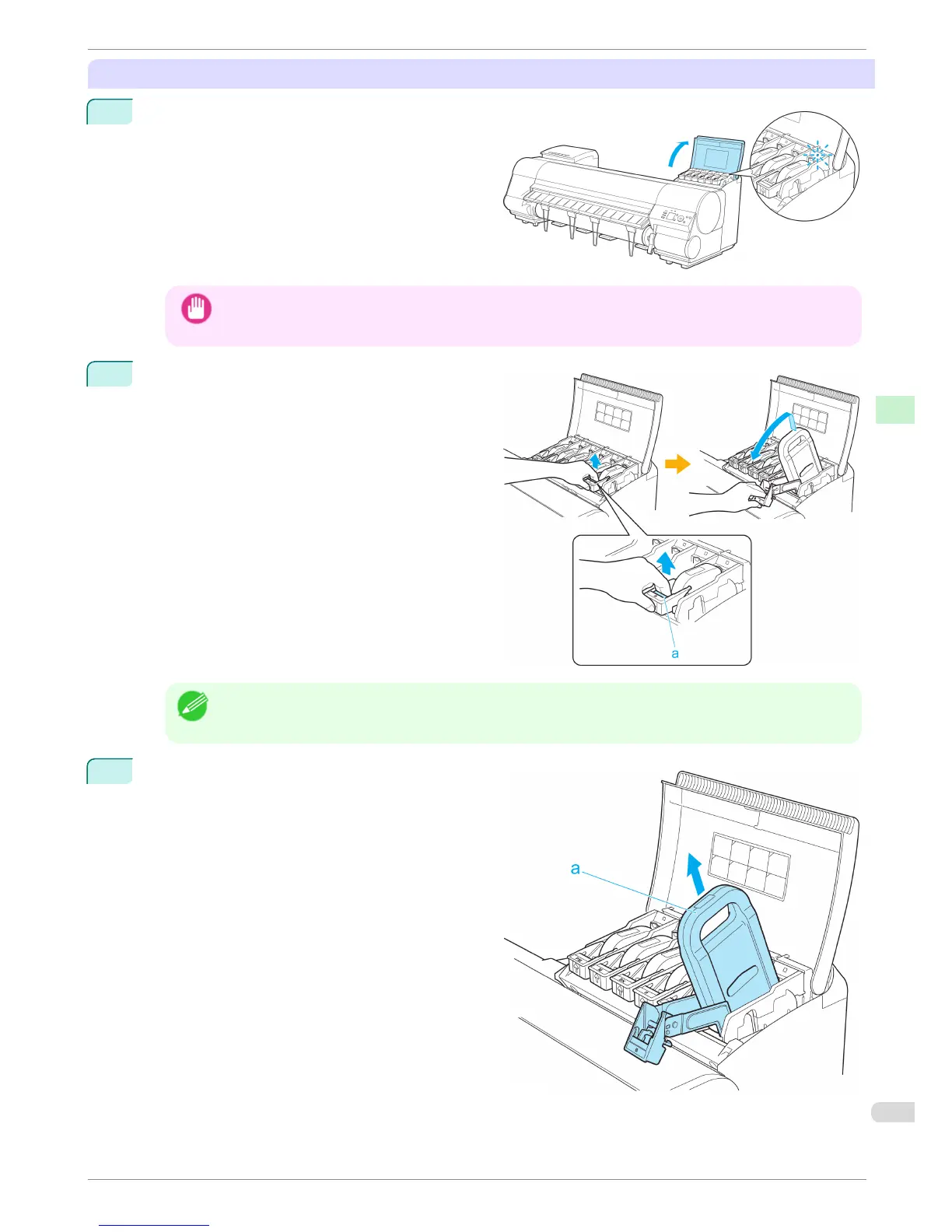
Remove the Ink Tank (700 ml)
1
Open the Ink Tank Cover of the tank for replace-
ment and check the Ink Lamp.
The Ink Lamp flashes quickly if there is no ink left.
Important
• Avoid hitting the printer when replacing an Ink Tank. Handle the printer gently when replacing tanks. Jolting
the printer during printing may deteriorate print quality.
2
Lift the stopper (a) of the Ink Tank Lock Lever for
the color to replace. Lift the Ink Tank Lock Lever
until it stops, and then push it down to the front.
Note
• Push the Ink Tank Lock Lever down until it locks.
• Make sure the Ink Tank Lock Lever does not return to the original position.
3
Hold the Ink Tank by the handle (a) and remove it.
Press the OK button.
iPF8400
Replacing Ink Tanks
Basic Guide
Consumables and Maintenance Ink Tanks
27














 To Next Page