7
MODE MEMORY
Stores nine copy settings for frequently used copy functions.
1. Set the copy settings to be stored.
2. Press Special Features button.
3. Press Mode Memory, and press Store/Erase button.
4. Press Store, select location M!-M9, and press Next button.
5. Select Yes to save copy setting, press OK and Done buttons.
To Store a memory button name
1. Follow steps 2-3, press Store Name button.
2. Select the memory button M1-M9, and press Next button.
3. Enter the name, and press OK and Done buttons.
To recall copy settings
1. Press Special Features, and press Mode Memory button.
2. Select the memory button, press OK and Done buttons.
3. Place originals and press the start button.
COVER/SHEET INSERTION
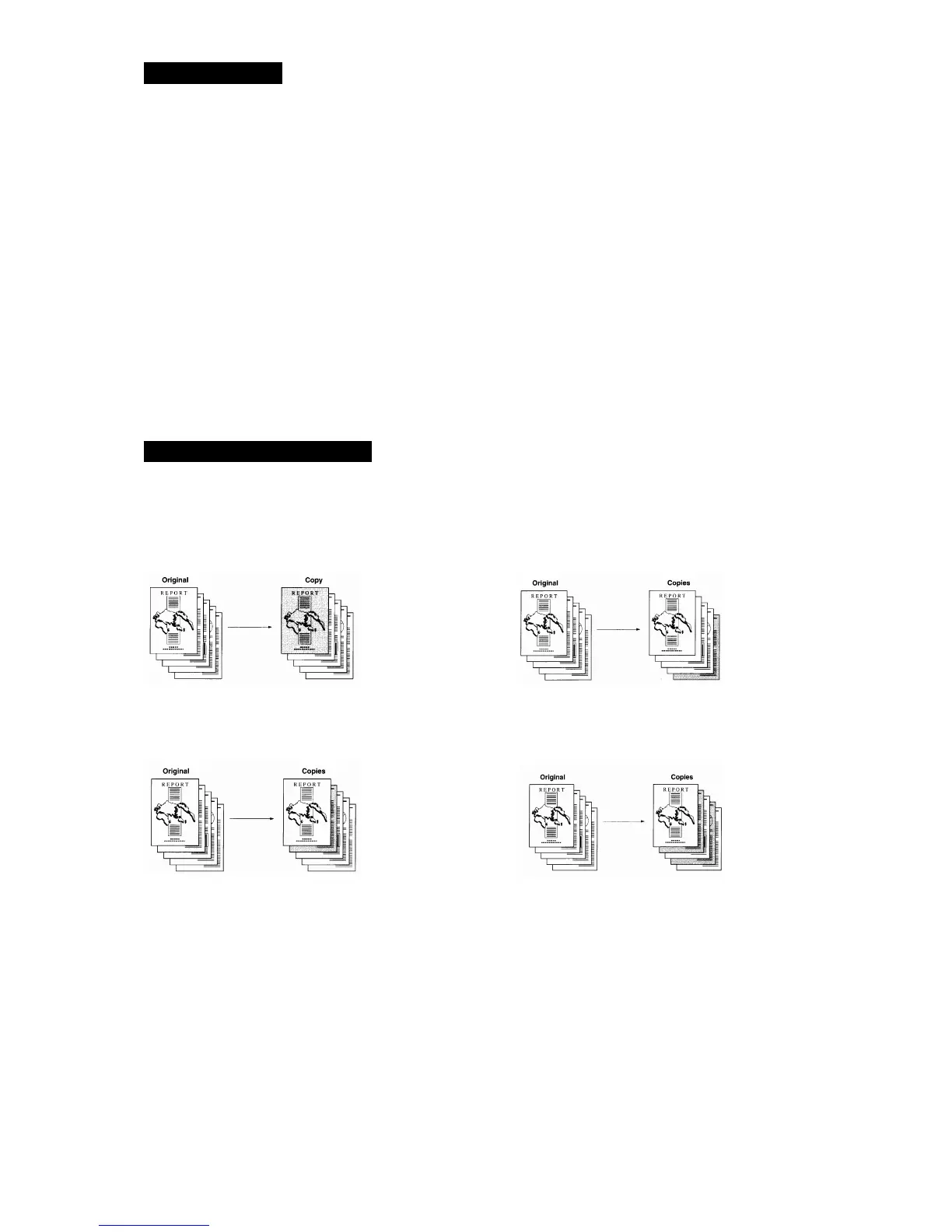
Sets the machine to automatically add front and back covers, with sheet inserts using different types of
media.
Front Cover – Adds a front cover to each set. Back Cover – Adds a back cover to each set.
Sheet Insertion – Adds sheet insertions Chapter Page – Adds chapter pages between
between the pages of single sided sets. the pages of double sided sets.
1. Press Special Features button.
2. Press Cover/Sheet Insertion button, select the desired settings, and press Next button.
3. Select Printed or Blank, and press Next button.
4. Select the side the back cover is to be copied onto – 1
st
or 2
nd
side, and press Next button.
5. Specify Sheet/Chapter page numbers, where the sheet is to be inserted, and press Next button.
6. Select paper source for each cover/sheet insertion, and press OK and Done button.
7. Set other copy settings ie double siding, stapling etc.
8. Place originals and press the start button.


 To Next Page