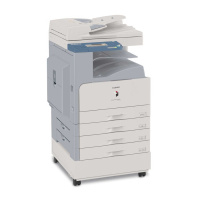
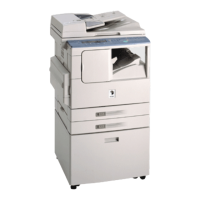
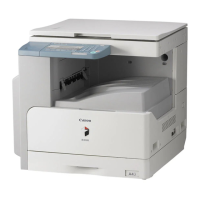
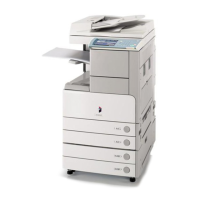
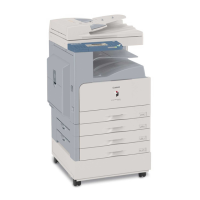
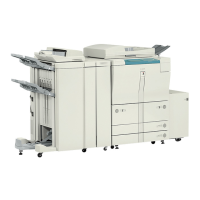
This document serves as a quick guide for Canon imageRUNNER series devices, specifically models IR2200, IR2800, IR3300, IR4600, IR5000, and IR6000, outlining their basic and advanced copying features. It provides instructions for various copying tasks, from simple document placement to complex finishing options and image manipulations.
Function Description
The Canon imageRUNNER devices are designed to perform a wide range of copying functions, catering to both basic and advanced user needs. Their primary function is to reproduce documents, with capabilities extending to handling different original types, paper sizes, and output formats. The devices can process originals placed on a platen glass for items like books or transparencies, or automatically feed stacks of documents using a document feeder. They support various output options, including single-sided and double-sided copies, collated or grouped sets, and even stapled or hole-punched documents when equipped with optional accessories. Advanced features allow for image manipulation such as enlarging, reducing, combining multiple pages onto one, separating images, mirroring, repeating images, and adjusting sharpness. The devices also offer memory functions to store frequently used copy settings and job reservation for queuing multiple copy tasks.
Usage Features
Original Placement:
- Platen Glass: For delicate or irregular originals like books, transparencies, cut-and-pasted articles, torn originals, or originals smaller than A5. Originals should be placed face down, aligned with the orange arrow at the top left corner, and the lid gently lowered.
- Document Feeder: For automatically scanning stacks of originals. Originals should be placed face up, and slide guides adjusted to fit their size. It's advised not to use torn, curled, or stapled sheets in the feeder. For larger stacks, the Job Build feature can be used.
Copy Job Management:
- Cancelling Copy Job: A copy job can be stopped by pressing either the "Cancel" button on the touch screen or the "Stop" (orange) button on the control panel.
- Interrupt: Allows users to pause a current job to make priority copies. After pressing the "Interrupt" button, new originals can be placed, settings adjusted, and the "Start" button pressed. The machine will automatically resume the interrupted job after the priority copies are made.
- Reservation Job: Up to five copy jobs can be scanned into memory while the machine is processing the first job. Subsequent jobs will automatically start once the previous one is completed, allowing for continuous workflow.
Paper Handling:
- Paper Selection: The default is "Auto paper select," where the machine automatically chooses paper based on the original size. Users can manually select paper size using the "Paper Select" button.
- Card/Transparencies: These media types should be loaded into the manual feed tray on the right side of the machine, face up with the side to be copied on. Transparencies must be Canon-approved and never placed in front-loading cassettes. The machine automatically detects manual feed and adjusts paper size and media type.
Copy Quality and Image Manipulation:
- Copy Quality: Users can select from four original type modes (Text, Text/Photo, Printed Image, Photo) to optimize copy quality for different types of originals.
- Enlarging/Reducing:
- Preset Ratios: Quick buttons are available for common reductions (e.g., A3 to A4) and enlargements (e.g., A4 to A3).
- 1% Increments: Users can specify a custom copy ratio between 25% and 800% using the numeric pad.
- Auto Zoom: Automatically calculates the copy ratio to fit odd-sized originals onto standard paper sizes.
- Fit Image Mode: Reduces the image slightly to ensure the entire original is copied without cropping edges, ideal for edge-to-edge originals.
- Double-Sided Copying: Supports various double-sided copying scenarios: single-sided originals to double-sided copies, double-sided originals to double-sided copies, double-sided originals to single-sided copies, and book to double-sided copies. Originals for double-sided copying should be placed in the document feeder, except for books which go on the platen glass.
- Two-Page Separation: Copies two facing pages from a book or magazine onto two separate A4 sheets.
- Booklet: Re-paginates originals to create booklets. This feature can also include adding a front cover and saddle stitching if the Saddle Finisher-G1 is attached.
- Different Size Originals: Allows copying mixed A4 and A3 size originals together in a single job.
- Mode Memory: Stores up to nine frequently used copy settings for quick recall, including the ability to name these memory buttons.
- Cover/Sheet Insertion: Automatically adds front and back covers or sheet inserts using different media types. This can be configured for printed or blank sheets, and for specific page numbers.
- Transparency Interleaving: Automatically inserts a sheet of paper between each transparency copy to protect their surfaces.
- Job Build: For documents exceeding the document feeder's capacity or containing a mix of single-sided, double-sided, or book pages. Originals are scanned in multiple batches, and copies are output as one complete document.
- Recall: Recalls the three most recent copy settings from memory.
- Shift: Moves the image on the copy, useful when originals are smaller than the output paper size, allowing the image to be shifted to the center or a corner.
- Margin: Creates a wider margin by moving the entire original image by a designated width.
- Frame Erase: Erases unwanted shadows and lines from copies.
- Original Frame Erase: Removes dark borders and frame lines that appear when the original is smaller than the output paper size.
- Book Frame Erase: Eliminates lines and shadows from copying two pages from a book.
- Binding Erase: Erases shadows from hole-punched originals.
- Image Combination: Reduces 2, 4, or 8 pages to fit onto one or both sides of the output paper.
- Image Separation: Divides an original into equal sections and copies each section in an enlarged form onto separate sheets of paper.
- Negative/Positive: Inverts black areas to white and white areas to black.
- Mirror Image: Reverses the image as a reflection.
- Image Repeat: Repeats images in vertical and horizontal directions.
- Sharpness: Adjusts the sharpness of text, lines, photographs, or halftones. "Low" is recommended for photographs, while "High" is for text and fine lines.
Maintenance Features
The provided quick guide primarily focuses on operational features rather than maintenance. However, implicit in the instructions for placing originals and handling paper, there are aspects that contribute to proper machine care:
- Careful Original Placement: Instructions to "gently lower the lid" for platen glass use and to "not place originals with torn or curled edges, large binding holes, or stapled sheets" in the document feeder help prevent damage to the machine's scanning mechanisms and paper path.
- Correct Media Loading: Specific guidance on loading transparencies and card stock into the manual feed tray and avoiding front-loading cassettes for these materials ensures that the machine's internal components are not stressed or damaged by inappropriate media.
- Understanding Machine Configuration: The note "Certain features in this guide may not appear on your machine due to machine configuration" implies that users should be aware of their specific machine's capabilities and optional accessories (like the Finisher) to avoid attempting operations not supported by their model, which could potentially lead to errors or misuse.
While not explicitly "maintenance," these usage guidelines contribute to the longevity and smooth operation of the device by promoting correct handling and preventing common causes of jams or damage.

 Need help?
 General

 To Next Page