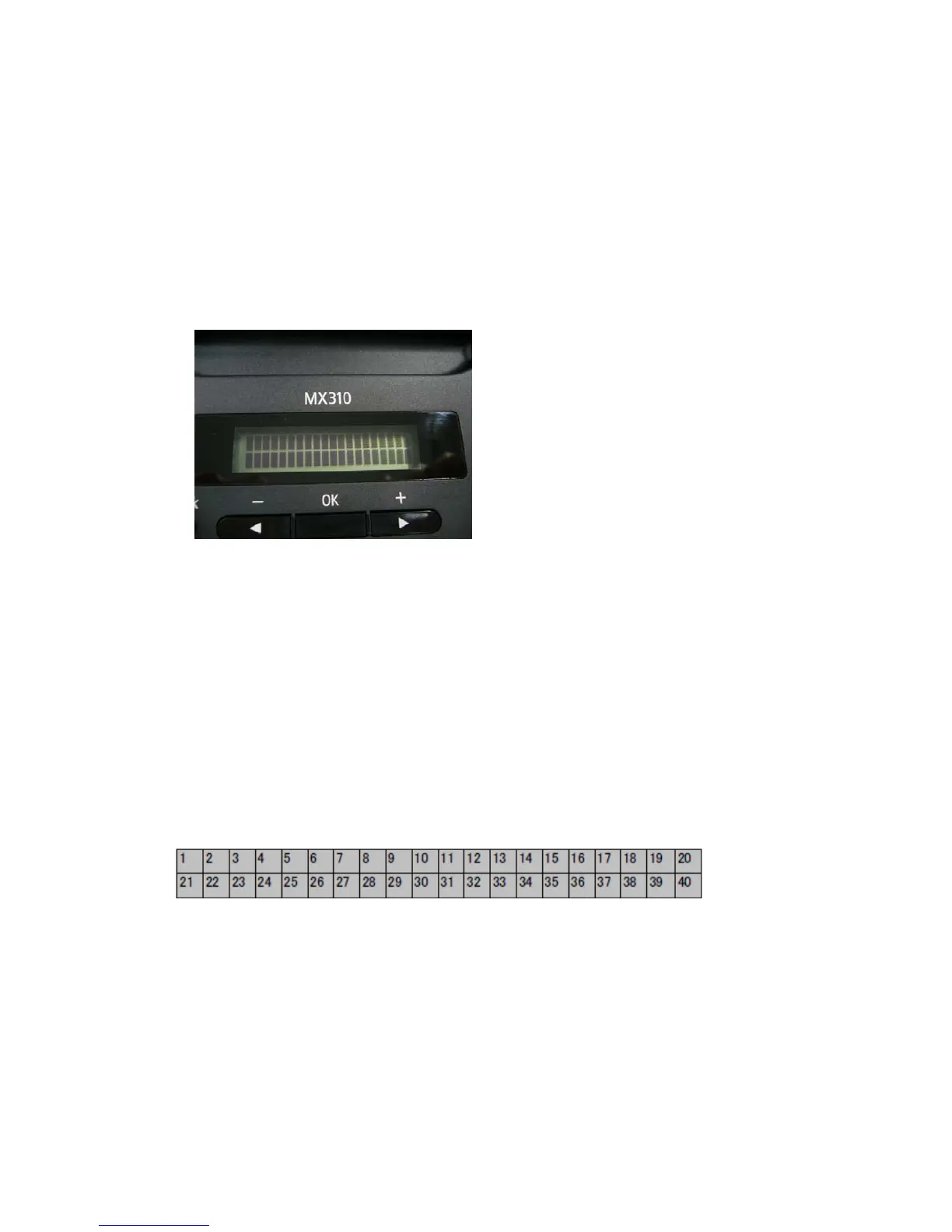
<Button and LCD test>
Confirm the operation after replacement of the operation panel unit, scanner unit, or Logic board.
1) In the service mode, after pressing the Stop/Reset button 12 times, press the ON/OFF button to enter
the button and LCD test mode.
The ON/OFF button LED: Lights in green
In Use/Memory LED: Lights in green
Alarm LED: Lights in orange
LCD: All dots (black) are displayed
2) In the button and LCD test mode, each time the OK button is pressed, the following LEDs are turned off.
1 time: ON/OFF LED is turned off.
2 times: In Use/Memory LED is turned off.
3 times: Alarm LED is turned off.
3) After all the above LEDs are turned off, the key entering will be available. Press each button of the
operation panel. Each time the button is pressed, the buzzer sounds and the segment on the LCD
representing each button will be undisplayed.
<The number of each segment of the LCD and the corresponding button names>
(14/32)













 To Next Page