78 ImageBrowser Software User Guide
Chapter 6
Using Supplementary Features
7.
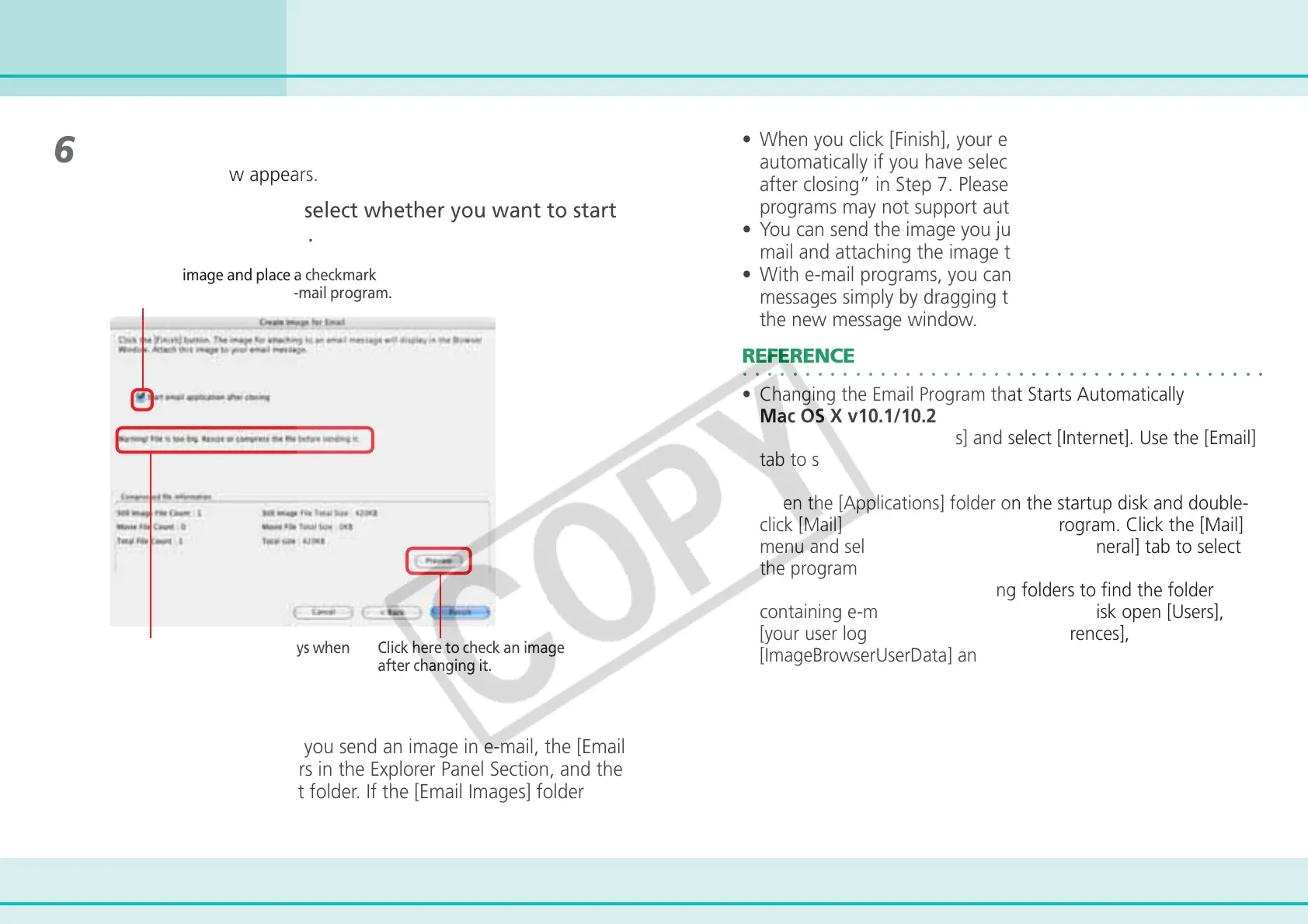
Save the image and select whether you want to start
your e-mail program.
Creating Images for E-mail (2/2)
A warning message displays when
the file size is large.
Click here to check an image
after changing it.
8.
Click [Finish].
• If this is the first time you send an image in e-mail, the [Email
Images] folder appears in the Explorer Panel Section, and the
image is saved in that folder. If the [Email Images] folder
already exists, the image is saved in that folder.
• When you click [Finish], your e-mail program starts
automatically if you have selected “Start email application
after closing” in Step 7. Please note that some e-mail
programs may not support auto startup.
• You can send the image you just created by opening a new e-
mail and attaching the image to the e-mail message.
• With e-mail programs, you can attach images to e-mail
messages simply by dragging them from the Browser Area to
the new message window.
○○○○○○○○○○○○○○○○○○○○○○○○○○○○○○○○○○○○○○○○○○
REFERENCE
• Changing the Email Program that Starts Automatically
Mac OS X v10.1/10.2
Open [System Preferences] and select [Internet]. Use the [Email]
tab to select the program.
Mac OS X v10.3
Open the [Applications] folder on the startup disk and double-
click [Mail] within it to start the Mail program. Click the [Mail]
menu and select [Preferences]. Use the [General] tab to select
the program.
• In Mac OS X, open the following folders to find the folder
containing e-mail images. On the startup disk open [Users],
[your user log-in name], [Library], [Preferences],
[ImageBrowserUserData] and [Mail].
Save the image and place a checkmark here
if you want to start your e-mail program.
6.
Click [Next].
The last window appears.



 To Next Page