82 ImageBrowser Software User Guide
Chapter 6
Using Supplementary Features
This section describes how to use slide shows that display multiple
selections of images in sequence at full screen size.
○○○○○○○○○○○○○○○○○○○○○○○○○○○○○○○○○○○○○○○○○
IMPORTANT
• RAW images and movies cannot be shown in slide shows.
Setting up a slide show
First, you need to specify how to run the slide show.
1.
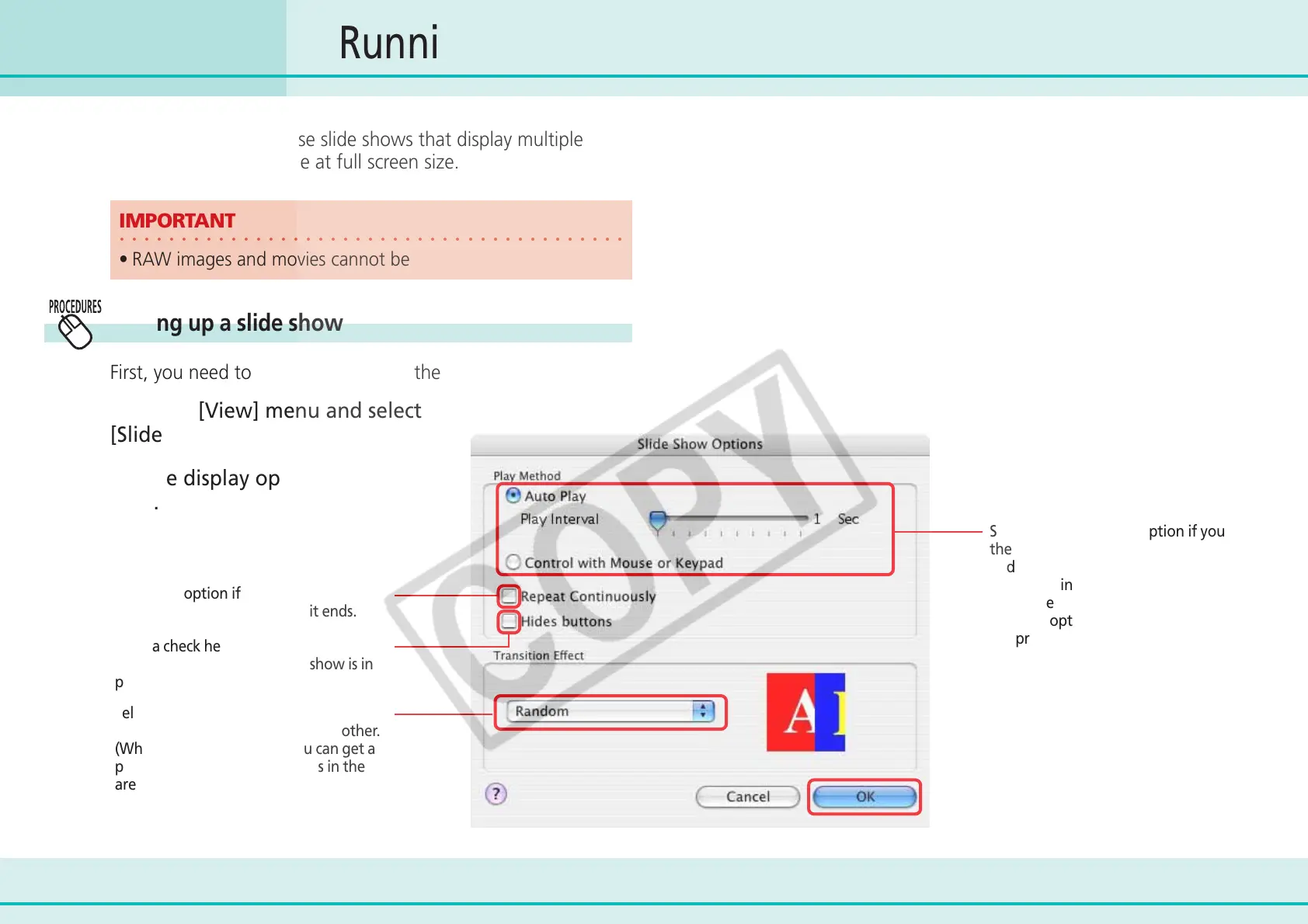
Click the [View] menu and select
[Slide Show Options].
2.
Set the display options and click
[OK].
Select the “Auto Play” option if you want
the slide show to proceed automatically
and go to the next slide after a
predetermined number of seconds.
Select the “Control with Mouse or
keypad” option if you want to control
the progress of the slide show manually.
Select the transition effect to be used
when moving from one slide to another.
(When you click an effect, you can get a
preview of how the effect looks in the
area to the right.)
Select this option if you want to continue
running the slide show when it ends.
Running Slide Shows (1/3)
Place a check here if you do not wish the
buttons to show while a slide show is in
progress.




 To Next Page