EasyManua.ls Logo

Canon VB-H41 - User Manual

Canon VB-H41
2 pages
Print Icon
To Next Page IconTo Next Page
Loading...
you can
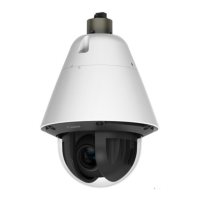
Network Camera
VB-H41 and
VB-H41B
NETWORK
CAMERA
Intelligent Full-HD PTZ network camera for
high-end security and monitoring applications.
The VB-H41 Full-HD PTZ camera combines a staggering total of 240x
zoom, low-light capability and fast auto-focus. Flexible installation
options for indoor and outdoor use.
Key features
•
Two colour options: Silver (VB-H41) and
Black (VB-H41B)
•
Full-HD PTZ camera
•
Superior image quality using Canon DIGIC
DV III
•
Powerful 20x optical zoom lens with 12x
digital zoom and fast autofocus (60.4°
wide angle at wide end)
•
Canon DIGIC NET II supports Motion JPEG
and H.264 video (up to 30 fps)
•
Best-in-class low-light performance:
colour at 0.4 lux and B/W at 0.02 lux
•
Smart Shade Control (SSC) improves
foreground objects in bright backlit scenes
•
True Day/Night and two-way audio
(supports playback of saved audio files
from camera)
•
Intelligent Functions and ONVIF V2.2
(Profile S) compliant
Optical
20x Zoom
20x
Day / Night
IR cut filter
Min.
Illumination
0. 4
lux
Two-Way
Audio
Power Supply
PoE/DC/AC
JPEG
H.264
2.1
MEGA
PIXELS
Privacy
Mask
SD Card
Backup
Recording
IPv6
IPSec
SSL/TLS
Intelligent
Functions
60.4
°
Horizontal
Viewing Angle
PTZ
Digital
PTZ
Auto IP
AGC


Other manuals for Canon VB-H41

Questions and Answers

  • J
    Julia SmithSep 3, 2025
    What to do if VB Initial Setting Tool does not operate for Canon VB-H41?
    • B
      bfieldsSep 4, 2025
      If the VB Initial Setting Tool isn't operating for your Canon Security Camera, check the following: * Ensure the LAN cable is correctly connected. * Restart the camera. * Verify that the camera and the PC running the tool are on the same LAN segment. * If the [Windows Firewall] function is enabled, see “Notes on Use When the [Windows Firewall] Function is Enabled”. * Check if you are using an older version of the VB Initial Setting Tool.
  • B
    beckeredwardSep 18, 2025
    Why Admin Tools or Admin Viewer will not start on Canon VB-H41?
    • M
      Michael JonesSep 18, 2025
      If the Admin Tools or Admin Viewer won't start for your Canon Security Camera, here are some things to check: * If you see “Your web browser is not supported,” use Internet Explorer 7.0 or later. * If you see “Application could not be started. Install .NET Framework 3.5 (SP1 or later).”, install .NET Framework 3.5 (SP1 or later) or enable settings. * If you see “JavaScript is not available or disabled on your web browser.”, set [Active Script] to [Enable] in Internet Explorer's security settings. * If you see “Application could not be started. The following settings must be carried out to use the Admin Viewer and Admin Tools.”, complete the listed steps.
  • S
    sara86Sep 16, 2025
    What does 'Cannot access the SD card' mean on Canon VB-H41 Security Camera?
    • J
      James WilsonSep 16, 2025
      If you see the message “Cannot access the SD card. Please recreate the video management imformation on the Setting page” when starting the Recorded Video Utility for your Canon Security Camera, go to [SD Card Information] under [Memory Card] in the setting page and check [Video Management Information Status]. If it says [Video Management Information Recreation Required], click [Exec] in [Recreate Video Management Information] under [SD Card Operations]. After recreating, ensure that [Video Management Information Status] is [Normal].
  • M
    marshalllaurieSep 14, 2025
    Why video is not updated in the Digital PTZ panel in Admin Viewer of Canon VB-H41 Security Camera?
    • M
      Michael DavisSep 14, 2025
      If the video is not updating in the Digital PTZ panel in Admin Viewer for your Canon Security Camera, the [Maximum Connection Time (sec.)] setting under [Video Server] on the Settings page may be the cause. If the value is set to other than 0, the video will no longer be updated after the set time elapses. Setting it to 0 makes the video update time unlimited, but this affects the connection time for all clients.
  • K
    Kristen WebbSep 12, 2025
    Why files cannot be saved in the Settings page or Admin Tools of Canon Security Camera?
    • L
      Lori WallaceSep 12, 2025
      If you're unable to save files in the Settings page or Admin Tools for your Canon Security Camera, it may be due to Windows 7, Windows Vista, or Windows Server 2008 prohibiting saving to certain folders. Try specifying folders like [Documents] or [Pictures].
  • K
    Kathleen AverySep 12, 2025
    Why video is not displayed for Digital PTZ panel in Admin Viewer for Canon VB-H41?
    • P
      pamelawardSep 12, 2025
      If the video is not displayed for the Digital PTZ panel in Admin Viewer for your Canon Security Camera, check if the [Maximum Number of Clients] is configured to 0 under [Video Server] in the Settings page. If it is, increase the number in [Maximum Number of Clients].
  • K
    knightmeganSep 9, 2025
    Why I cannot use recording-mode stream transmission on Canon VB-H41 Security Camera?
    • T
      Tamara SmithSep 9, 2025
      You cannot use recording-mode stream transmission on your Canon Security Camera if [Upload] in the [Upload] menu is set to HTTP or FTP. To enable recording-mode stream transmission, set [Upload] to [Upload Disabled].
  • B
    Brian RuizSep 7, 2025
    What to do if Camera Angle Setting Tool does not operate for Canon VB-H41?
    • P
      Phillip FernandezSep 7, 2025
      If the Camera Angle Setting Tool isn't working for your Canon Security Camera: * Check if the LAN cable is correctly connected. * Ensure the camera and the PC running the tool are on the same LAN segment. * If a message prompts you to install .NET Framework 3.5 (SP1 or later), install it or enable the necessary settings.
  • D
    Daniel Robinson IIISep 5, 2025
    Why video cannot be recorded on an SD memory card on Canon Security Camera?
    • H
      Heather GrantSep 5, 2025
      If video cannot be recorded on an SD memory card in your Canon Security Camera: * Check the [Video Record Action] settings under [Event] in the settings page and ensure it is set to [Record to SD Card] when an event occurs. * If recording-mode stream video is not being saved due to network errors or HTTP/FTP upload failures, check [Operation Settings] under [Memory Card] and ensure it is set to [Save Logs and Videos]. * To manually save recordings, ensure you have camera control privileges.
  • G
    gouldcrystalAug 20, 2025
    How to reset password on Canon VB-H41?
    • X
      xsimsAug 21, 2025
      If you've forgotten your password for the Canon Security Camera, you can initialize all settings of the camera (excluding date and time) using the reset switch. The default administrator password required for initialization is “camera”. Keep in mind that this will also reset network settings like the IP address and subnet mask, which you'll need to configure again.

Canon VB-H41 Specifications

Image Sensor IconImage Sensor
sensor type1/3 inch CMOS
number of pixelsApprox. 2.1 million pixels
scanning systemProgressive
Optics IconOptics
zoom magnification and control20x powered zoom lens with auto focus (12x digital zoom, total 240x zoom)
focal length4.7mm (wide) – 94mm (telephoto)
horizontal field of view60.4° (wide) – 3.2° (telephoto)
lens F-numberF1.6 – F3.5
minimum subject illumination (day mode)0.4 lux (Colour, F1.6 at 1/30 sec, SSC off, 50IRE)
minimum subject illumination (night mode)0.02 lux (Mono, F1.6 at 1/30 sec, SSC off, 50IRE)
focus controlAuto / One-shot AF / Manual / Fixed at infinity
focusing region (day mode)0.3 m – infinity (wide) / 1.0 m – infinity (telephoto)
focusing region (night mode)1.0 m – infinity (wide) / 1.5 m – infinity (telephoto)
shutter speed1, 1/2, 1/4, 1/8, 1/15, 1/30, 1/60, 1/100, 1/120, 1/250, 1/500, 1/1000, 1/2000, 1/4000, 1/8000 and 1/16000sec
Video and Audio IconVideo and Audio
video compression methodH.264, JPEG
video output size (JPEG)1920 x 1080, 960 x 540, 480 x 270, 320 x 240
video output size (H.264)1920 x 1080, 960 x 540, 480 x 270
frame rate (JPEG)30 – 0.1 fps
frame rate (H.264)30/15/10/6/5/3/2/1 fps
audio communicationFull-duplex
audio compression methodG.711 μ-law (64 kbps)
Power IconPower
power sourcesPower over Ethernet (48V DC, Conforms to IEEE 802.3af), 100V – 240V AC, 50/60Hz (via optional AC Adaptor PA-V17), 12V DC or 24V AC (via supplied two-pin connector)
power consumption (PoE)Max. approx. 9.0 W
power consumption (AC adapter PA-V17)Max. approx. 10.6 W
power consumption (DC Input)Max. approx 8.6 W
power consumption (AC Input)Max. approx. 8.8 W
Operating Environment IconOperating Environment
operating temperature-10°C to 50°C
operating humidity5% – 85% RH (without condensation)
Dimensions and Weight IconDimensions and Weight
dimensions (W x H x D)132mm x 155mm x 132mm
weightApprox. 1140 g

Related product manuals