EasyManua.ls Logo

Canon VB-H710F - User Manual

Canon VB-H710F
2 pages
Print Icon
To Next Page IconTo Next Page
Loading...
VB-H710F FULL HD FIXED IP SECURITY CAMERA
PROFESSIONAL PRODUCTS
Financial Institutions
Industrial Plants and Utilities
Military and Government Agencies
Airports and Transportation Centers
Casino/Gaming Industry
Commercial Offices/Retail Locations
Versatile Full HD Performance
Recommended For:
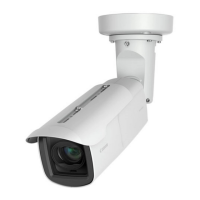
Featuring a distinctive rectangular housing, the VB-H710F Full HD Fixed IP Security
Camera is equipped with a built-in Genuine Canon wide-angle 3x optical zoom
lens with an ultra-wide 112.6º angle of view. A built-in motorized focus and
zoom function enables users to adjust those settings at any time from any
Internet-connected PC, which is a major benefit for inaccessible and/or
large-scale installations. Integrating an advanced 16:9 CMOS sensor,
DV III image processor, and the new Canon NET II
network video processor for full 1920 x 1080 HD up to 30 fps in both
H.264 and M-JPEG, the VB-H710F also provides ONVIF (Open Network
Video Interface Forum) Profile S conformance for compatibility with other
ONVIF-compliant third-party devices. The VB-H710F is also equipped
with On-board Video Analytics including Moving Object Detection,
Removed Object Detection, Abandoned Object Detection, Camera
Tampering Detection, Volume Level Detection, and a new Passing (or
“tripwire”) Detection. A Digital PTZ feature enables users to digitally “zoom”
in and crop-out up to five portions of the image. The VB-H710F can then
digitally encode and transmit just those cropped areas, which can be viewed
in a pre-set tour, in essence providing this fixed camera with PTZ capabilities.
Key Features
Full HD CMOS Sensor
Genuine Canon 112.6º Wide Angle Lens
Brilliant Low-Light Performance
On-Board Video Analytics
ONVIF Profile S Conformant
Canon’s Unique Remote Adjustment Function
(zoom and focus only)
DV III image processor
NET II network video processor
transmits H.264 and M-JPEG simultaneously
at 1920 x 1080 up to 30 fps


Other manuals for Canon VB-H710F

Questions and Answers

  • R
    Robin LarsonSep 3, 2025
    What to do if VB Initial Setting Tool does not operate for Canon VB-H710F?
    • A
      Adam HicksSep 4, 2025
      If the VB Initial Setting Tool isn't operating for your Canon Security Camera, check the following: * Ensure the LAN cable is correctly connected. * Restart the camera. * Verify that the camera and the PC running the tool are on the same LAN segment. * If the [Windows Firewall] function is enabled, see “Notes on Use When the [Windows Firewall] Function is Enabled”. * Check if you are using an older version of the VB Initial Setting Tool.
  • A
    audrey94Sep 18, 2025
    Why Admin Tools or Admin Viewer will not start on Canon Security Camera?
    • A
      Ashley CurtisSep 18, 2025
      If the Admin Tools or Admin Viewer won't start for your Canon Security Camera, here are some things to check: * If you see “Your web browser is not supported,” use Internet Explorer 7.0 or later. * If you see “Application could not be started. Install .NET Framework 3.5 (SP1 or later).”, install .NET Framework 3.5 (SP1 or later) or enable settings. * If you see “JavaScript is not available or disabled on your web browser.”, set [Active Script] to [Enable] in Internet Explorer's security settings. * If you see “Application could not be started. The following settings must be carried out to use the Admin Viewer and Admin Tools.”, complete the listed steps.
  • J
    Jennifer RomeroSep 16, 2025
    What does 'Cannot access the SD card' mean on Canon VB-H710F?
    • V
      Vincent WernerSep 16, 2025
      If you see the message “Cannot access the SD card. Please recreate the video management imformation on the Setting page” when starting the Recorded Video Utility for your Canon Security Camera, go to [SD Card Information] under [Memory Card] in the setting page and check [Video Management Information Status]. If it says [Video Management Information Recreation Required], click [Exec] in [Recreate Video Management Information] under [SD Card Operations]. After recreating, ensure that [Video Management Information Status] is [Normal].
  • K
    Krystal OrozcoSep 14, 2025
    Why video is not updated in the Digital PTZ panel in Admin Viewer of Canon VB-H710F Security Camera?
    • A
      Angela BrooksSep 14, 2025
      If the video is not updating in the Digital PTZ panel in Admin Viewer for your Canon Security Camera, the [Maximum Connection Time (sec.)] setting under [Video Server] on the Settings page may be the cause. If the value is set to other than 0, the video will no longer be updated after the set time elapses. Setting it to 0 makes the video update time unlimited, but this affects the connection time for all clients.
  • P
    Paul MatthewsSep 13, 2025
    Why video is not displayed for Digital PTZ panel in Admin Viewer for Canon VB-H710F Security Camera?
    • L
      Lisa HansonSep 13, 2025
      If the video is not displayed for the Digital PTZ panel in Admin Viewer for your Canon Security Camera, check if the [Maximum Number of Clients] is configured to 0 under [Video Server] in the Settings page. If it is, increase the number in [Maximum Number of Clients].
  • I
    Ian BushSep 12, 2025
    Why files cannot be saved in the Settings page or Admin Tools of Canon VB-H710F Security Camera?
    • K
      Kevin OwensSep 12, 2025
      If you're unable to save files in the Settings page or Admin Tools for your Canon Security Camera, it may be due to Windows 7, Windows Vista, or Windows Server 2008 prohibiting saving to certain folders. Try specifying folders like [Documents] or [Pictures].
  • J
    Jeremy GreenSep 9, 2025
    Why I cannot use recording-mode stream transmission on Canon VB-H710F Security Camera?
    • T
      Thomas GrossSep 9, 2025
      You cannot use recording-mode stream transmission on your Canon Security Camera if [Upload] in the [Upload] menu is set to HTTP or FTP. To enable recording-mode stream transmission, set [Upload] to [Upload Disabled].
  • A
    Angela GibsonSep 7, 2025
    What to do if Camera Angle Setting Tool does not operate for Canon VB-H710F?
    • T
      thomascollinsSep 7, 2025
      If the Camera Angle Setting Tool isn't working for your Canon Security Camera: * Check if the LAN cable is correctly connected. * Ensure the camera and the PC running the tool are on the same LAN segment. * If a message prompts you to install .NET Framework 3.5 (SP1 or later), install it or enable the necessary settings.
  • J
    John PhillipsSep 5, 2025
    Why video cannot be recorded on an SD memory card on Canon VB-H710F Security Camera?
    • T
      Terry EllisSep 5, 2025
      If video cannot be recorded on an SD memory card in your Canon Security Camera: * Check the [Video Record Action] settings under [Event] in the settings page and ensure it is set to [Record to SD Card] when an event occurs. * If recording-mode stream video is not being saved due to network errors or HTTP/FTP upload failures, check [Operation Settings] under [Memory Card] and ensure it is set to [Save Logs and Videos]. * To manually save recordings, ensure you have camera control privileges.
  • D
    David DanielsAug 21, 2025
    How to reset password on Canon VB-H710F?
    • R
      Robin PruittAug 21, 2025
      If you've forgotten your password for the Canon Security Camera, you can initialize all settings of the camera (excluding date and time) using the reset switch. The default administrator password required for initialization is “camera”. Keep in mind that this will also reset network settings like the IP address and subnet mask, which you'll need to configure again.

Canon VB-H710F Specifications

General IconGeneral
Max Resolution1920 x 1080
Frame RateUp to 30 fps
Effective PixelsApprox. 2.1MP
AudioYes
Audio Input/OutputInput: Monaural, Output: Monaural
Video CompressionH.264, M-JPEG
Network InterfaceRJ-45 (10Base-T/100Base-TX)
ProtocolsHTTP, HTTPS, TCP/IP, UDP, ARP, ICMP, DHCP, DNS, DDNS, FTP, SMTP, RTP, RTSP, RTCP, SNMP
SecurityIP address filtering, HTTPS encryption
Power SupplyPoE (IEEE 802.3af)
Operating Temperature-10°C - +50°C (14°F - 122°F)
Day/NightYes, IR cut filter
Operating Humidity20% - 80% (non-condensing)

Related product manuals