Preparing the Camcorder
22
Using the LCD Screen
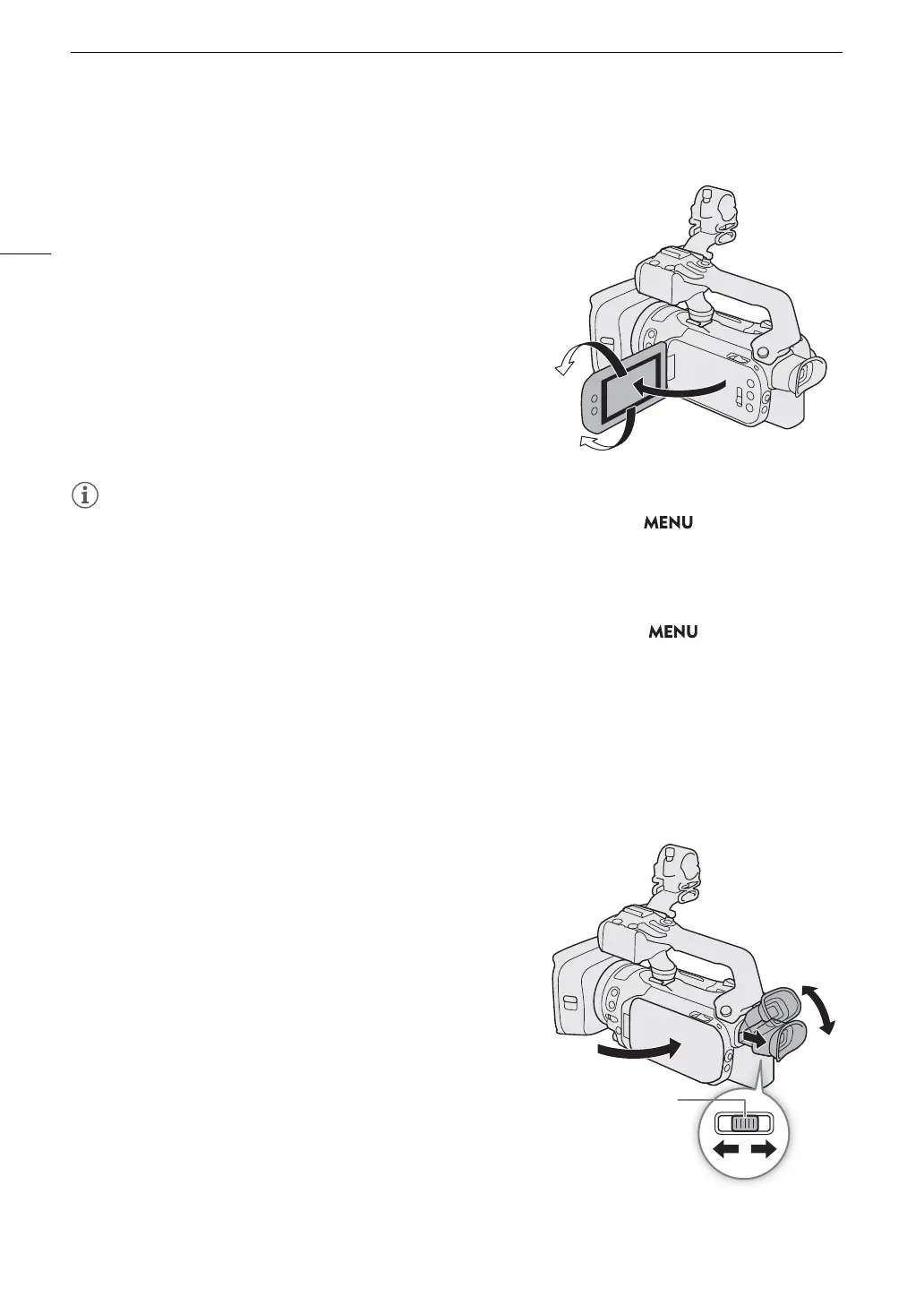
Open the LCD panel 90 degrees and adjust the viewing
angle.
• You can adjust the brightness and the backlight level of the LCD screen with the > [£ Display
Setup] > [LCD Brightness] or [LCD Backlight] setting respectively. When the camcorder is on, you can also
press and hold the DISP button for more than 2 seconds to open the [LCD Backlight] setup menu.
• Adjusting the brightness does not affect the brightness of recordings.
• Using a brighter LCD backlight setting will shorten the effective usage time of the battery pack.
• When the LCD panel is rotated 180 degrees toward the subject, you can use the > [£ Display
Setup] > [LCD Mirror Image] setting to flip the screen's image horizontally so it shows a mirror image of the
subject.
• For details about how to take care of the LCD screen, refer to Safety Instructions and Handling Precautions
(A 136), Cleaning (A 139).
Using the Viewfinder
Adjust the position of the viewfinder to a comfortable angle. You can also adjust the diopter, if necessary.
1 Turn on the camcorder (A 24) and close the LCD panel.
2 Pull out the viewfinder and adjust the viewing angle.
3Adjust the viewfinder using the dioptric adjustment lever.
Dioptric adjustment
lever



 To Next Page