Zooming
56
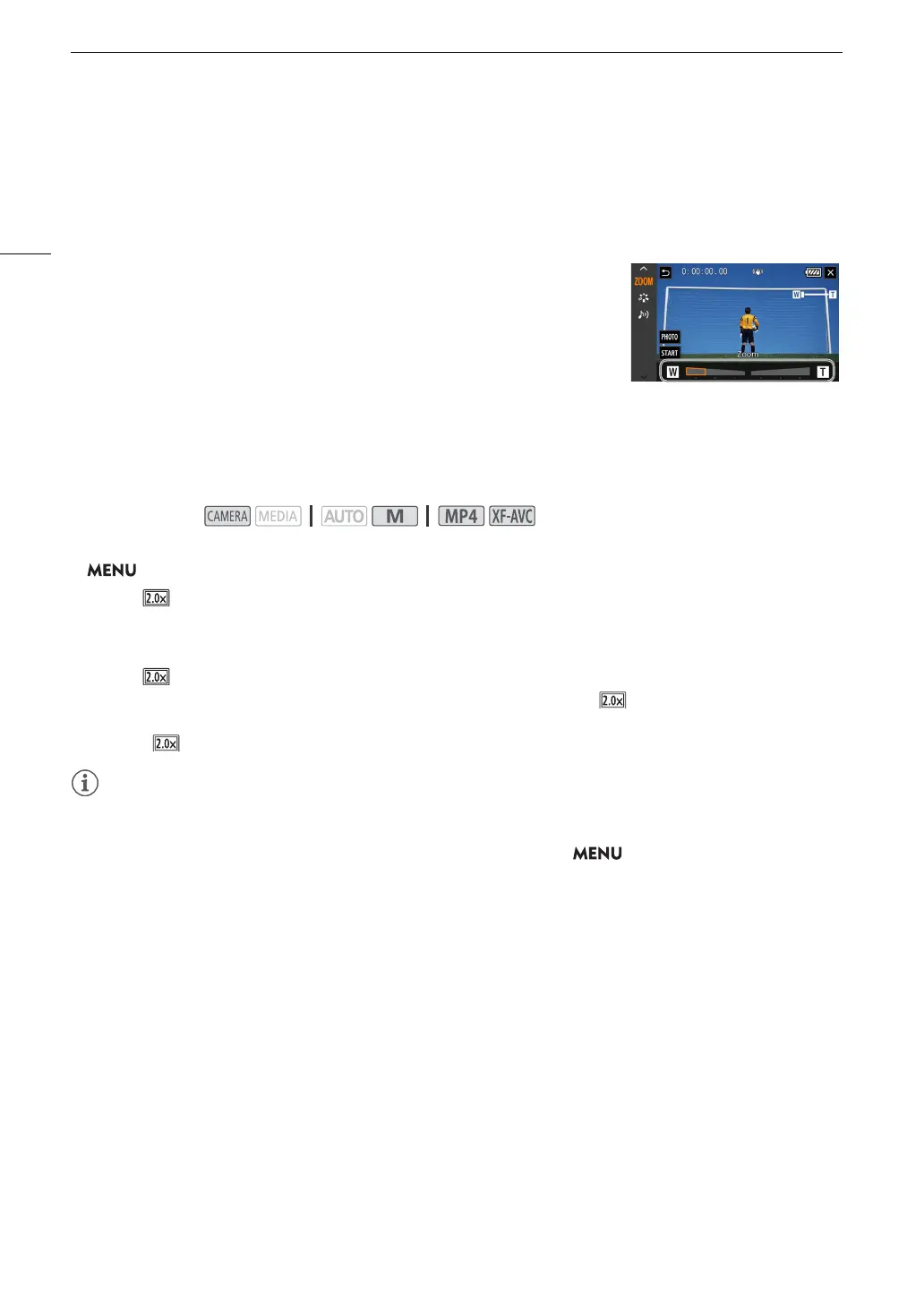
Using the Touch Screen’s Zoom Controls
1 Open the onscreen zoom controls.
[FUNC] > [R Zoom]
• The zoom controls appear at the bottom the screen.
2 Touch the zoom controls to operate the zoom.
• Touch anywhere within the V area to zoom out or anywhere within the U
area to zoom in. Touch closer to the center for a slow zoom; touch closer
to the V/U icons for faster zooms.
3 Select [X].
Digital Tele-Converter
Using the digital tele-converter, you can digitally increase the focal length of the camcorder by a factor of approx.
2 and record the enlarged image.
1 Select [Digital Zoom].
> [v ! Camera Setup] > [Digital Zoom]
2 Select [ Digital Tele-conv.] and then select [X].
3 Open the onscreen zoom controls.
[FUNC] > [R Zoom]
4 Select [ ] (digital tele-converter) and then select [X].
• The center of the screen will be enlarged approximately 2 times and the icon will appear on the left of
the screen.
• Select [ ] again before closing the screen to turn off the digital tele-converter.
• You can attach the optional TL-U58 Tele-converter and use it in conjunction with this function to increase the
effect.
• The digital tele-converter cannot be activated while recording or when > [v Camera Setup] >
[Conversion Lens] is set to [¿ WA-U58].
• The image is digitally processed so the image will deteriorate throughout the zoom range.
• The digital tele-converter will be deactivated if the resolution is switched between 3840x2160 and another
setting.
Operating modes:



 To Next Page