About this Manual
8
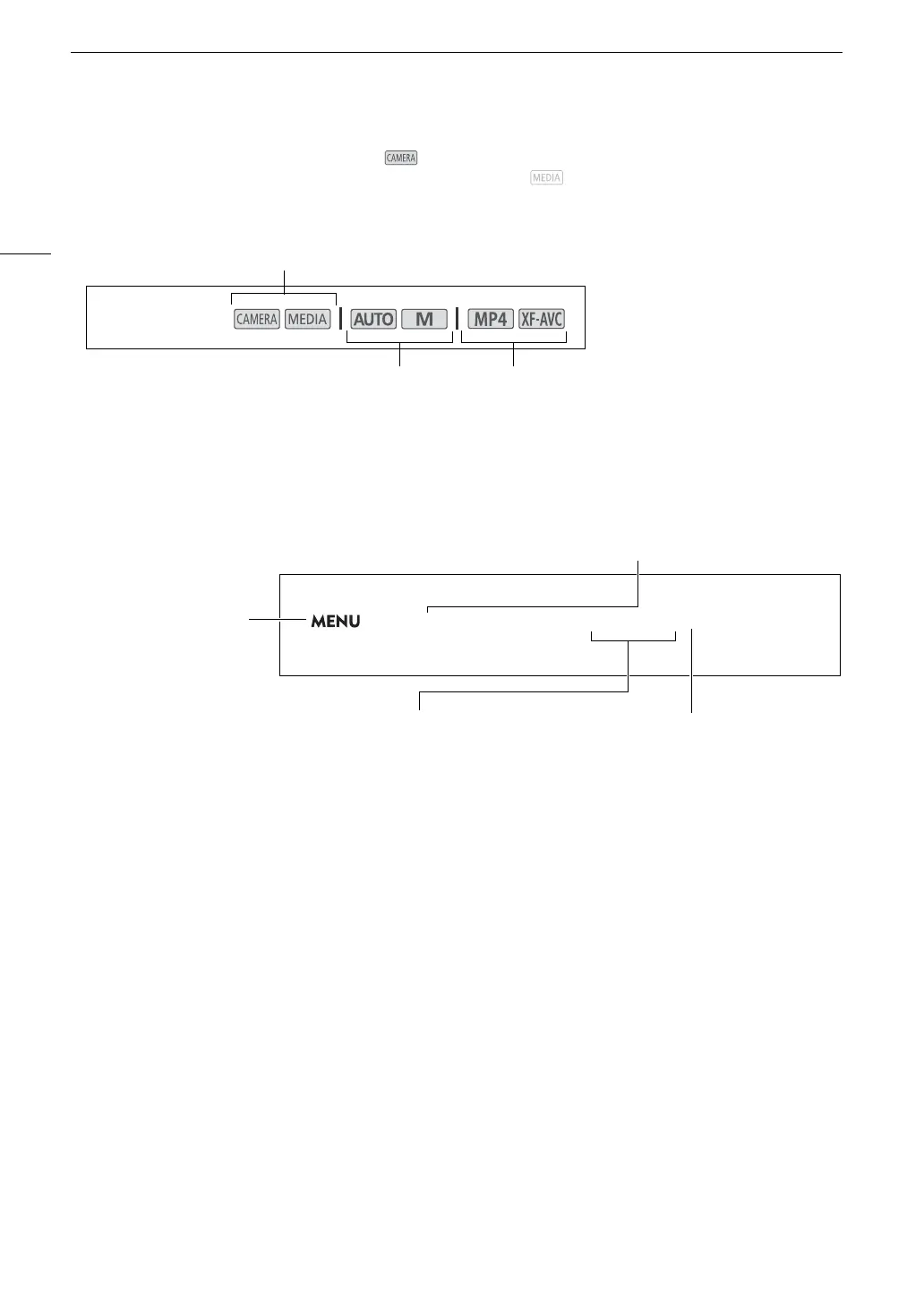
• Operating mode icons: A shaded icon (like ) indicates that the function described can be used in the
operating mode or video format shown; a non-shaded icon (like ) indicates that the function cannot be
used.
• The following style is used to represent menu selections. For a detailed explanation on how to use the menus,
refer to Using the Menus (A 28). For a summary of all available menu options and settings, refer to Menu
Options (A 121).
Operating modes:
Position of the power switch: shooting (CAMERA) or playback (MEDIA) mode.
For details, refer to Turning the Camcorder On and Off (A 24).
Position of the mode switch. For details refer to
Changing the Camcorder's Operating Mode (A 25).
Video format (MP4 or XF-AVC). For details,
refer to Selecting the Video Format (A 42).
This indicates to press
the MENU button.
Brackets [ ] indicate text as it appears on the
camcorder's screen (menu options, onscreen
buttons, messages, etc.).
This arrow indicates a deeper
level in the menu hierarchy or
the next step in a procedure.
1 Select [Initialize] for the desired SD card.
> [3 " Recording Setup] > [Initialize 8] > [6 Mem. Card A]
2 Select [Yes].
The menu page number is given
only for main procedures.



 To Next Page